After approval: posted, not used, or reopen
When work is Done, you have three choices. You find these buttons at the top of the requirement page.
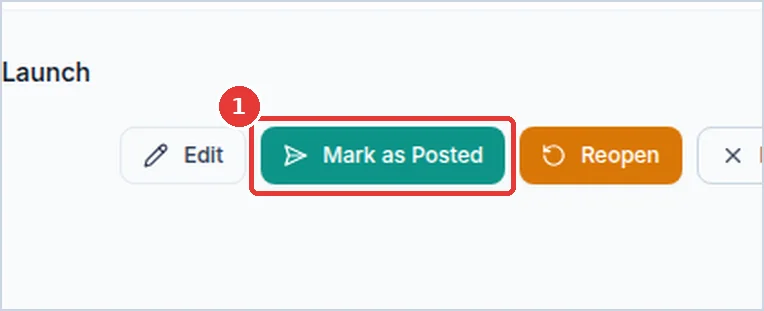
Mark as posted
Do this after you put the design on social media.
- Open the requirement. It says Done.
-
Click Mark as Posted.
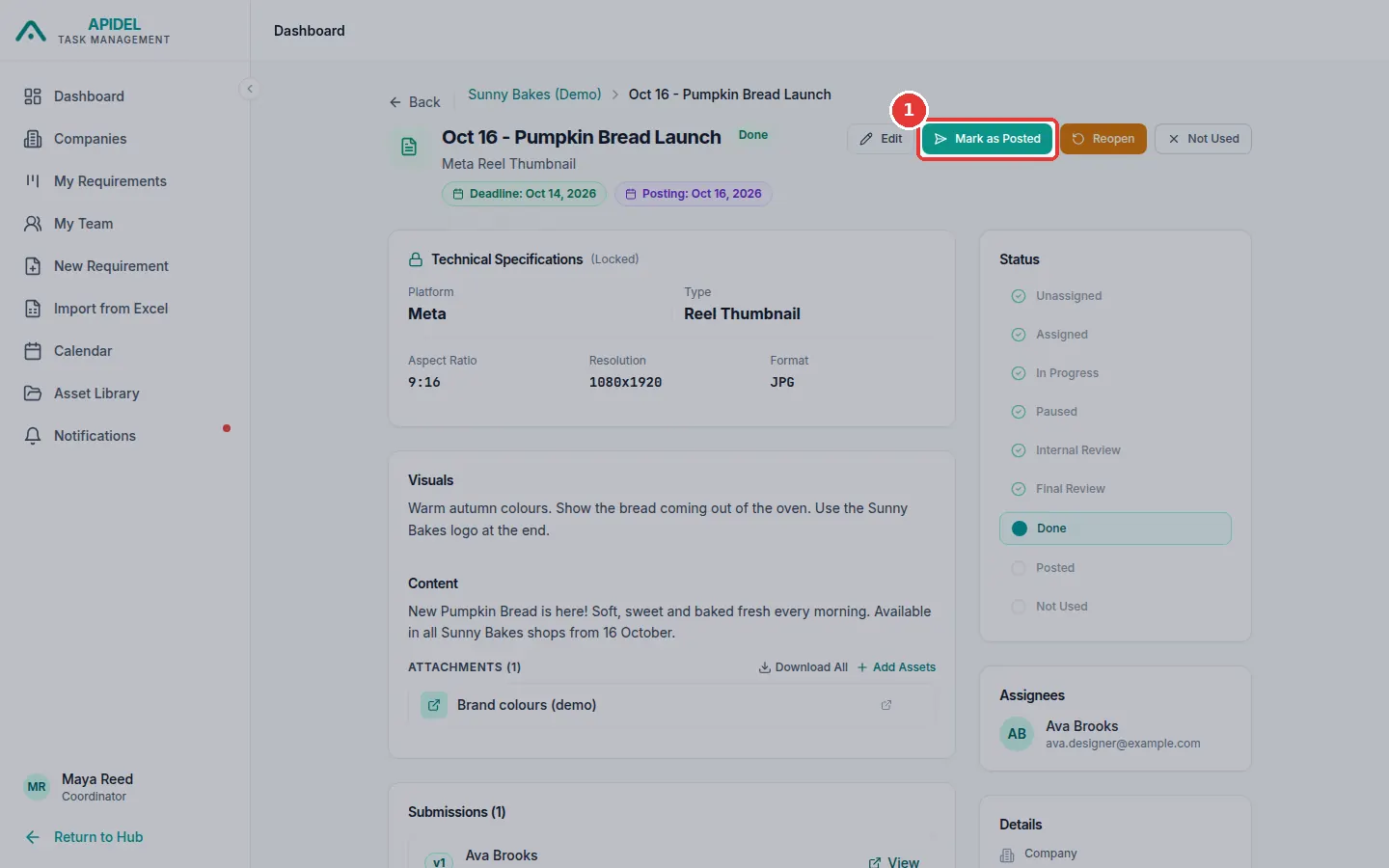
-
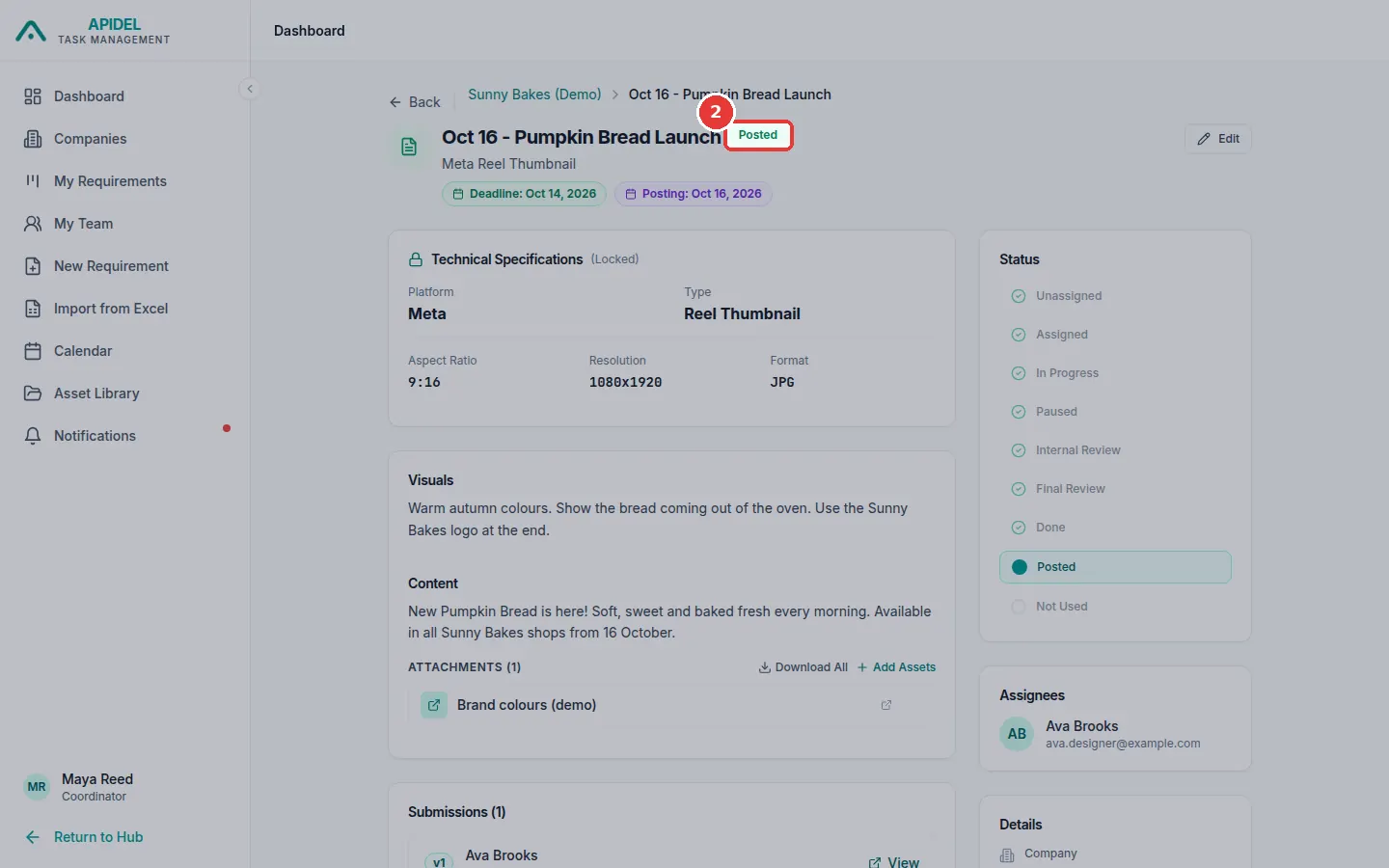
The requirement now says Posted.
Tip
You can also mark work as posted from the Calendar. Click the day, then click Post next to the work.
Mark as not used
Do this if the work is finished but you will not use it.
- Open the requirement. It says Done (or Final Review).
-
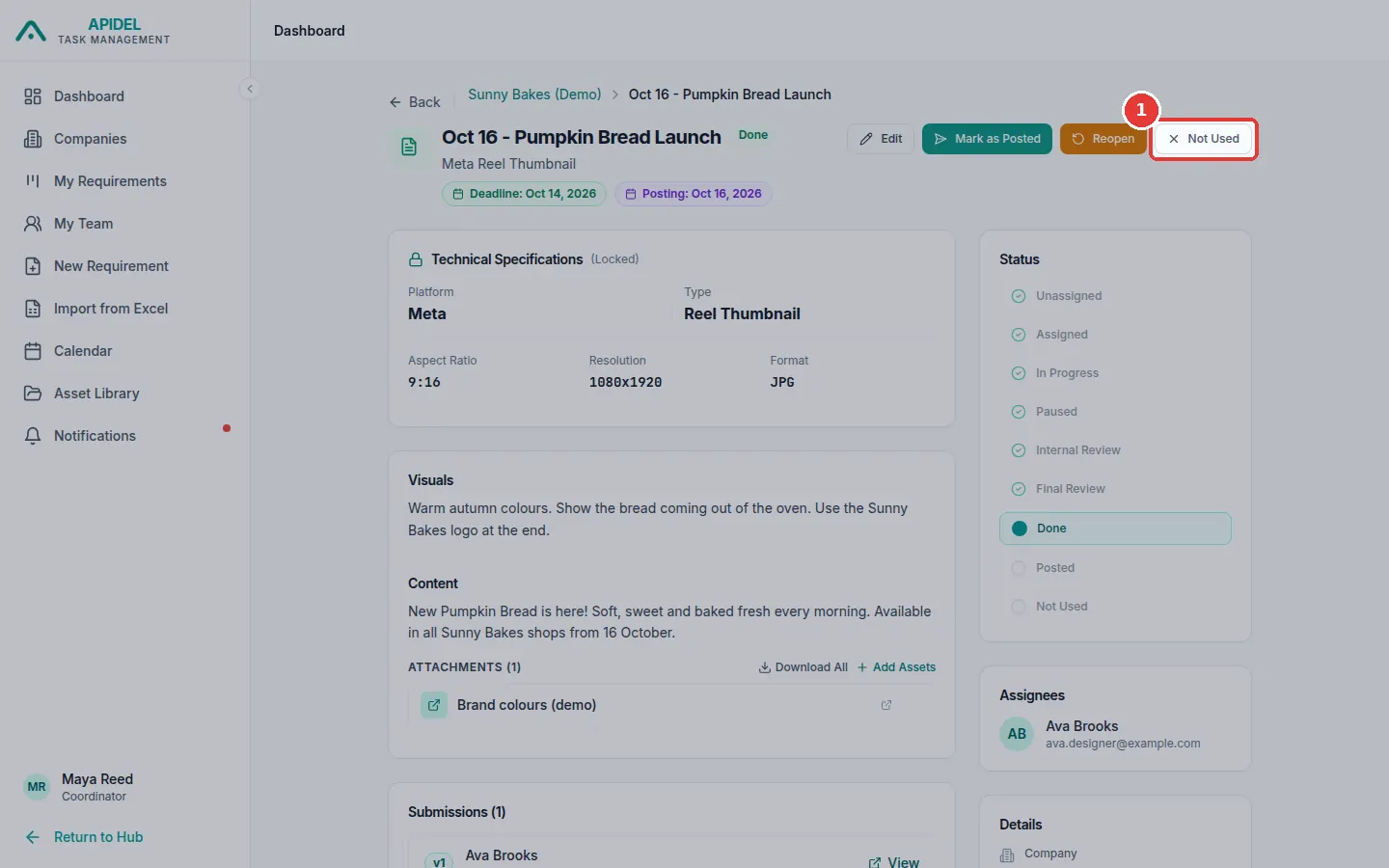
Click Not Used.
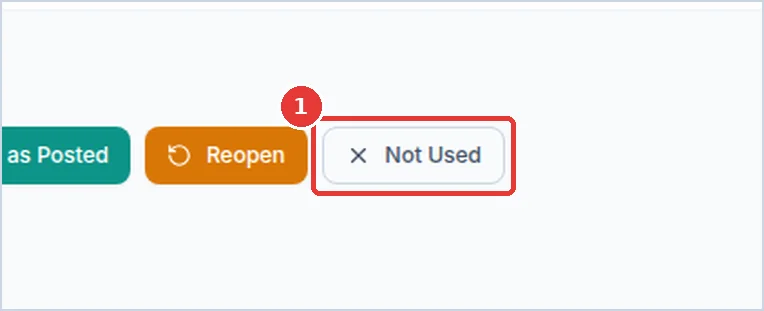
-
The requirement now says Not Used. The design team gets a message.
Reopen (ask for more changes after approval)
Use this if you approved the work, but now you need changes.
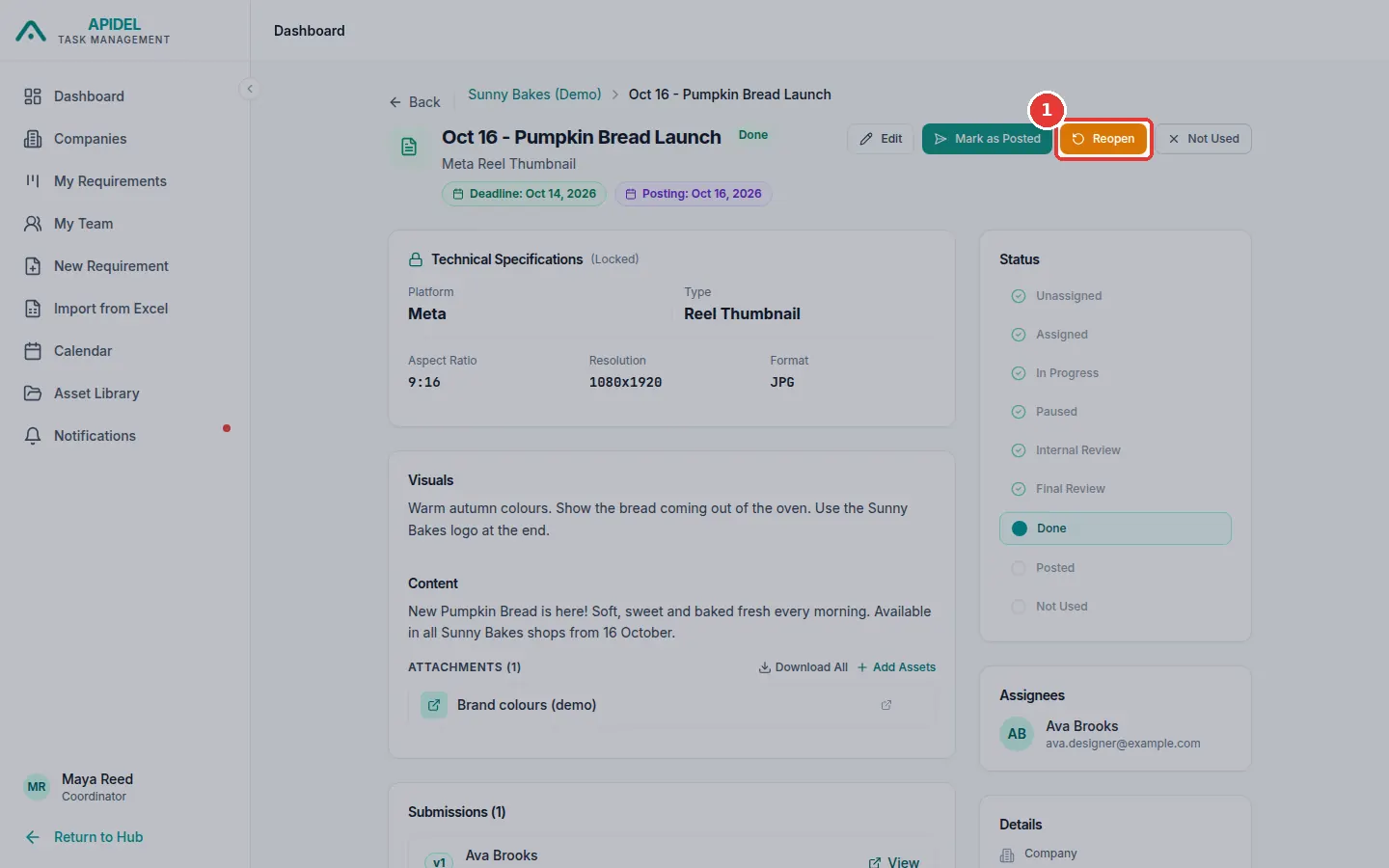
- Open the requirement. It says Done.
-
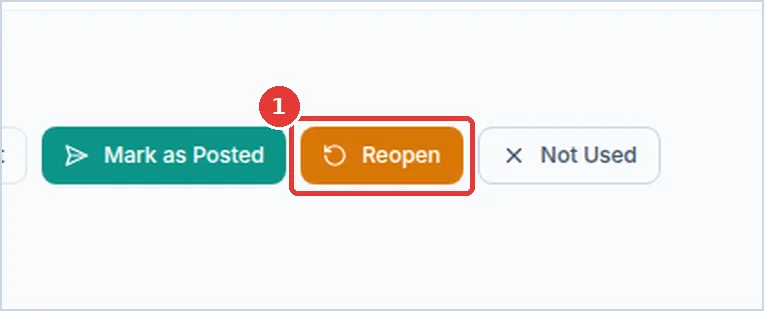
Click Reopen.
-
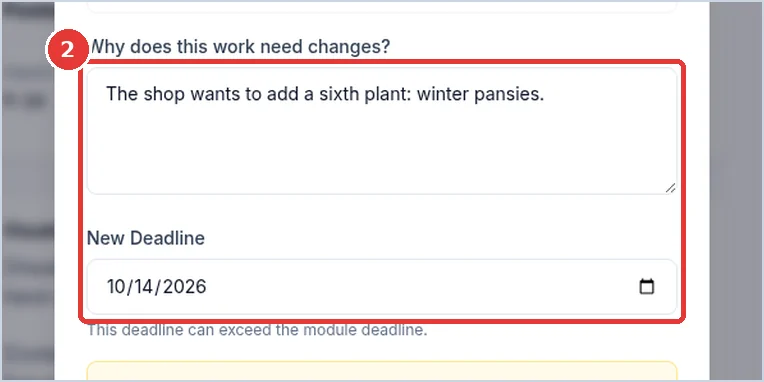
A window opens. In Why does this work need changes?, write what must change. In New Deadline, choose a new last day (tomorrow or later).
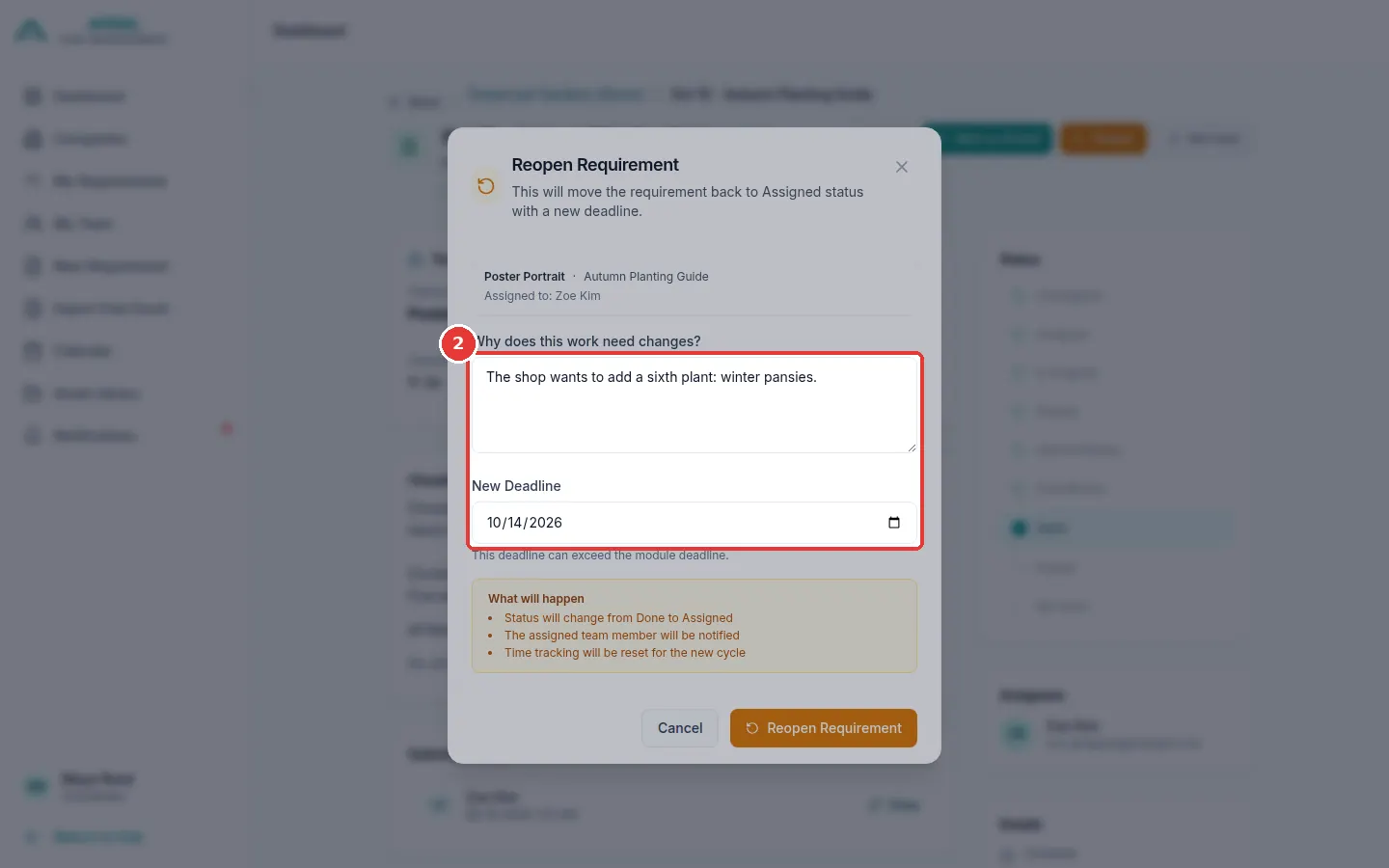
-
Click Reopen Requirement.
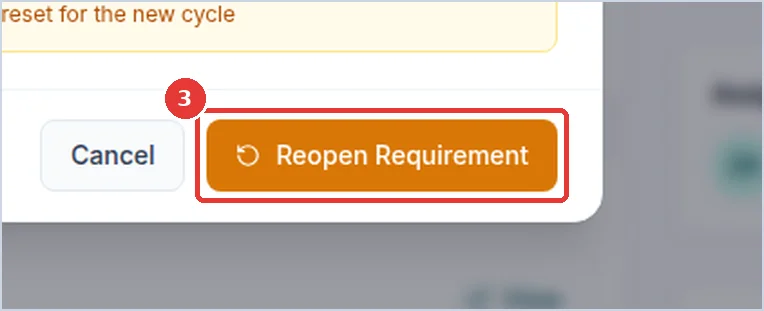
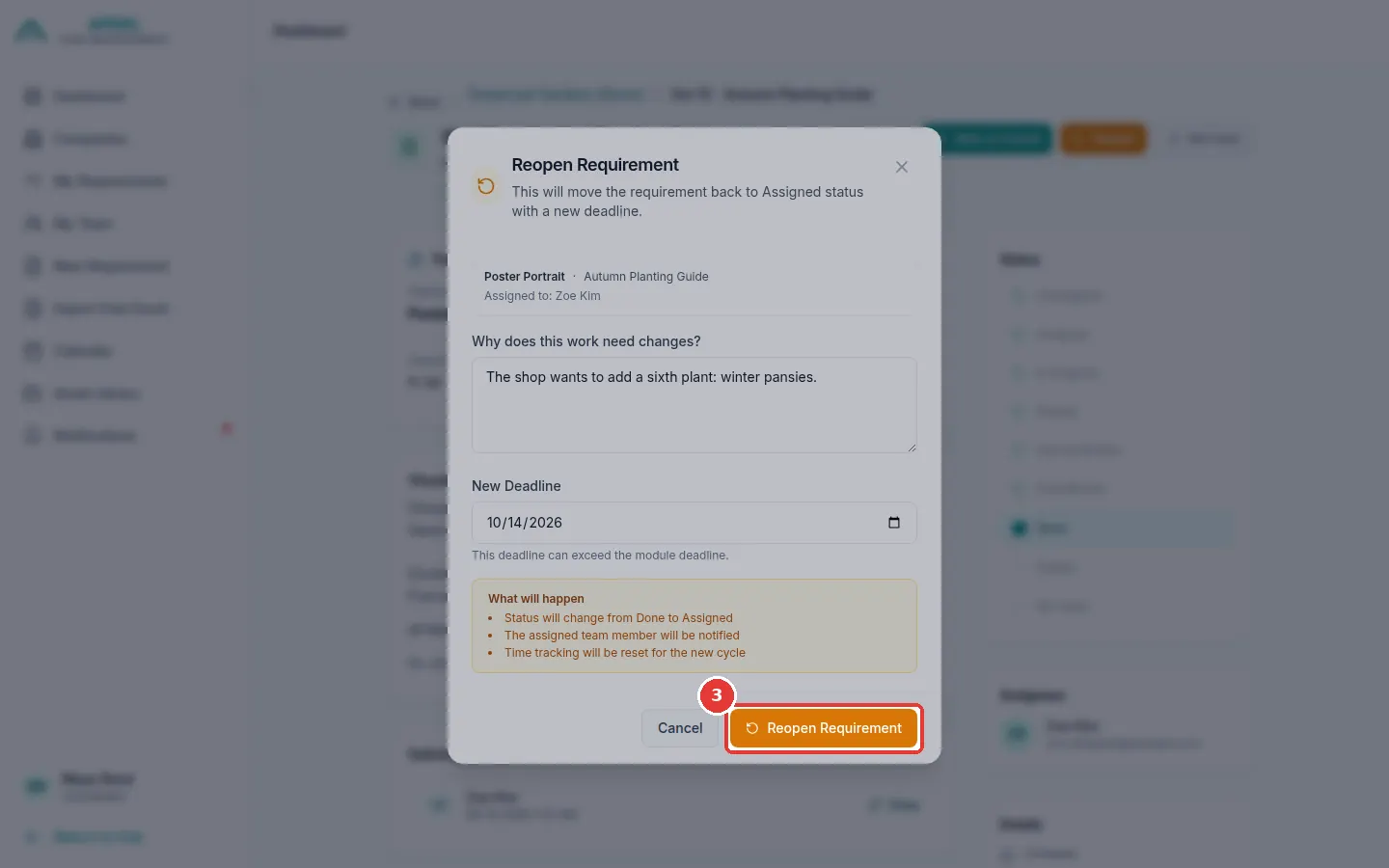
-
The work goes back to the designer (Assigned). It has a REOPENED label. The designer gets a message.