Notifications (your messages)
The system sends you short messages when something happens. For example, when new work is given to you, or when someone asks you a question.
See your new messages
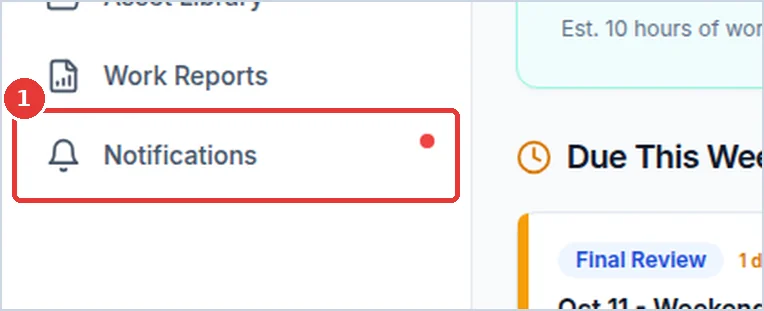
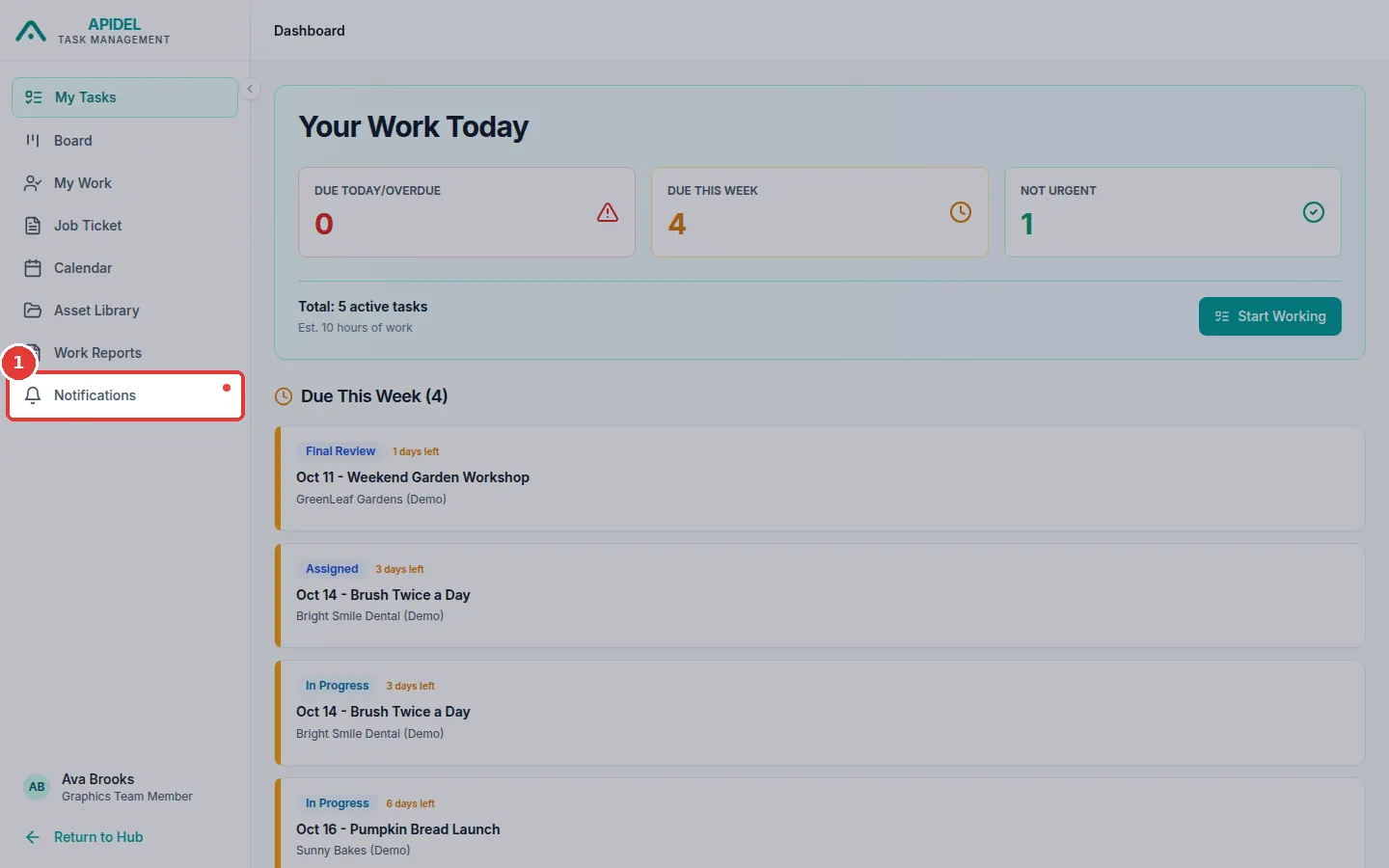
- A small red dot next to Notifications in the menu means you have new messages.
-
Click Notifications in the menu.
-
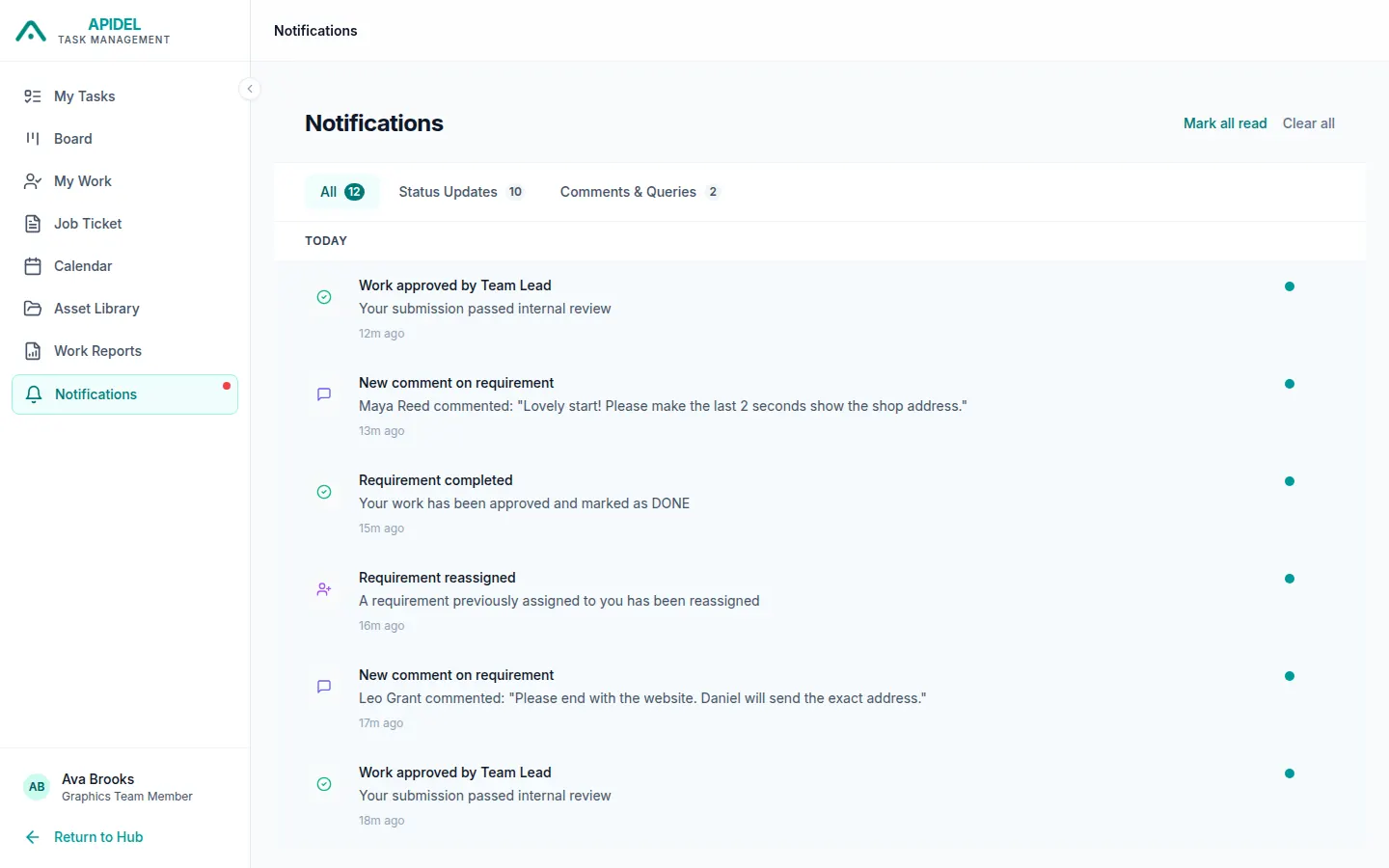
You will see your messages. The newest messages are at the top.
-
Click a message to open the requirement it talks about.
Sort and clear your messages


- Click All to see every message.
- Click Status Updates to see only messages about work moving forward, like "Ready to post".
- Click Comments & Queries to see only messages about comments and questions.
- Click Mark all read to remove the small coloured dots of new messages. Your messages stay in the list.
- Click Clear all to delete all messages.
Clear all deletes everything
Clear all deletes all your messages at once. It does not ask "Are you sure?". You cannot get them back.
Small pop-up messages
When you are working, small boxes may appear at the corner of the screen. They tell you about new messages and new comments. They close by themselves after a few seconds.
No messages at all?
If you never get any messages, ask your Super Admin to switch them on for you.