Give work to a designer
New work is Unassigned. You choose a designer for it.
Give one piece of work
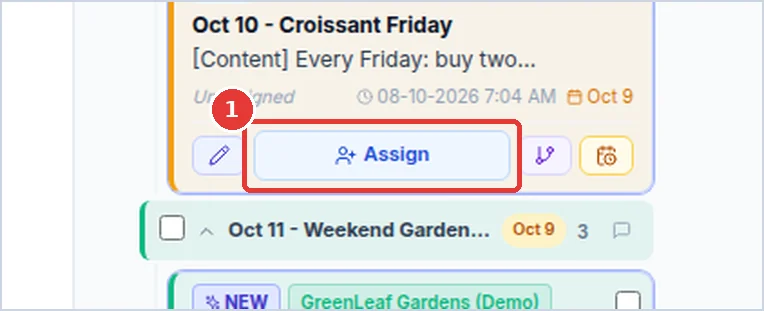
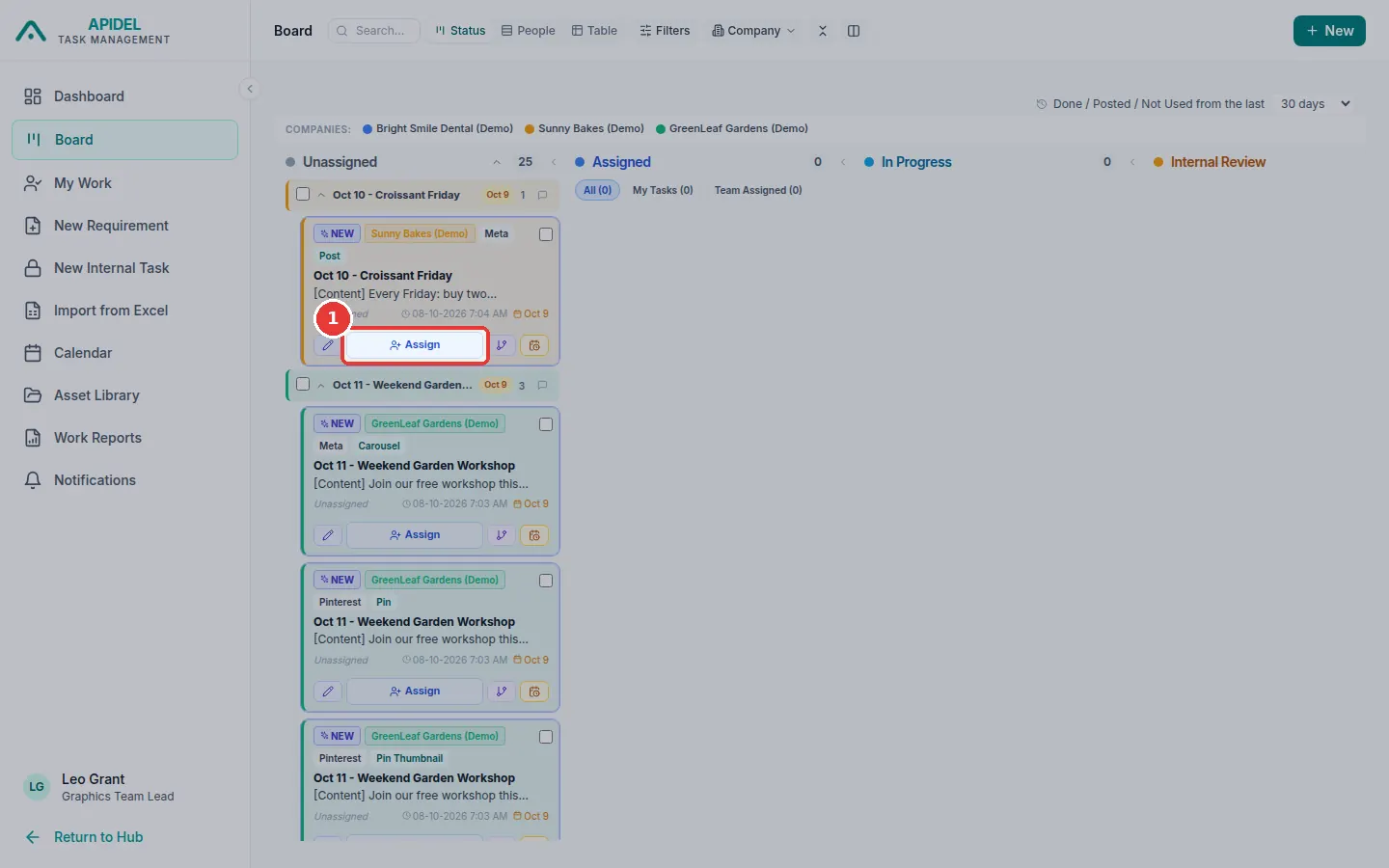
- Click Board in the menu. Find the card in the Unassigned column.
-
Click Assign on the card.
-
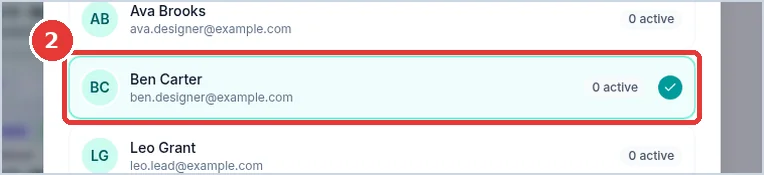
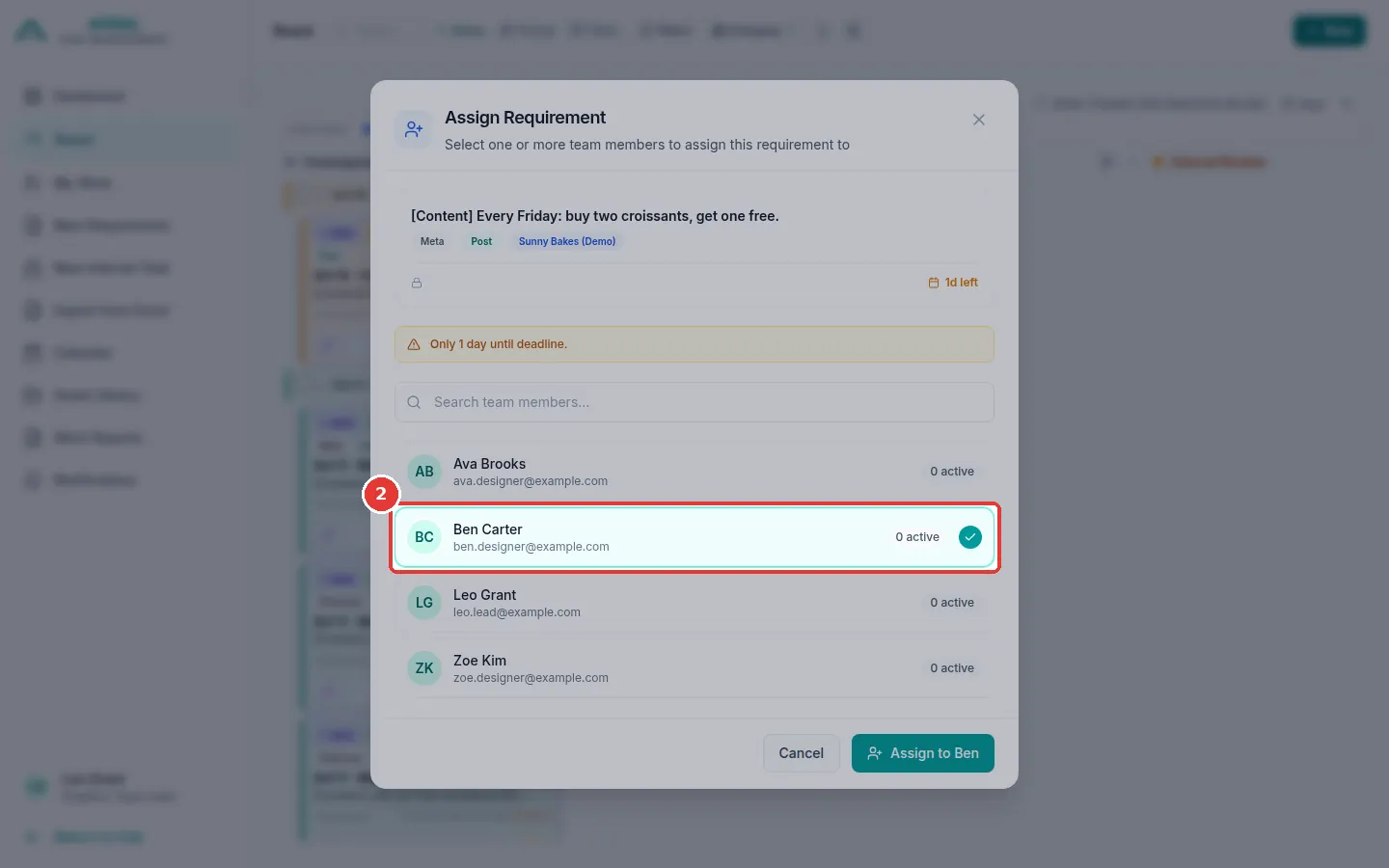
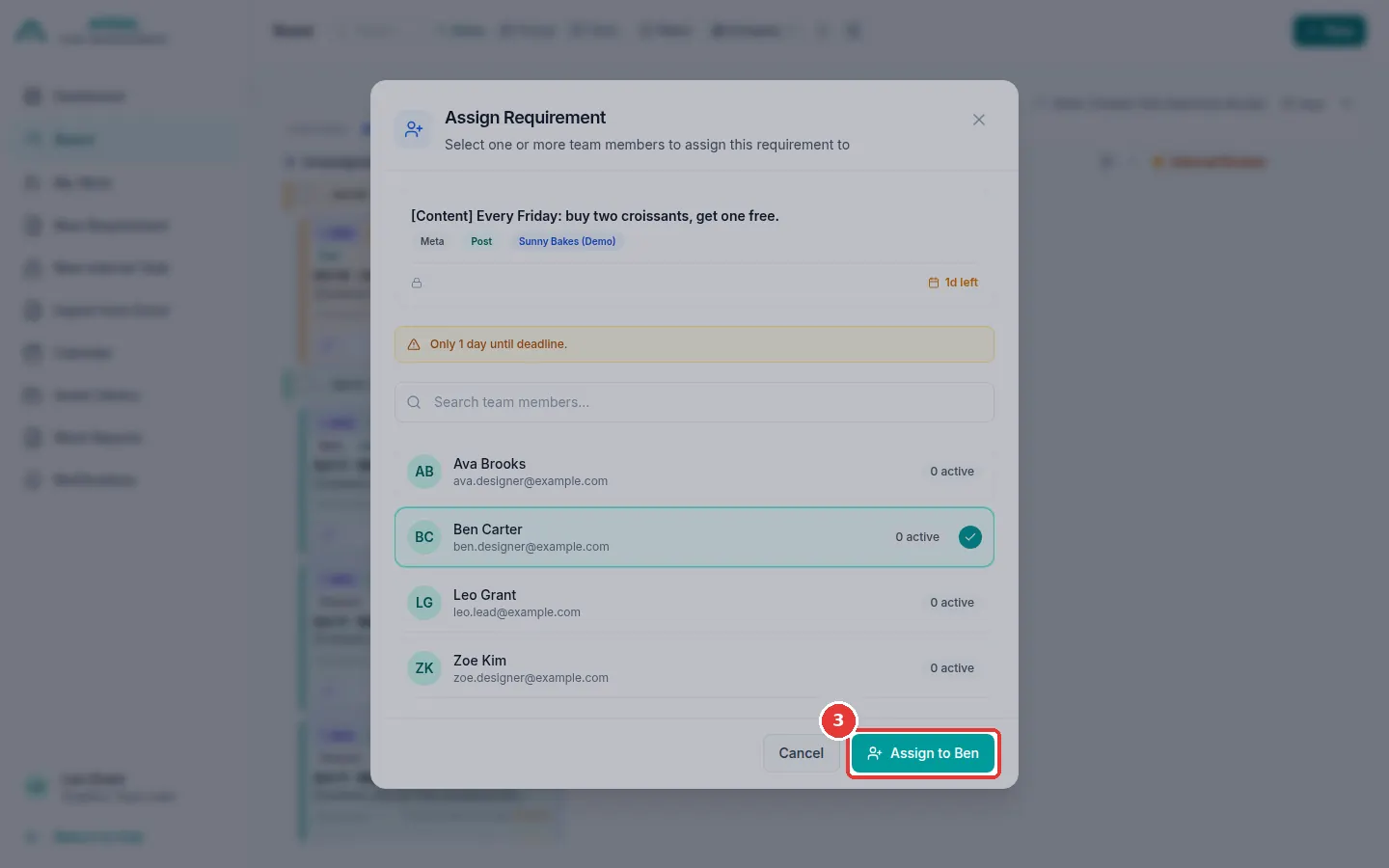
A window opens with your designers. Each one shows how many tasks they have now (active). Click the designer you want. You can click more than one.
-
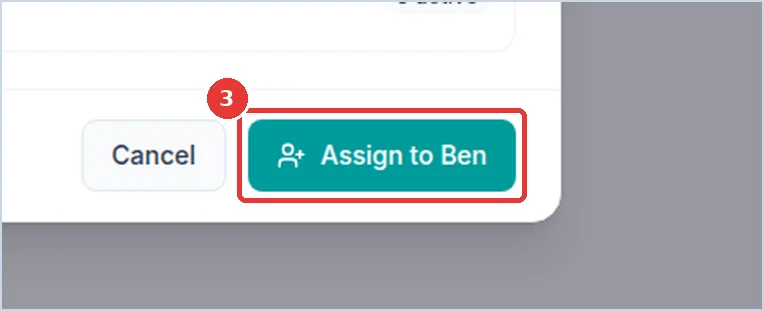
Click the green Assign to Ben button. (It shows the name you chose.)
-
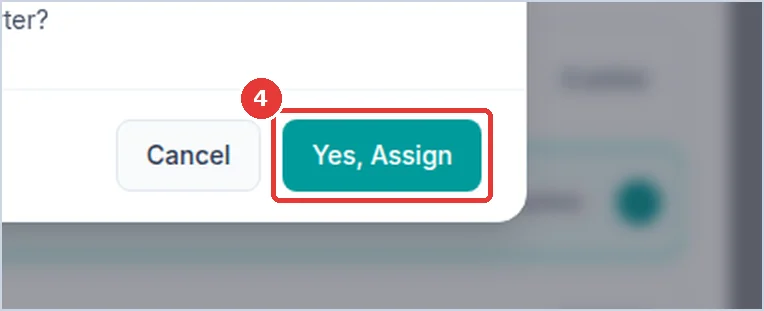
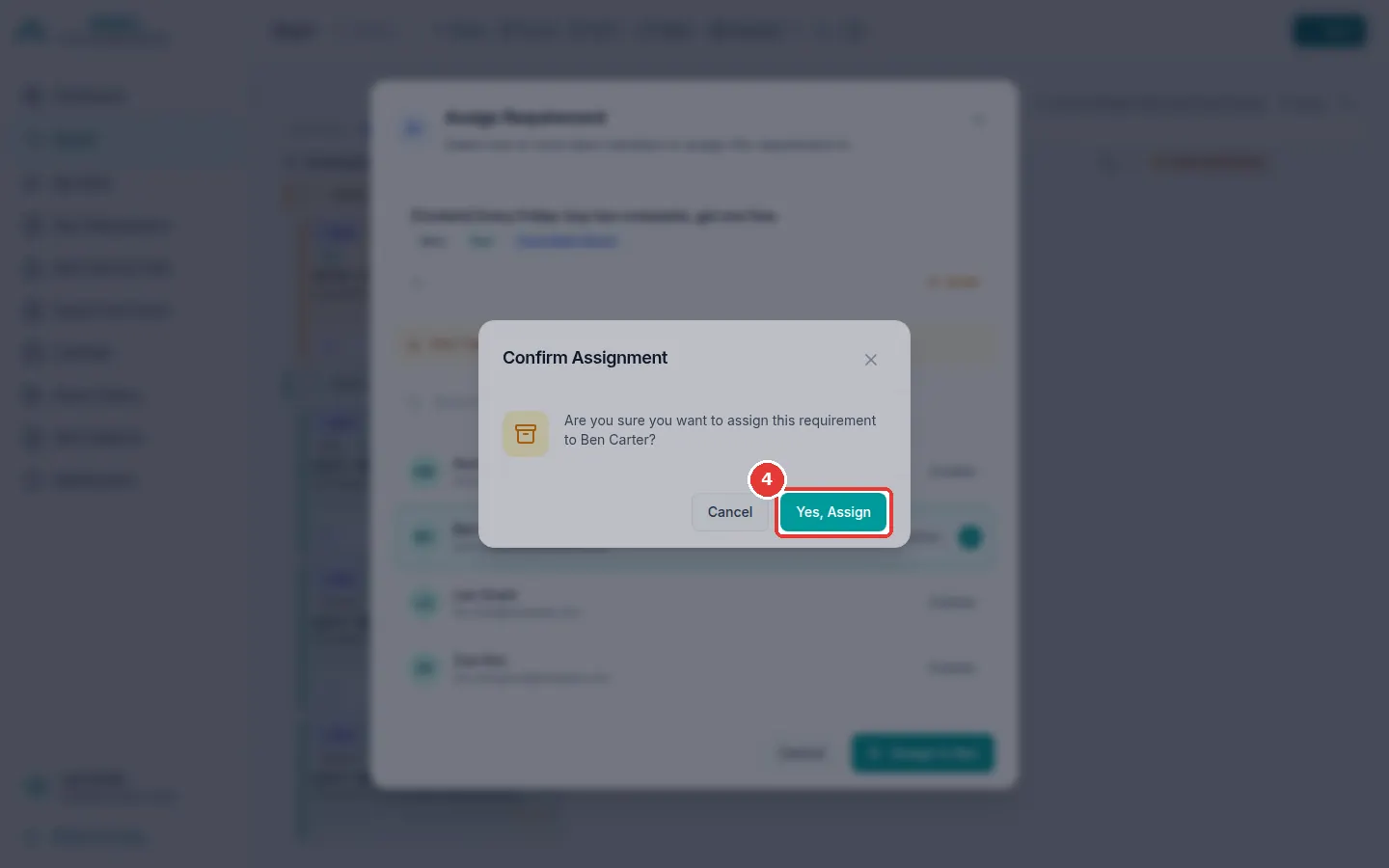
Click Yes, Assign.
-
The card moves to Assigned. The designer gets a message.
Tip
You can also open the requirement page and click Assign at the top. Or drag a card from Unassigned to Assigned.
Give many at once (Table view)
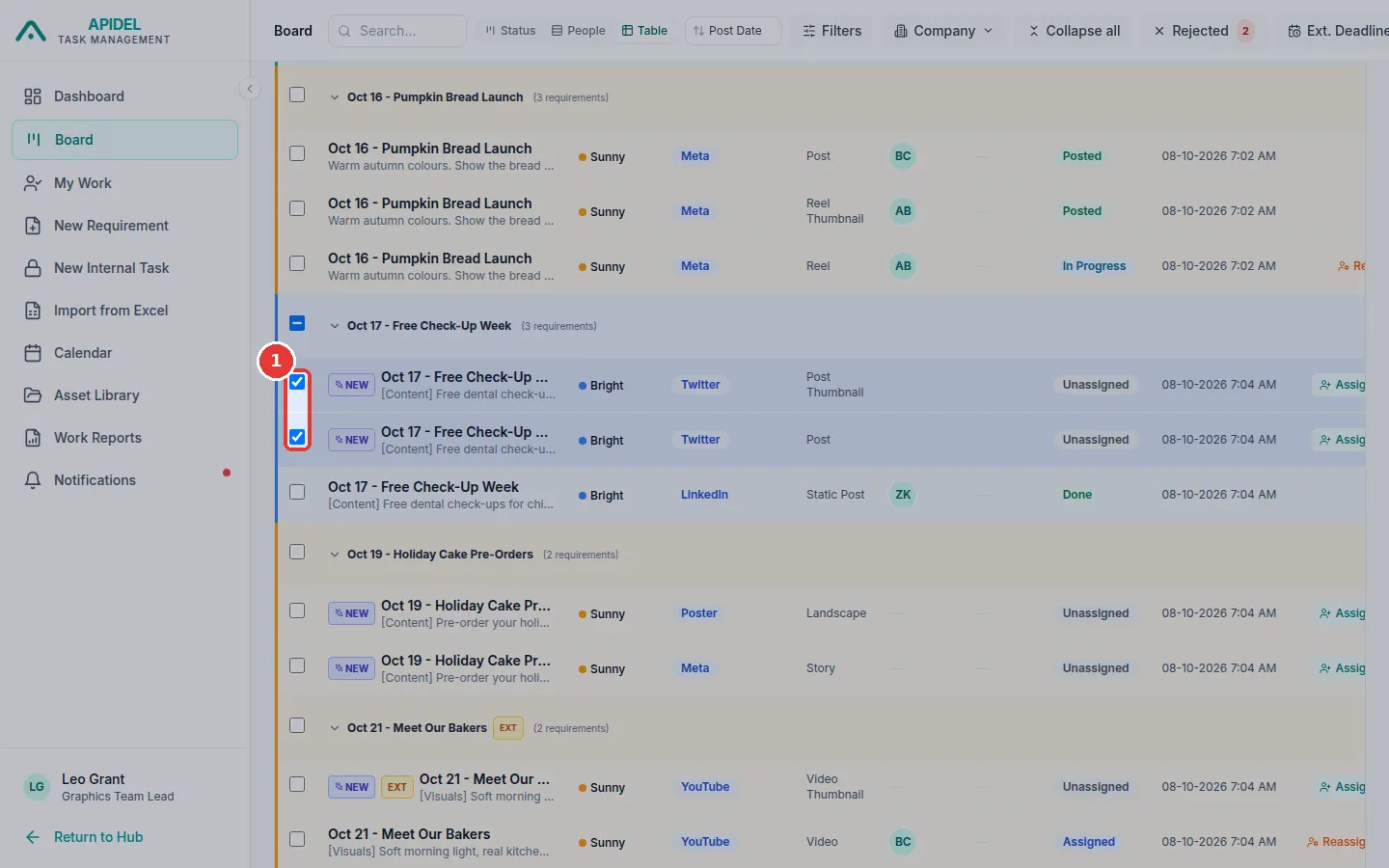
- On the Board, click Table at the top.
-
Tick the box at the start of each row you want to give out.

-
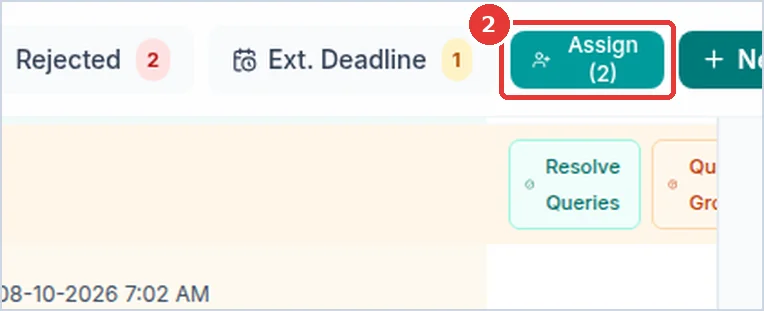
Click Assign (2) at the top. (The number is how many you ticked.)
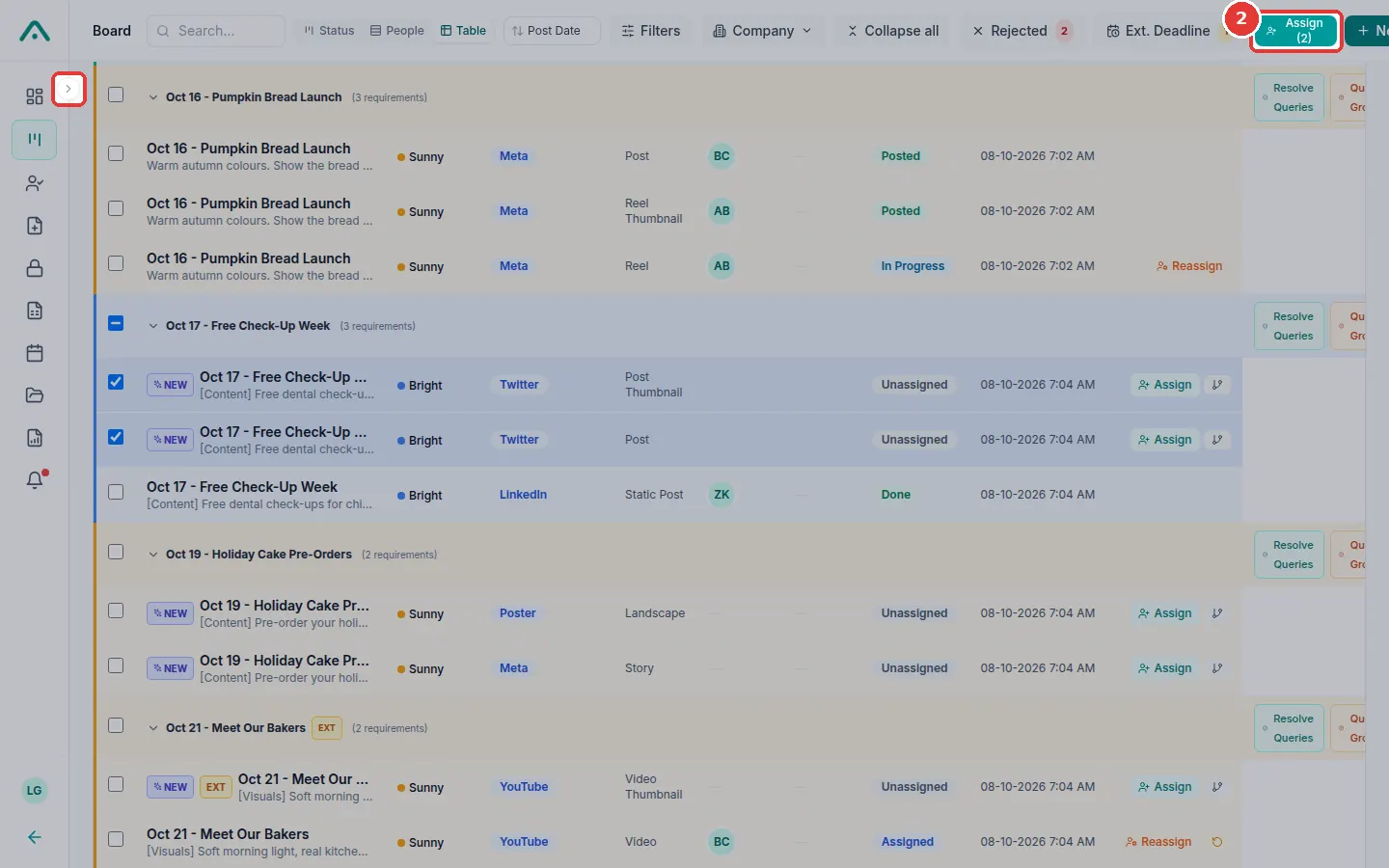
Cannot see the Assign button?
If the screen is narrow, the button may be hidden on the right. Click the small round arrow on the edge of the menu (step 2 in the picture) to make the menu thin. Then the button appears.
-
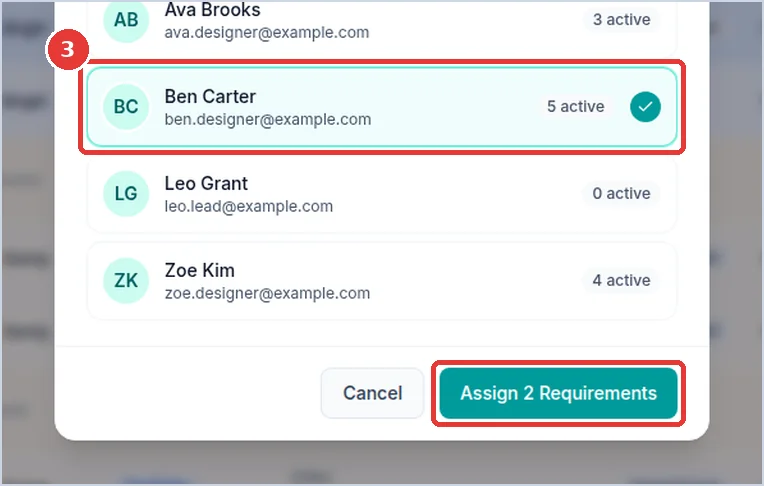
Click the designer. Then click Assign 2 Requirements.
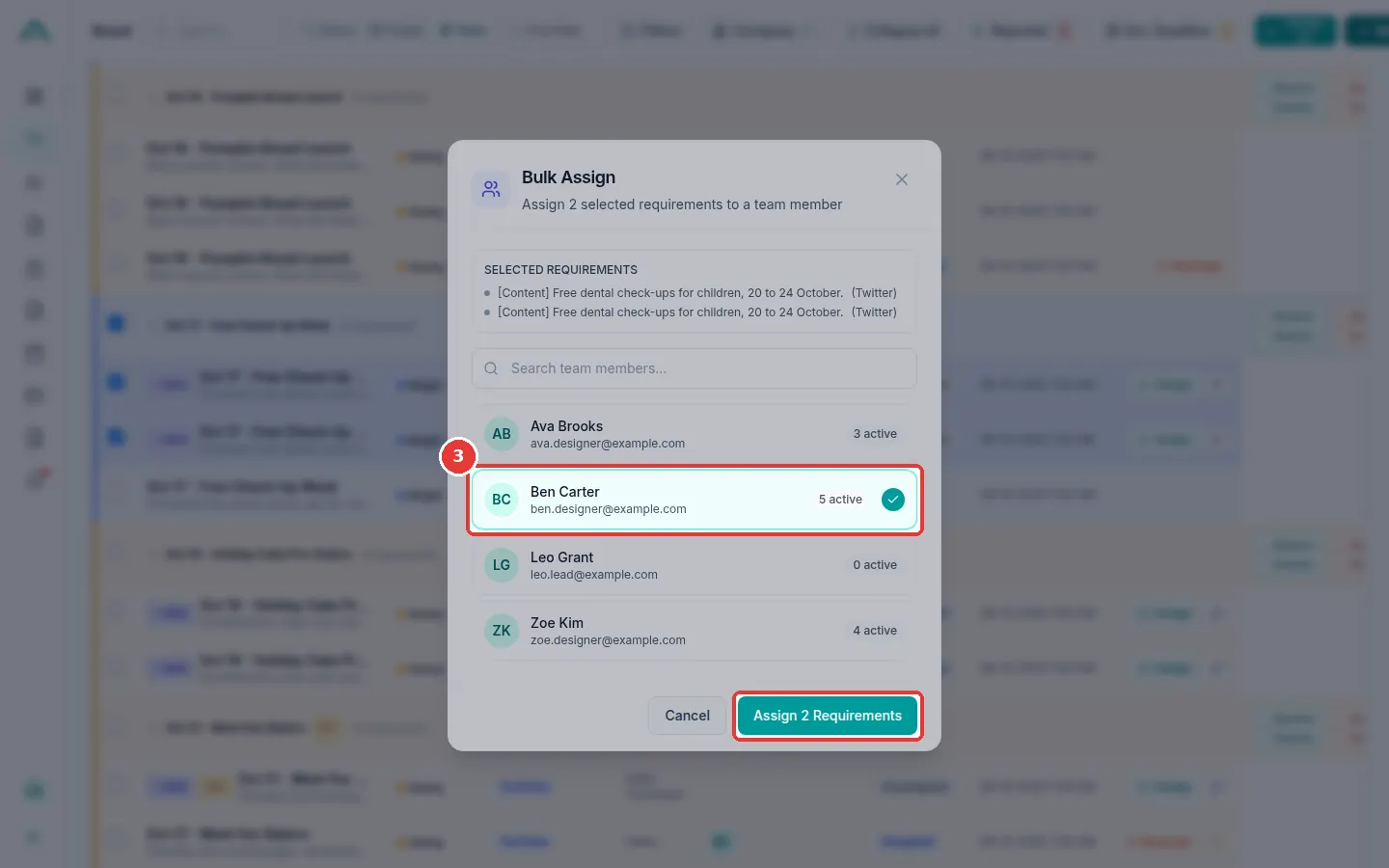
-
Click Yes, Assign All.
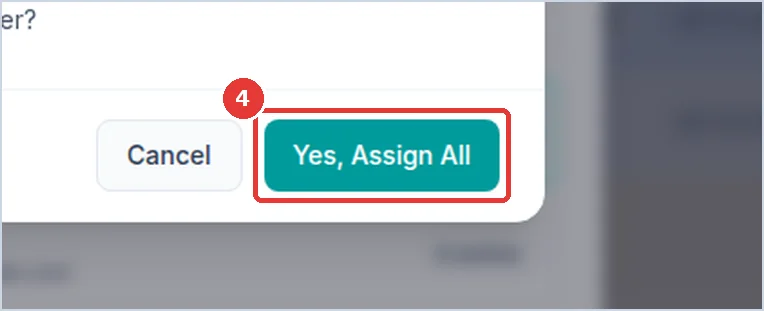
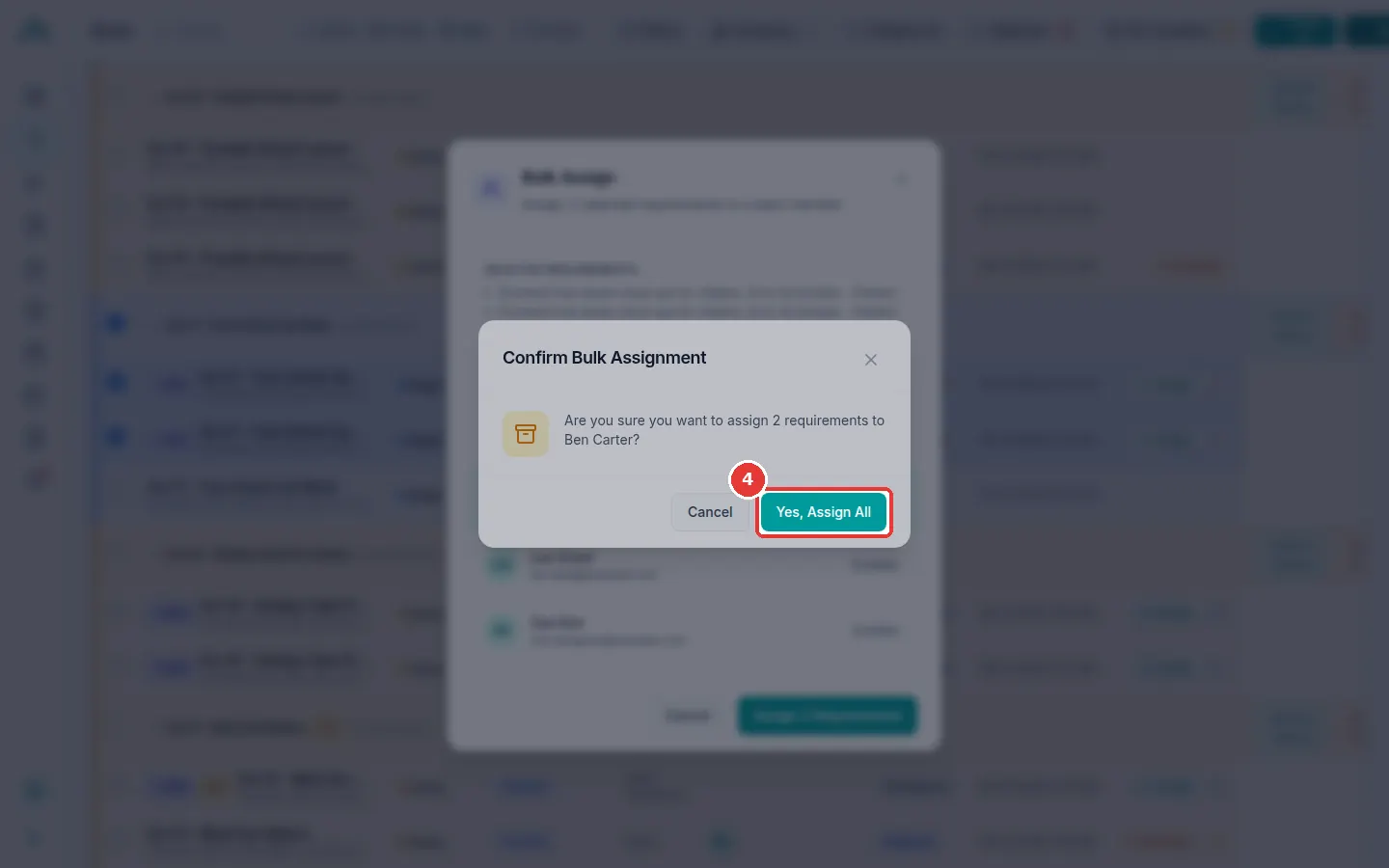
Move work to another designer (Reassign)
Use this if a designer is too busy or away.
-
Open the requirement (click its card). Click Reassign at the top.
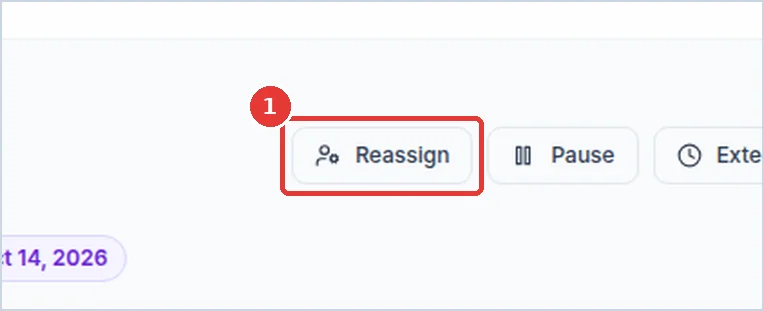
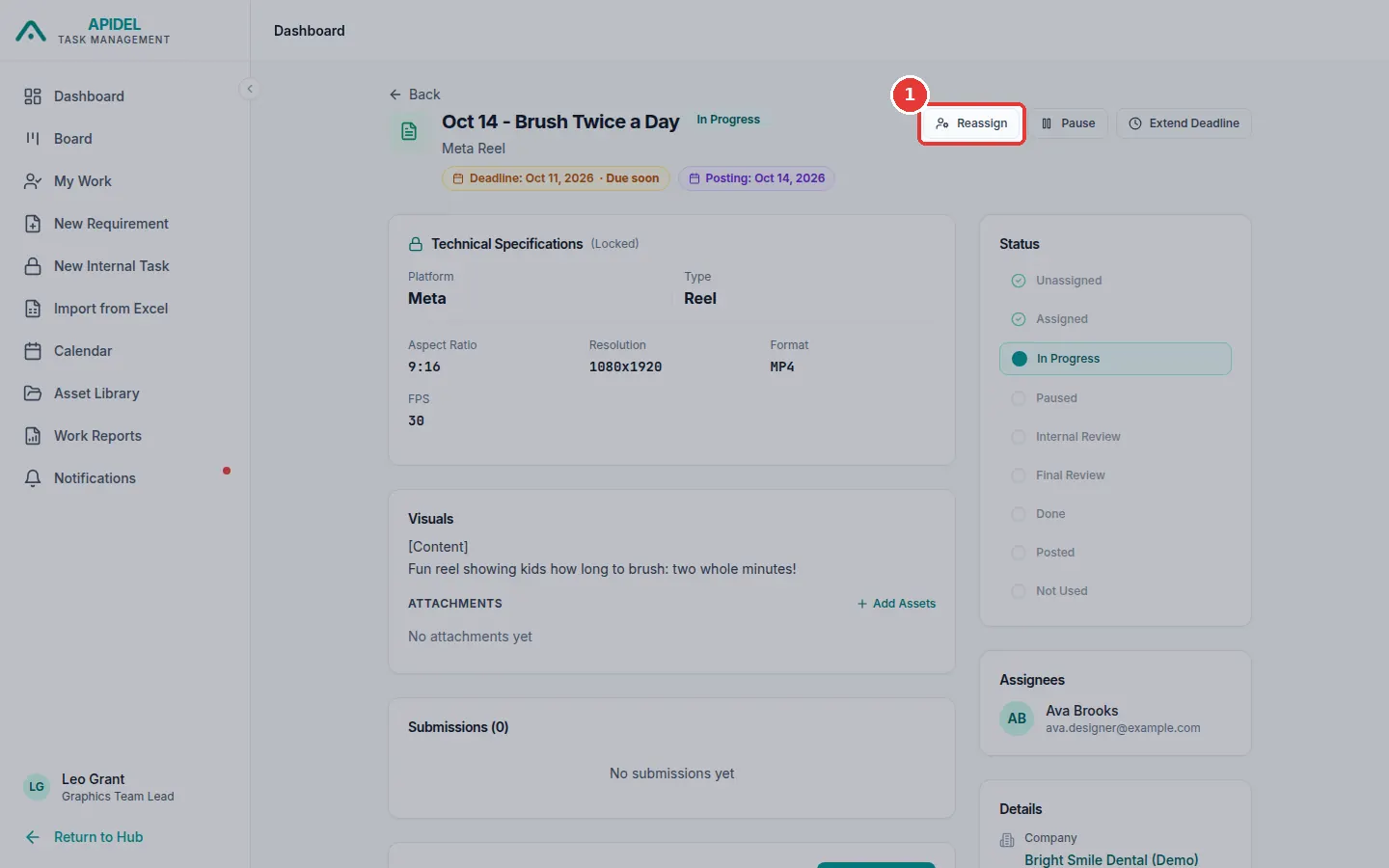
-
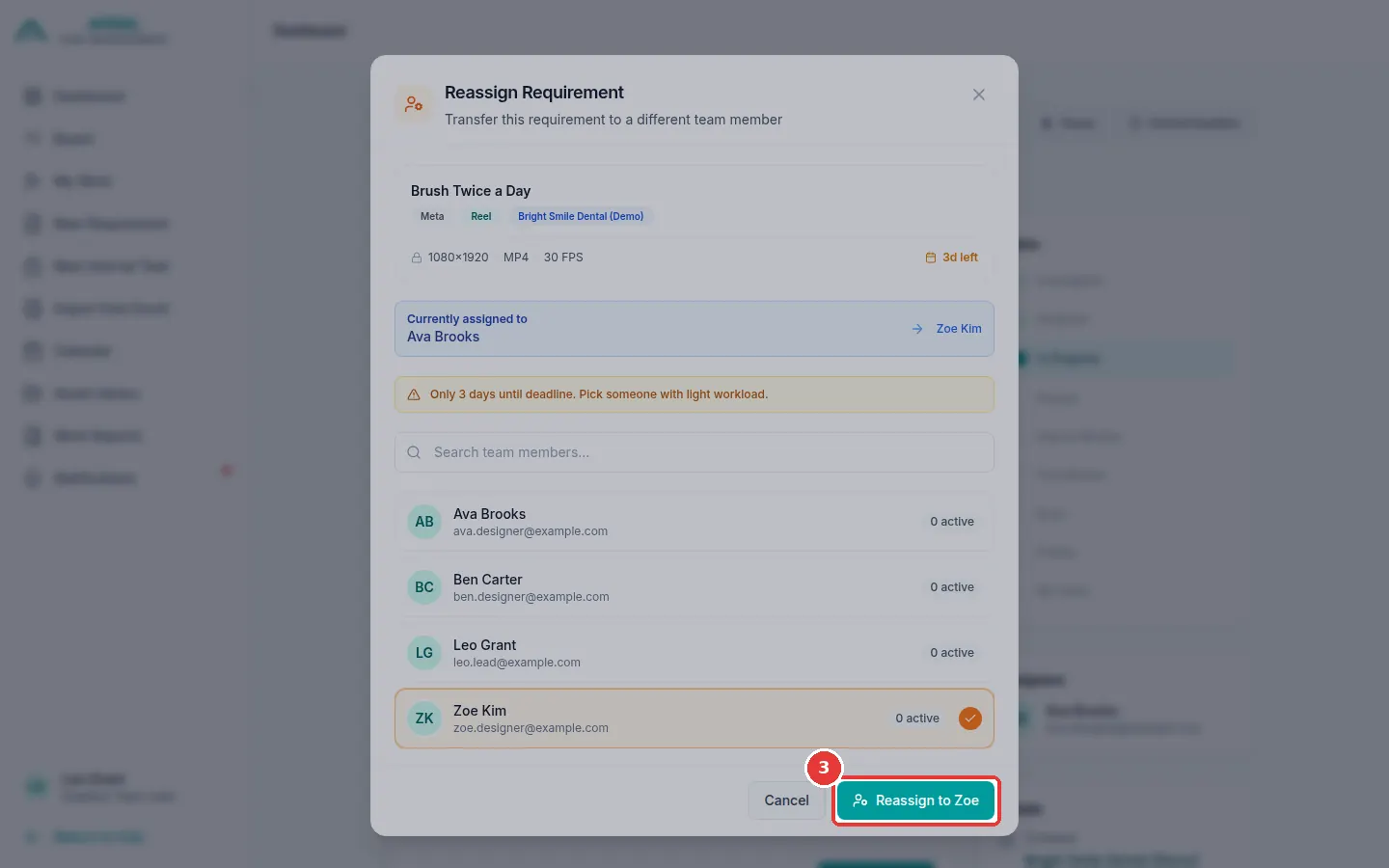
The window shows who has the work now. Click the current designer to take them off. Click the new designer.
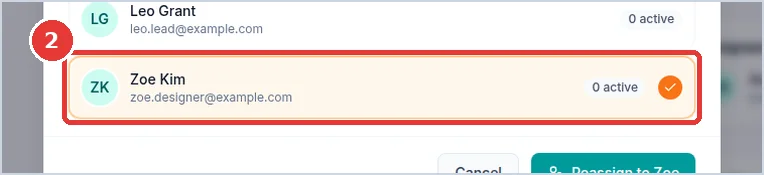
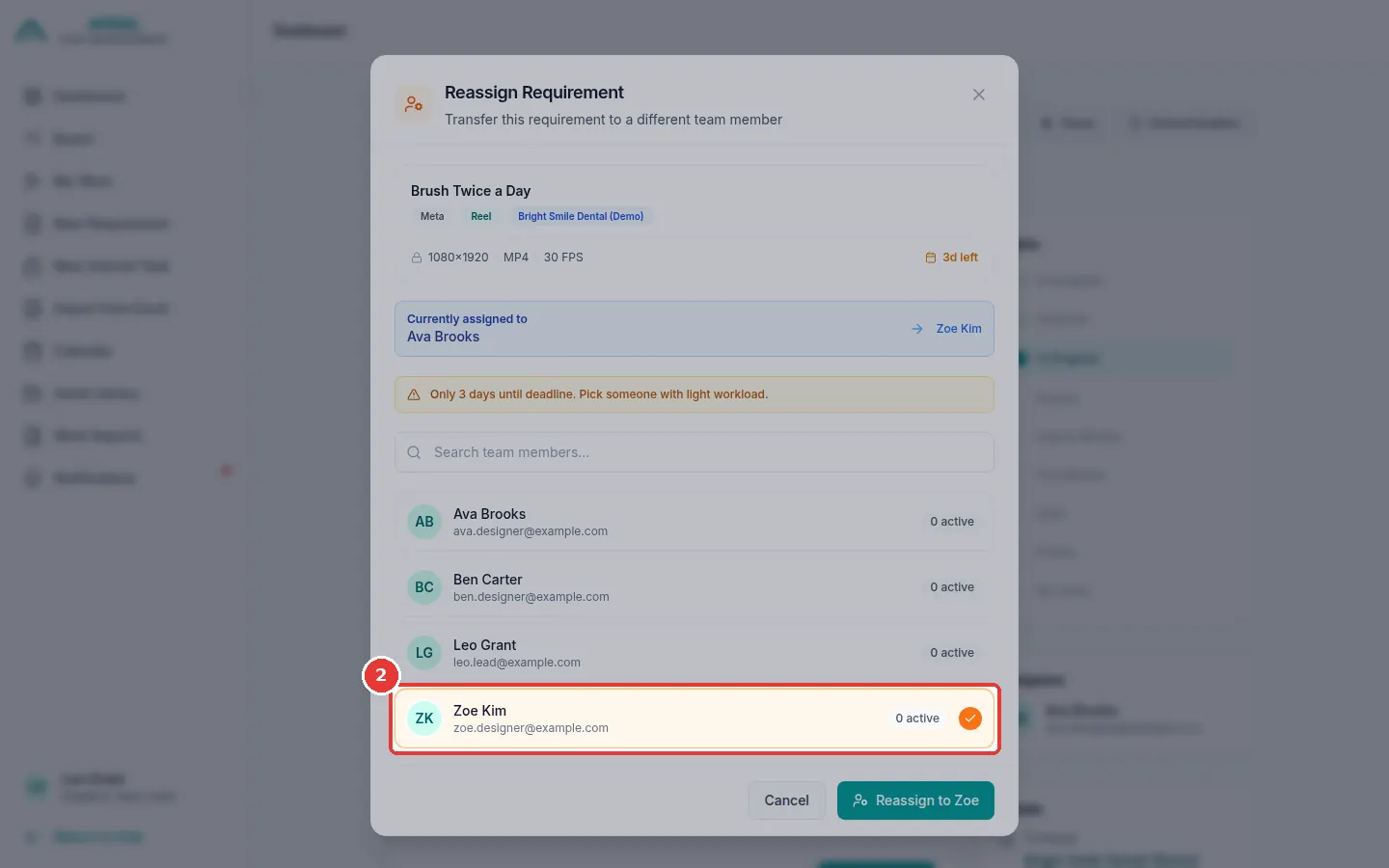
-
Click Reassign to Zoe (it shows the name you chose).
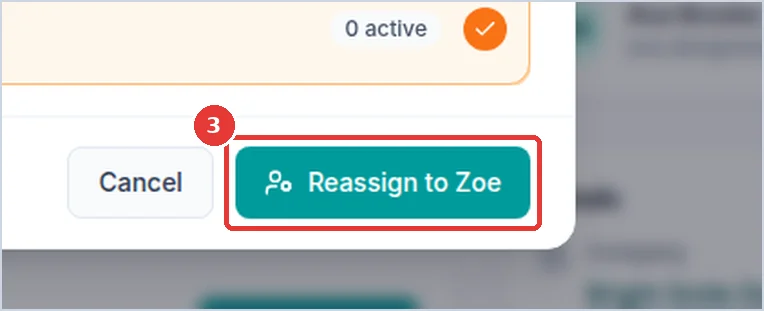
-
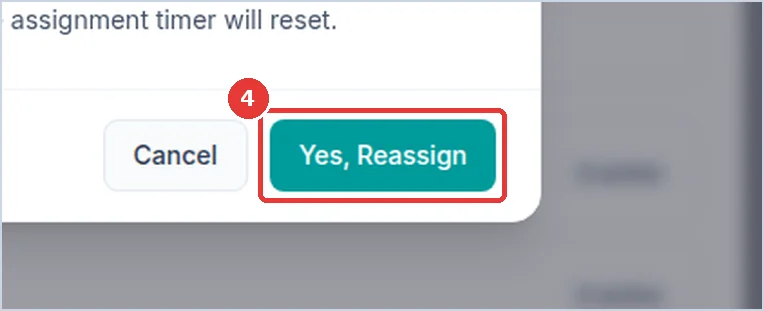
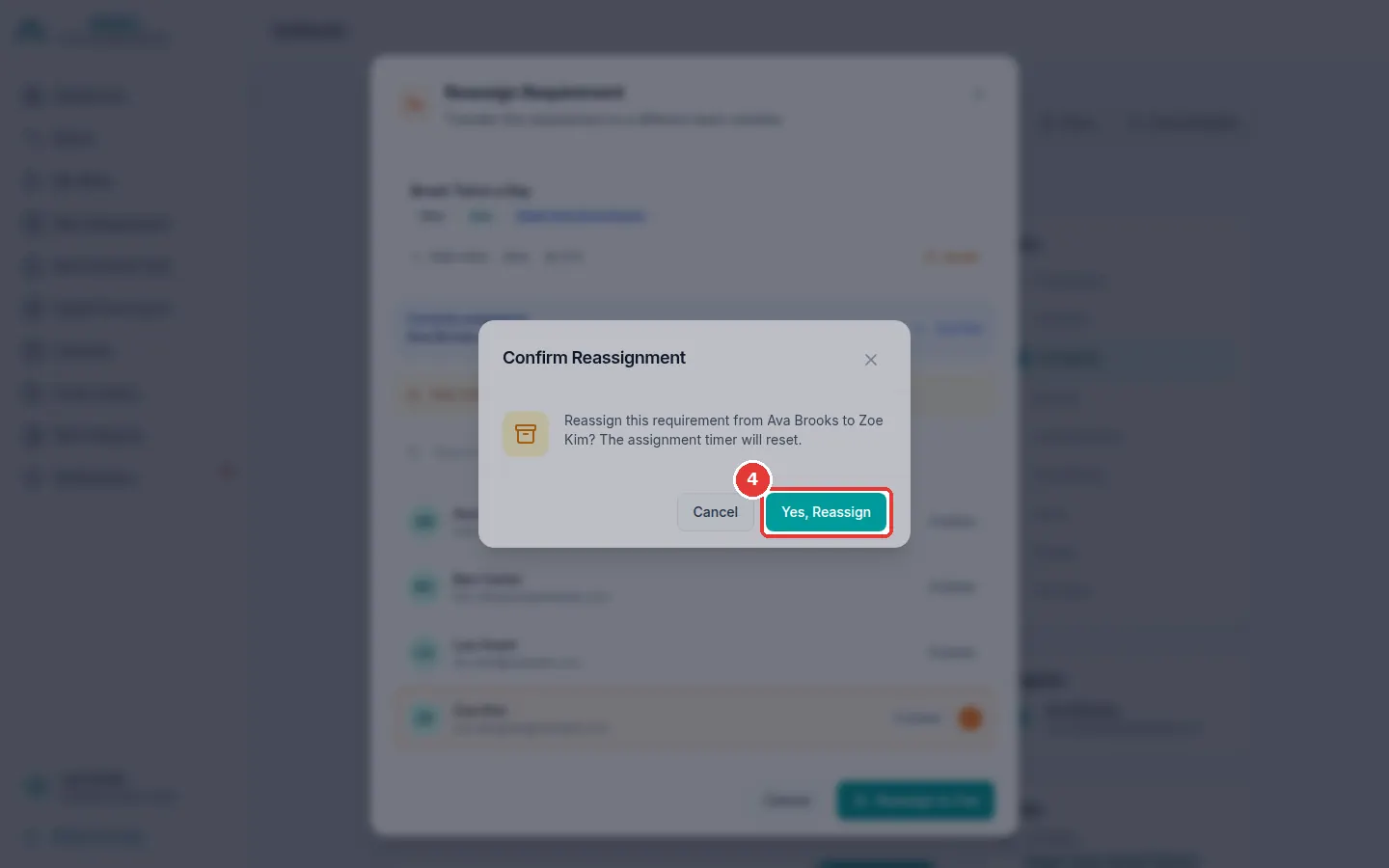
Click Yes, Reassign.
-
The new designer gets the work. The step does not change. The time count starts again.