Check and approve work
When the Team Lead says a design is good, it comes to you. It is now in Final Review. You check it, then you approve it or ask for changes.
You can approve only work that you asked for.
Find work waiting for you
- On your Dashboard, look at Awaiting Your Review. It shows how long each one has been waiting.
- On My Requirements, look at the Final Review column.
- You also get a message in Notifications: "Ready for final review".
Approve the work
-
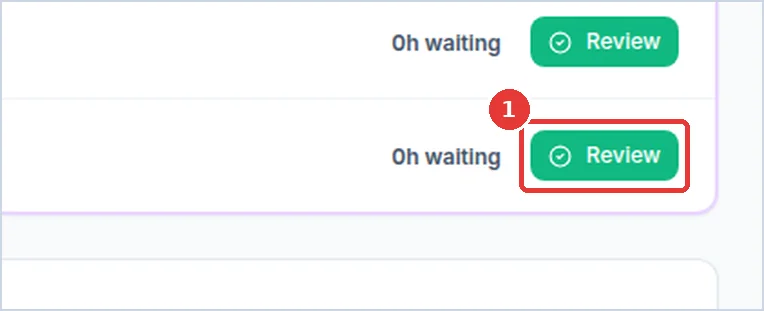
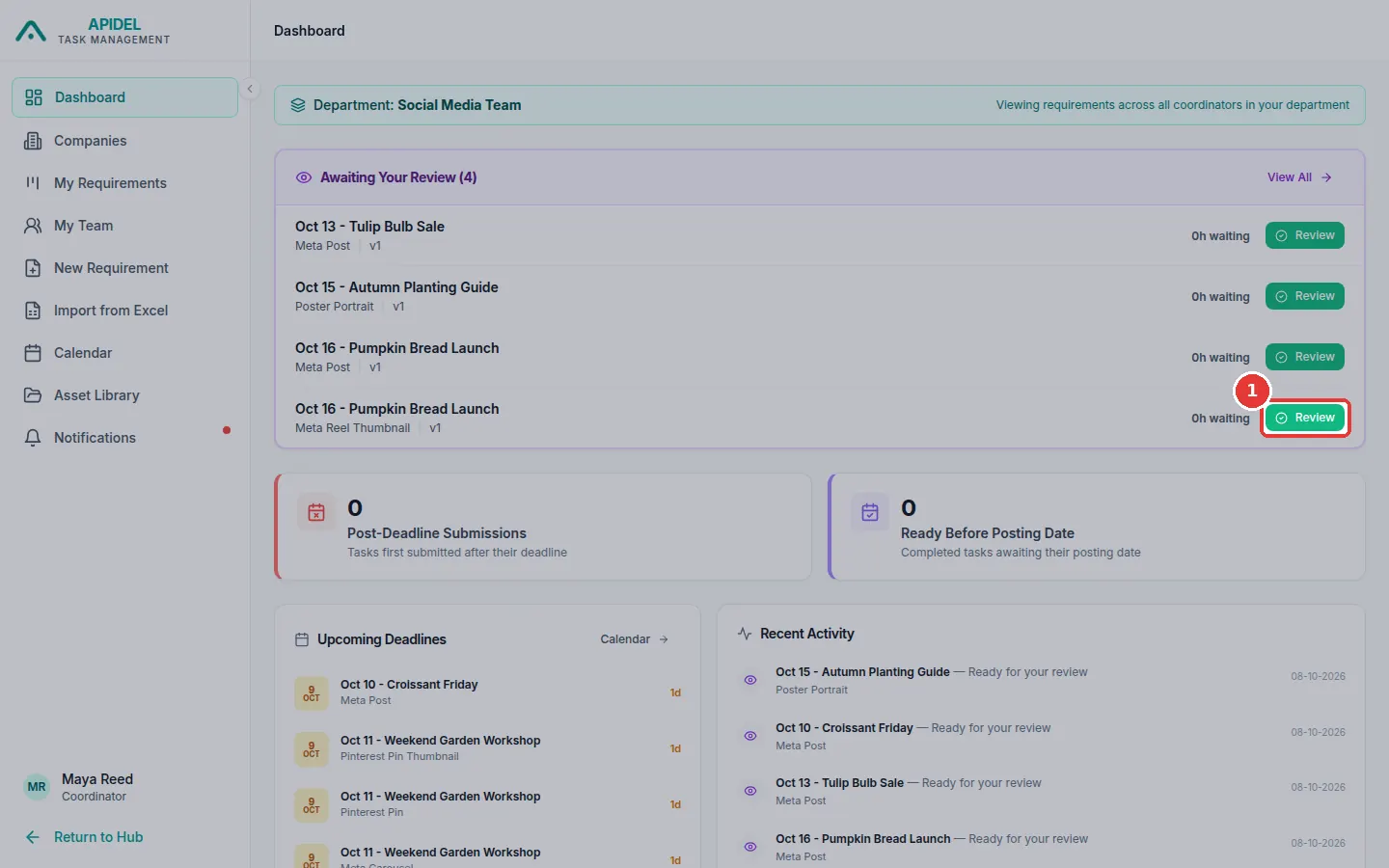
On your Dashboard, find the work under Awaiting Your Review. Click the green Review button.
-
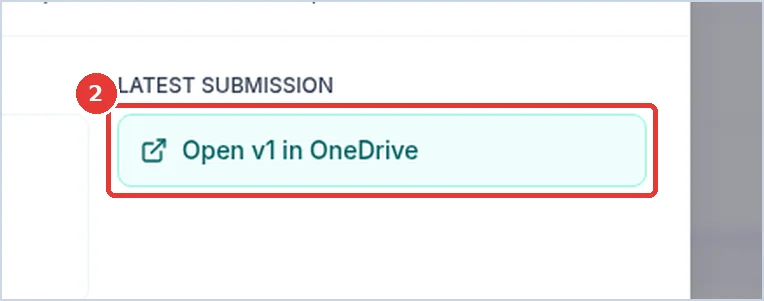
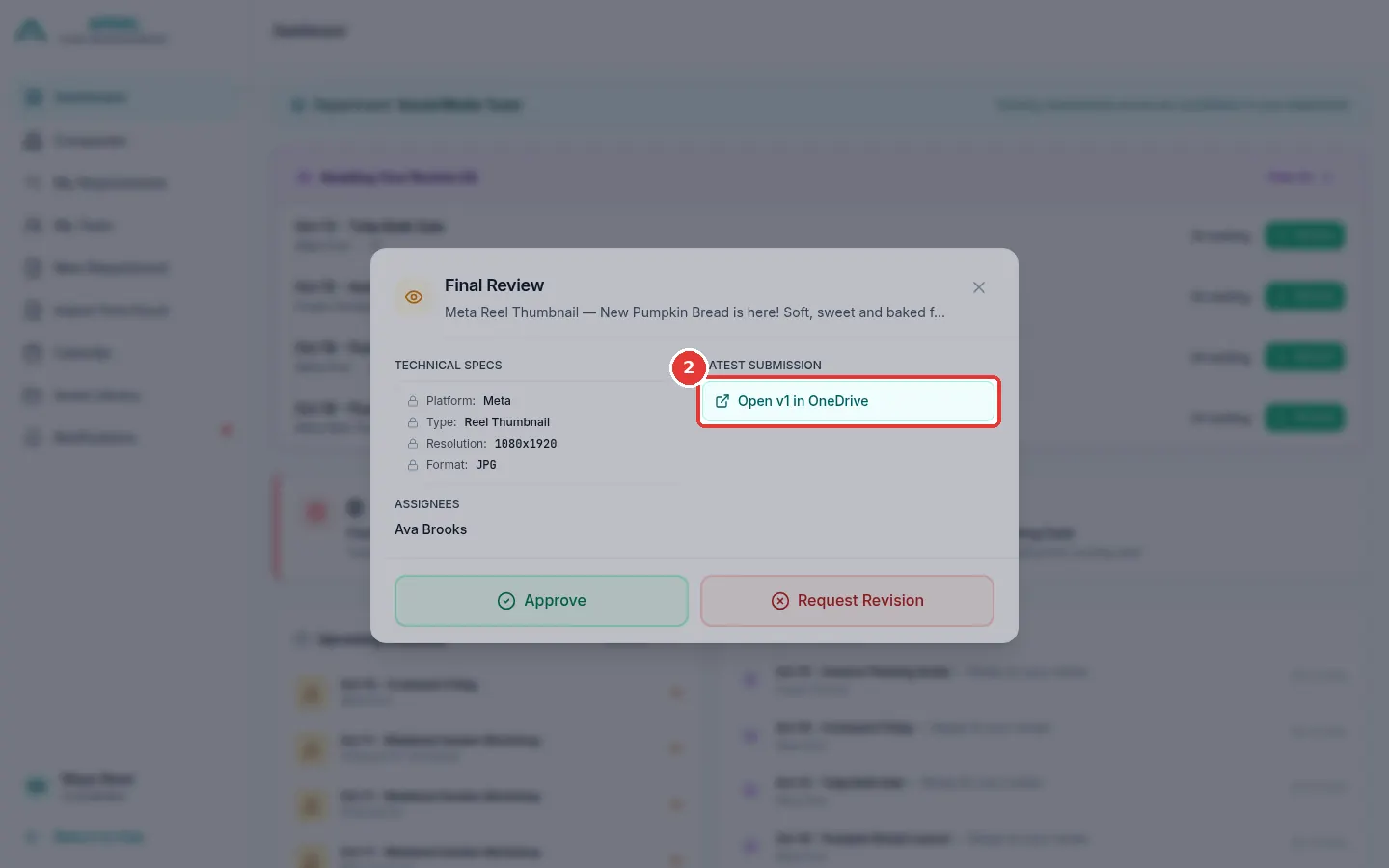
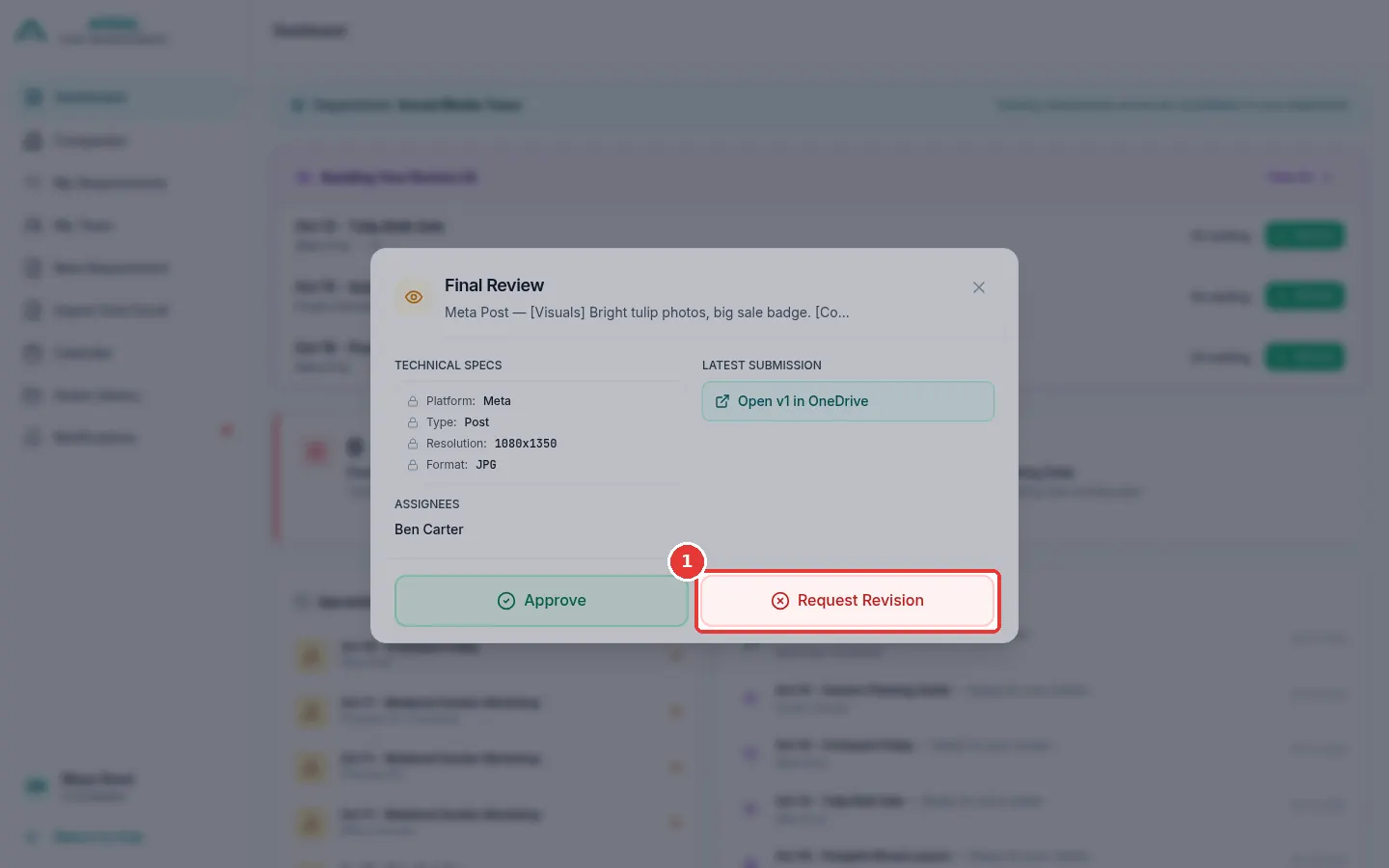
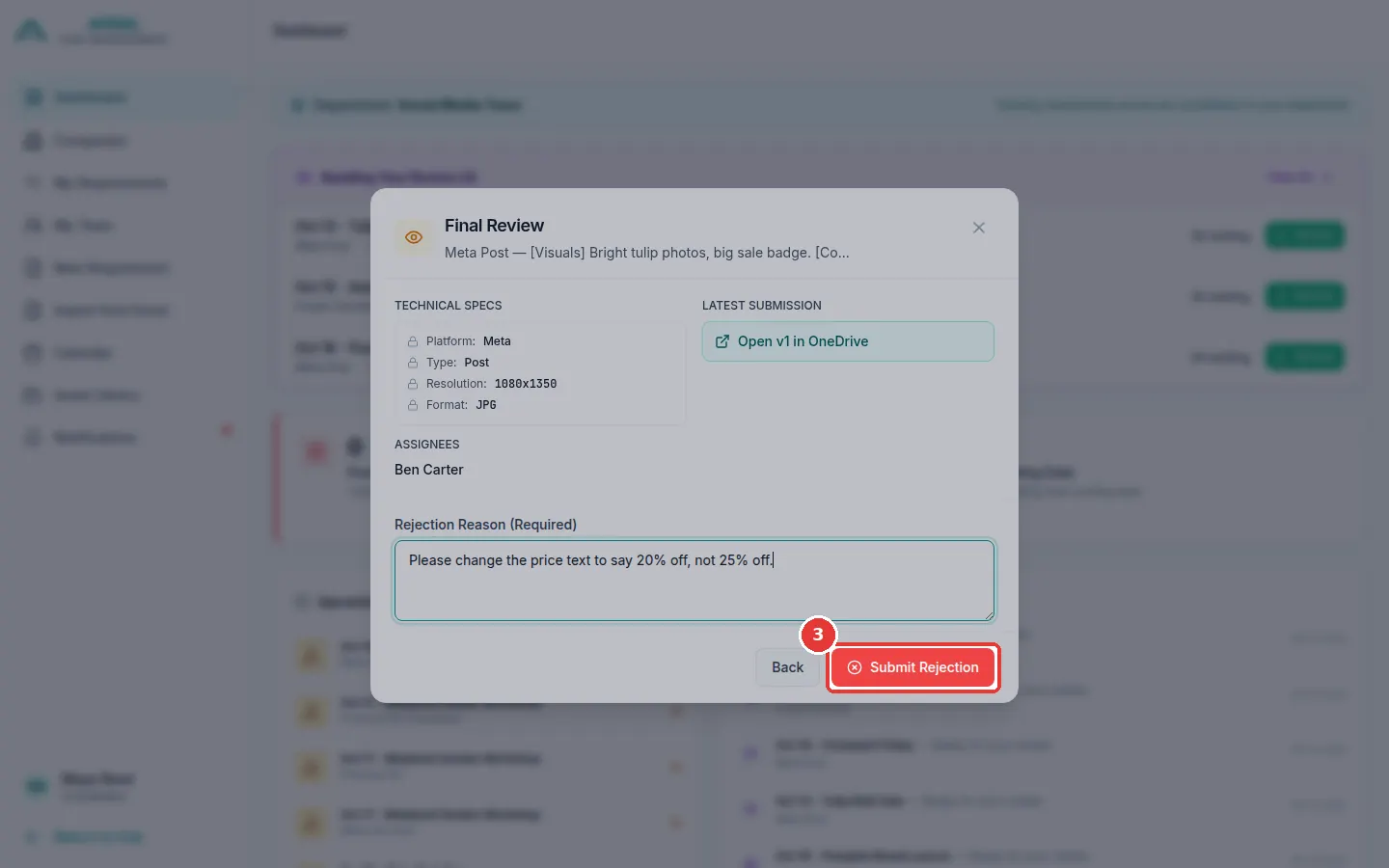
The Final Review window opens. Click Open v1 in OneDrive to look at the design. It opens in a new tab.
-
Is the design good? Click the green Approve button.
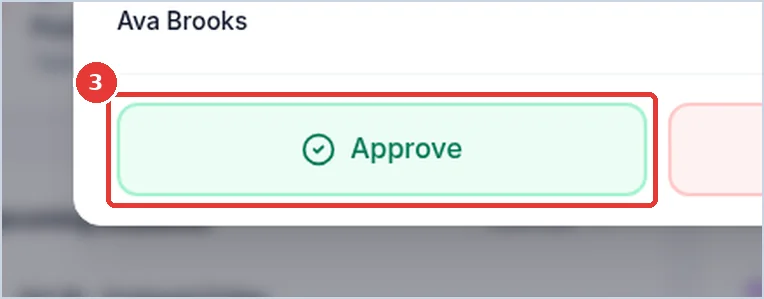
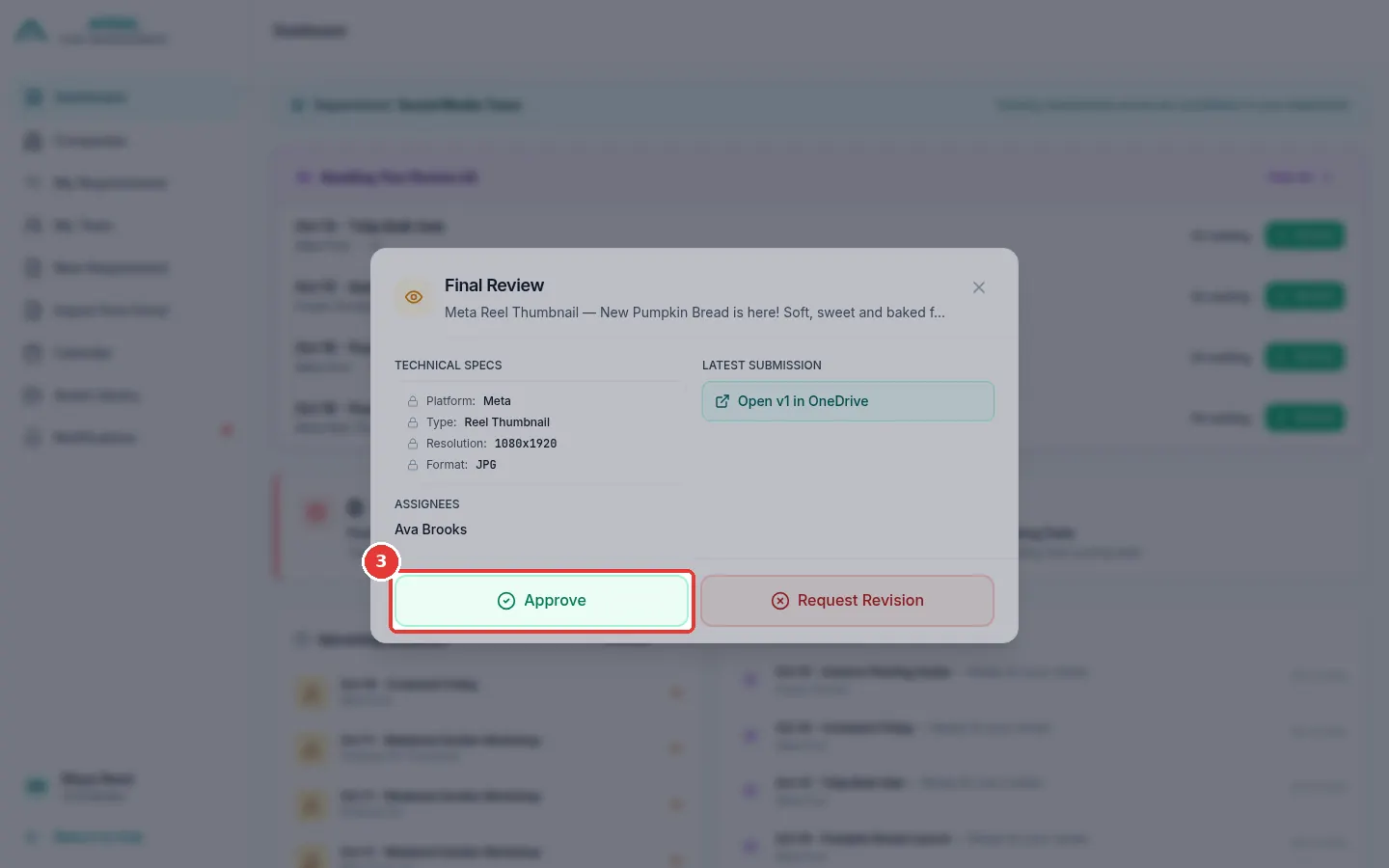
-
Click Confirm Approval.
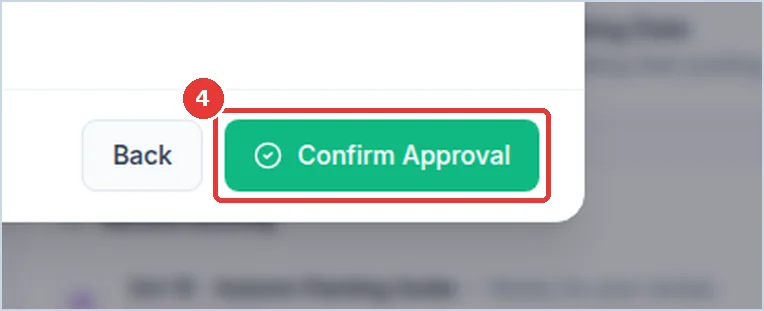
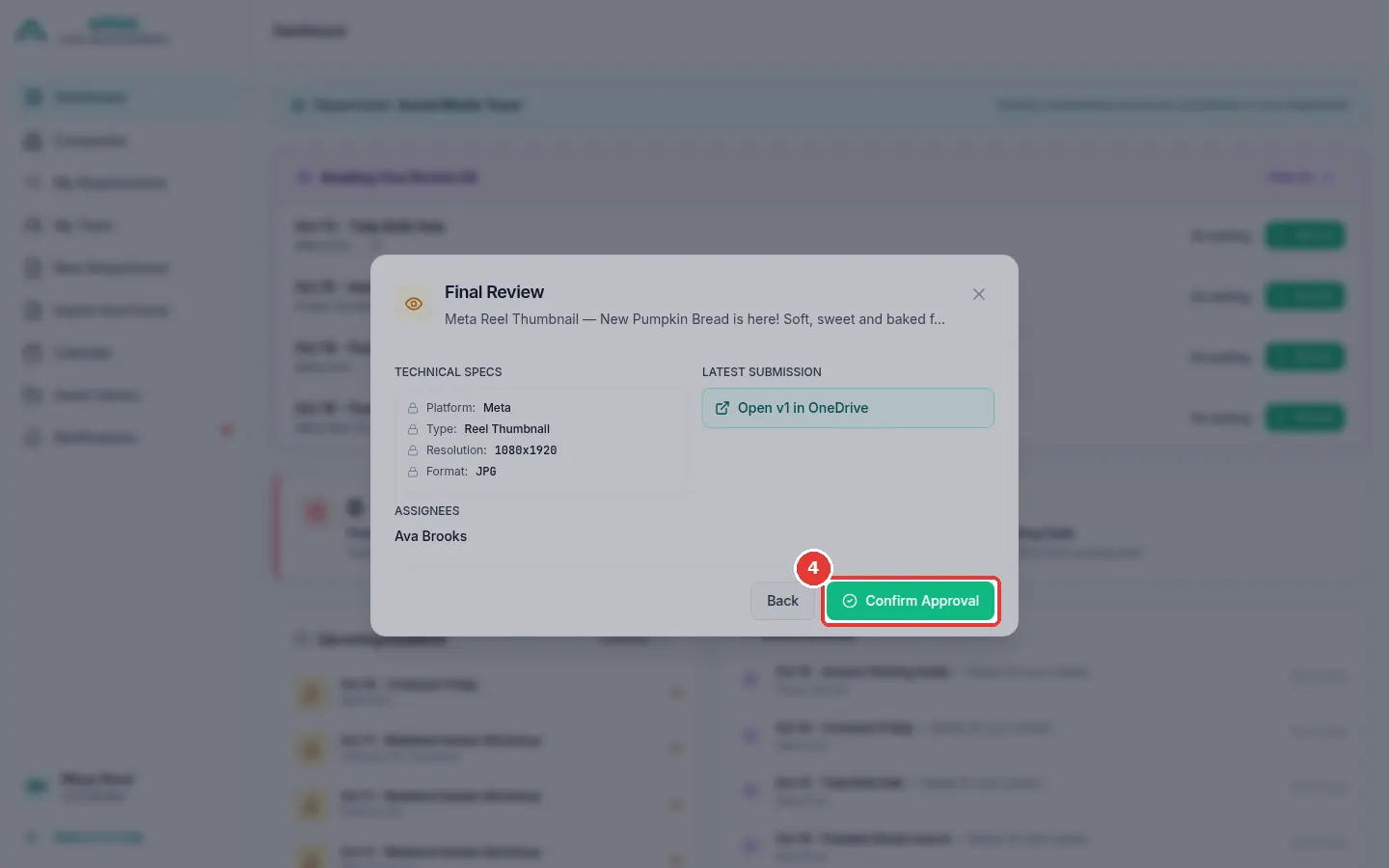
-
The work is now Done.
Ask for changes (Request Revision)
- Click Review on the work (as above).
-
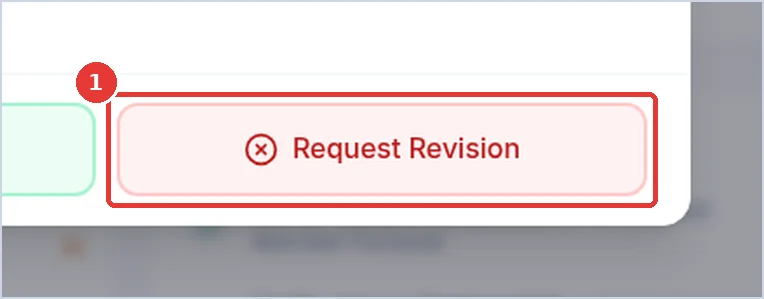
Click Request Revision.
-
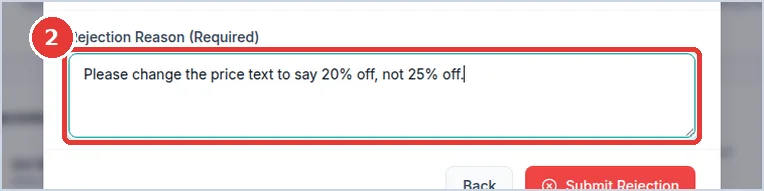
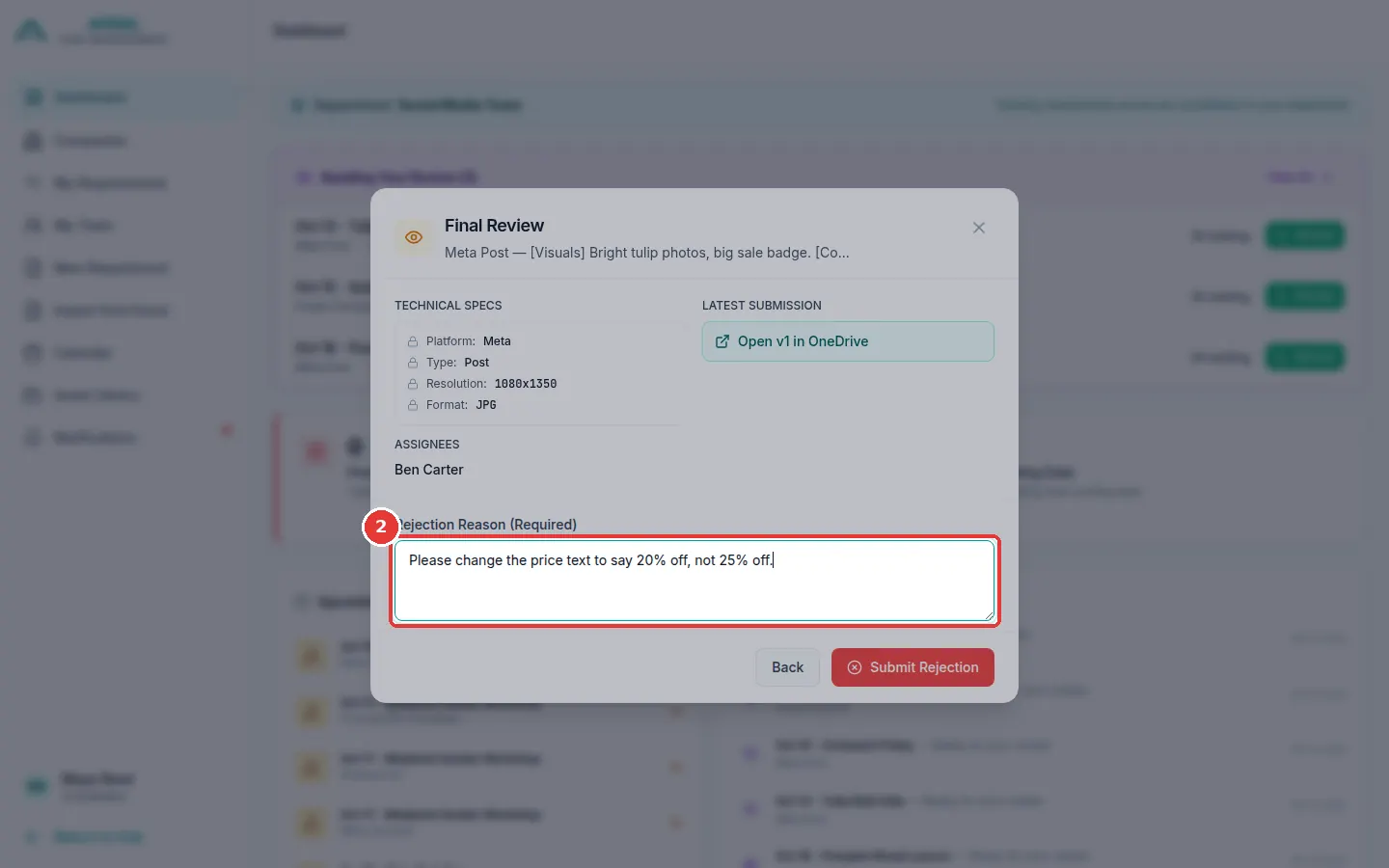
Click the Rejection Reason box. Write clearly what must change. This box must be filled in.
-
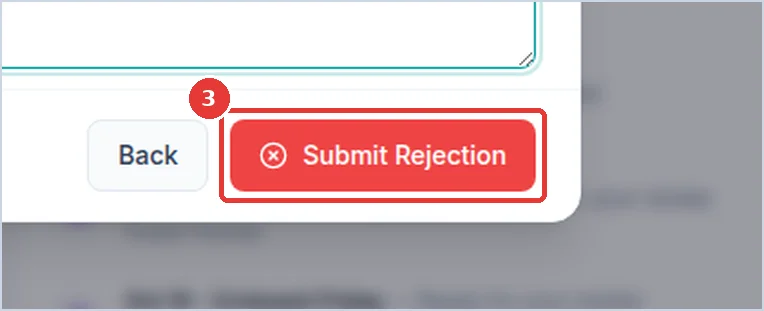
Click Submit Rejection.
-
The work goes back to the designer (Assigned). It gets a red Rejected - Final label. The designer gets a message with your reason.
Write a clear reason
Good: "Please change the price to 20% off, not 25% off." Not good: "Not nice, redo."
Other ways to review
- On My Requirements, a card in Final Review has Approve and Reject buttons. They open the same window.
- On the requirement page, click Review at the top.
- To approve many at once, use the Table view. See Approve many at once.