Check and approve work
When a designer sends their work, it is in Internal Review. You check it first. Then you approve it or send it back for changes.
Find work to check
- On the Board, look at the Internal Review column.
- On your Dashboard, Issues to Address shows work waiting more than 24 hours.
- You get a message in Notifications.
Approve the work
-
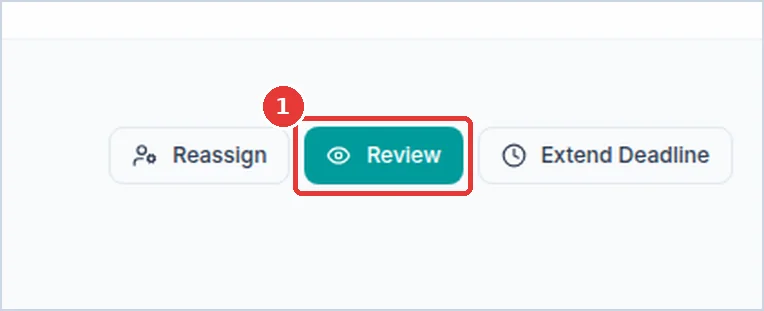
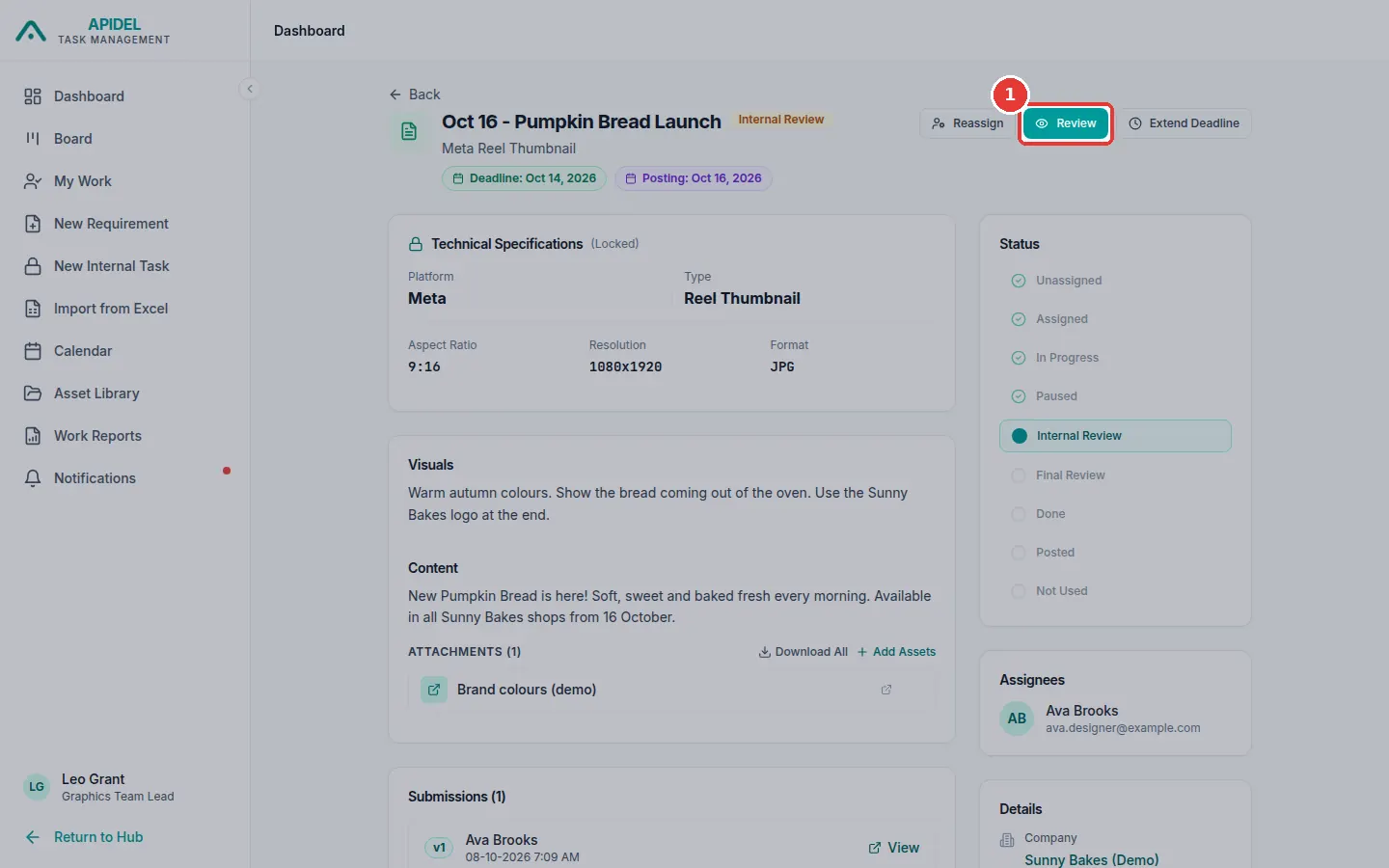
Open the requirement (click its card). Click Review at the top.
-
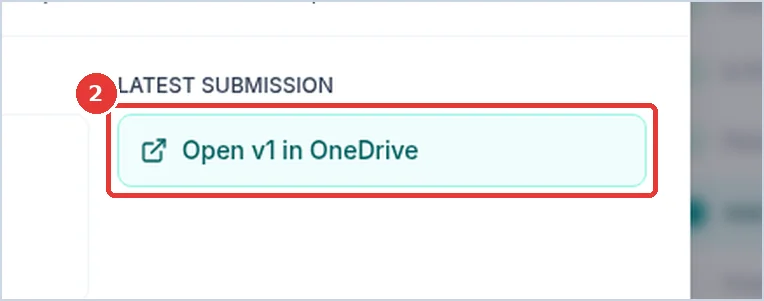
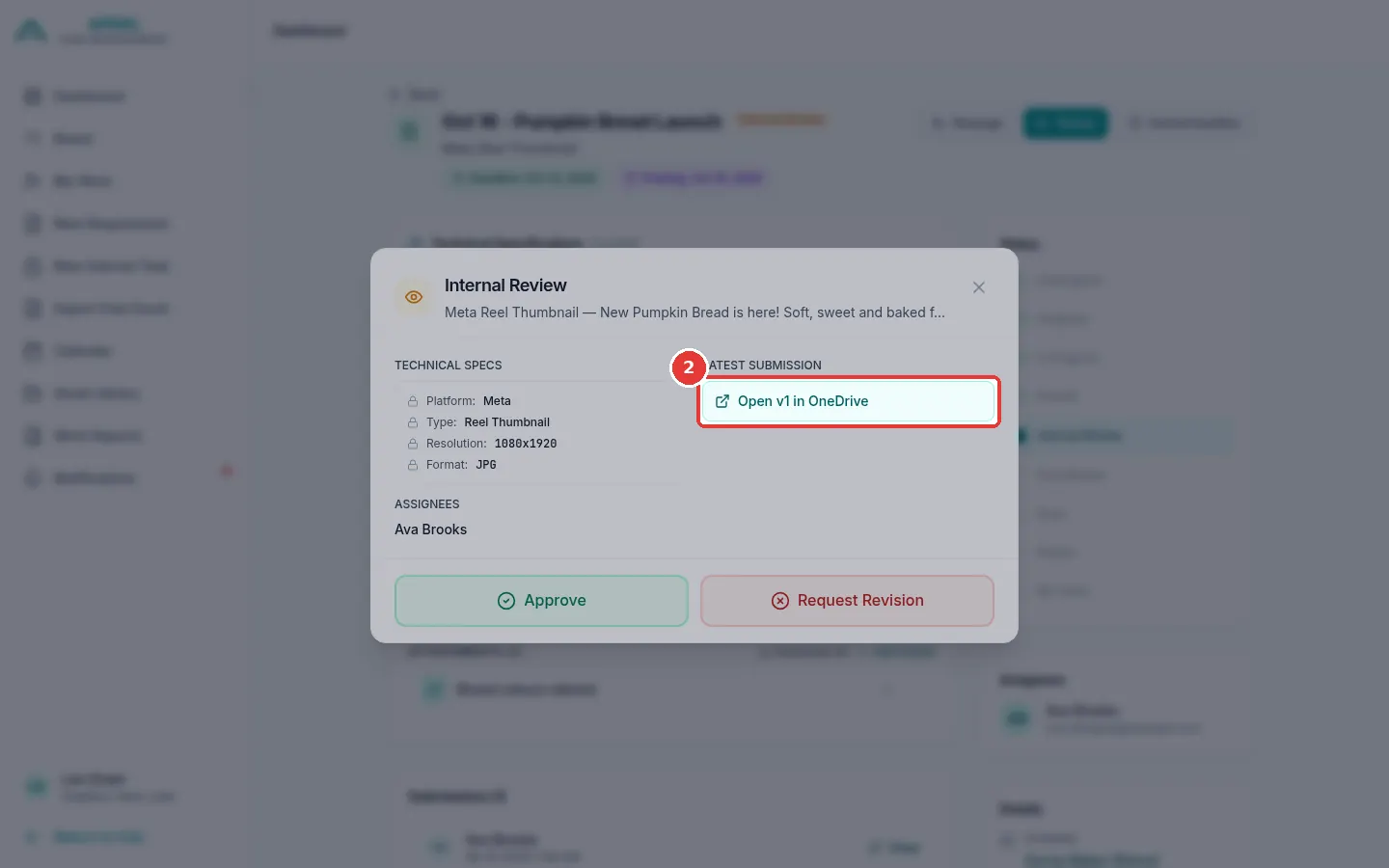
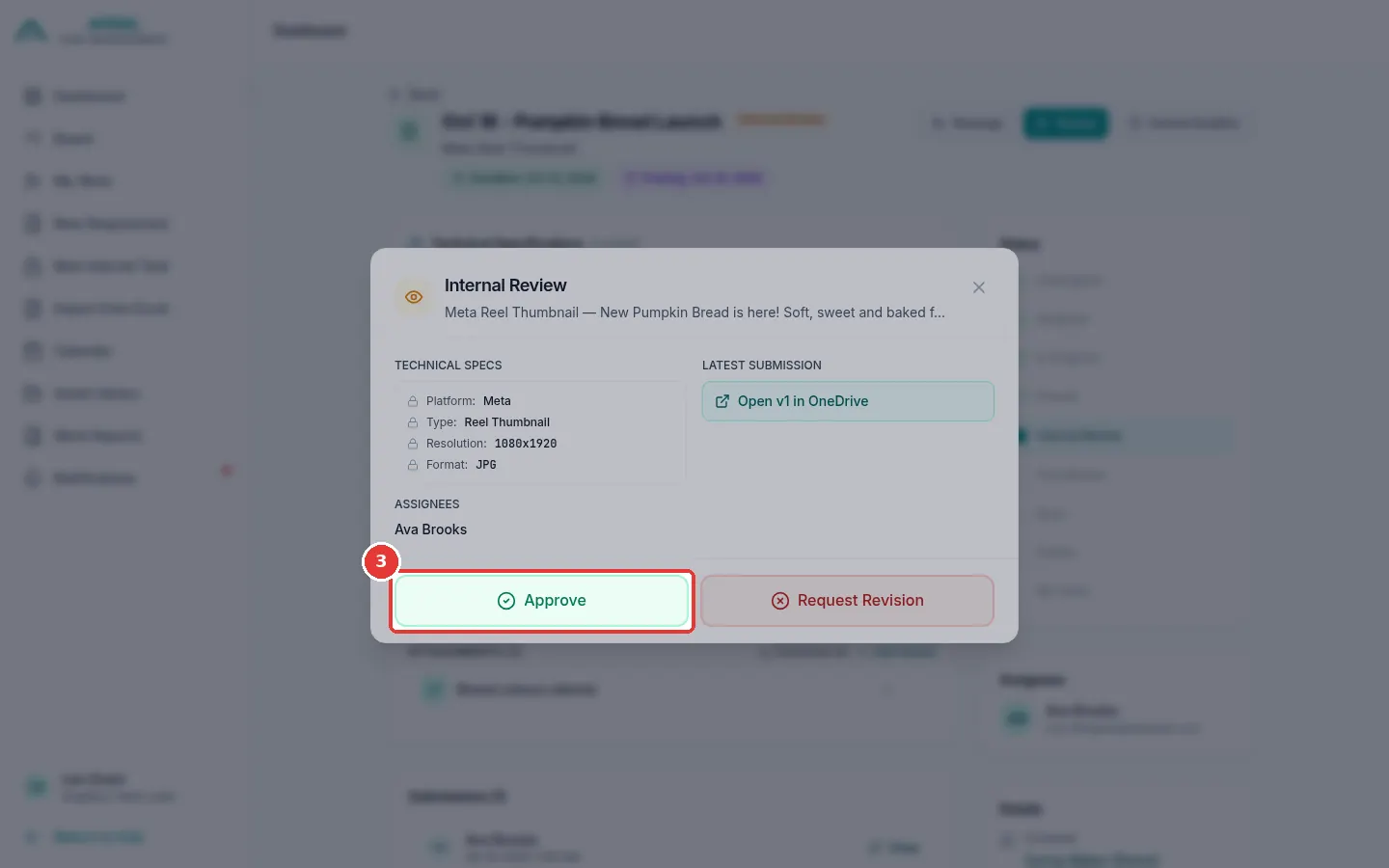
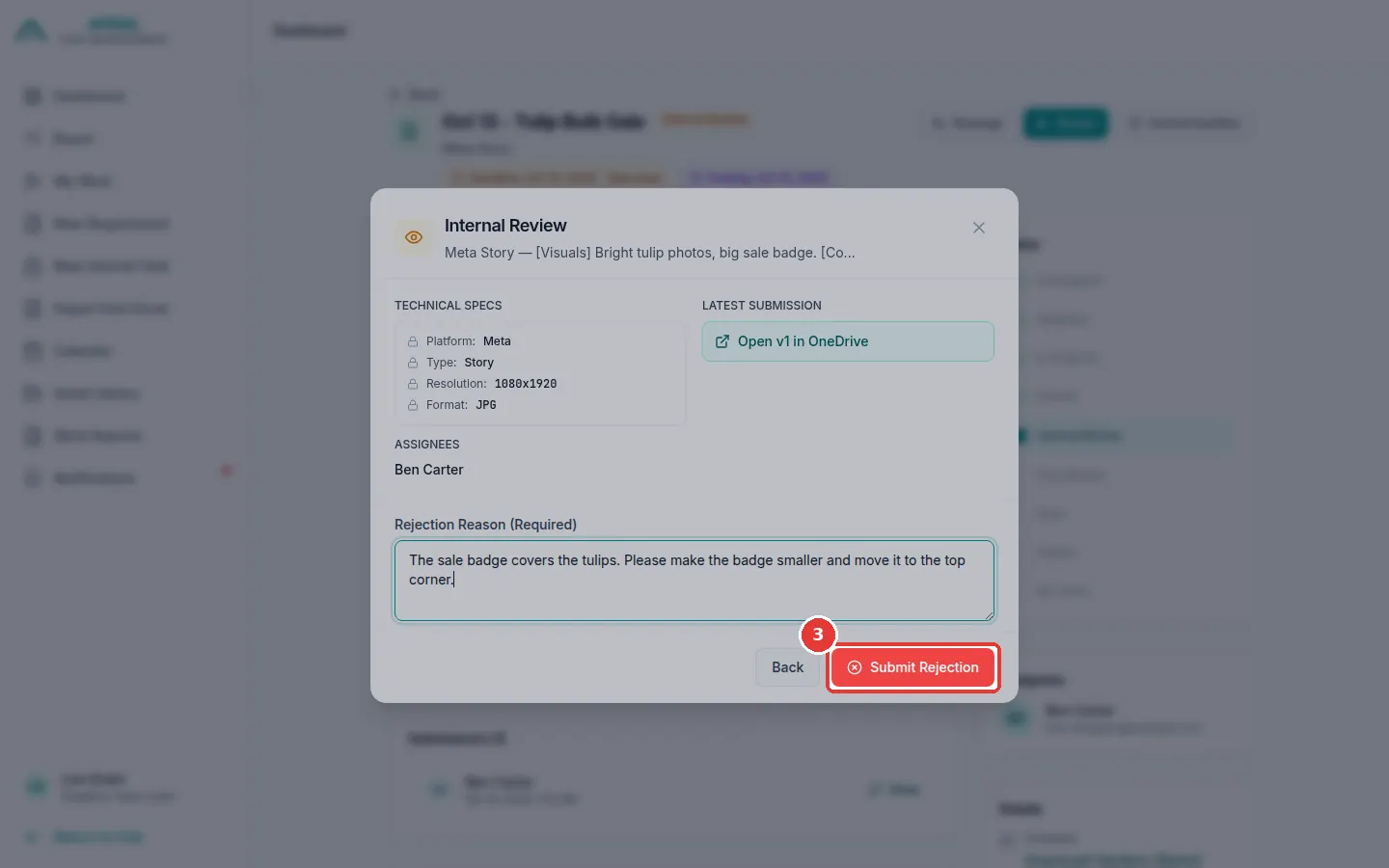
The Internal Review window opens. Click Open v1 in OneDrive to look at the design. It opens in a new tab. Check it against the Technical Specs (size and file kind).
-
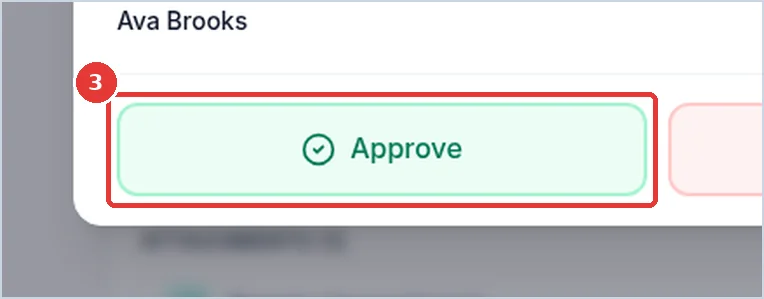
Is it good? Click the green Approve button.
-
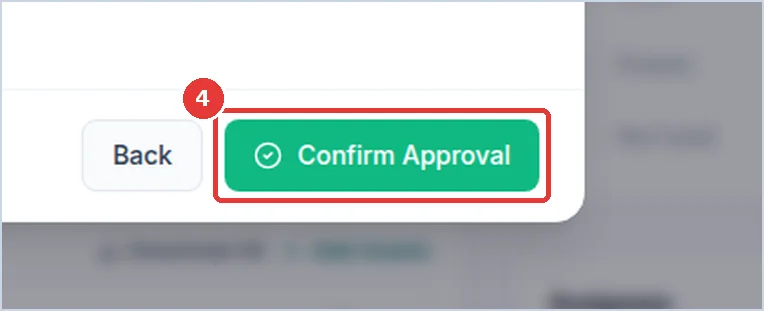
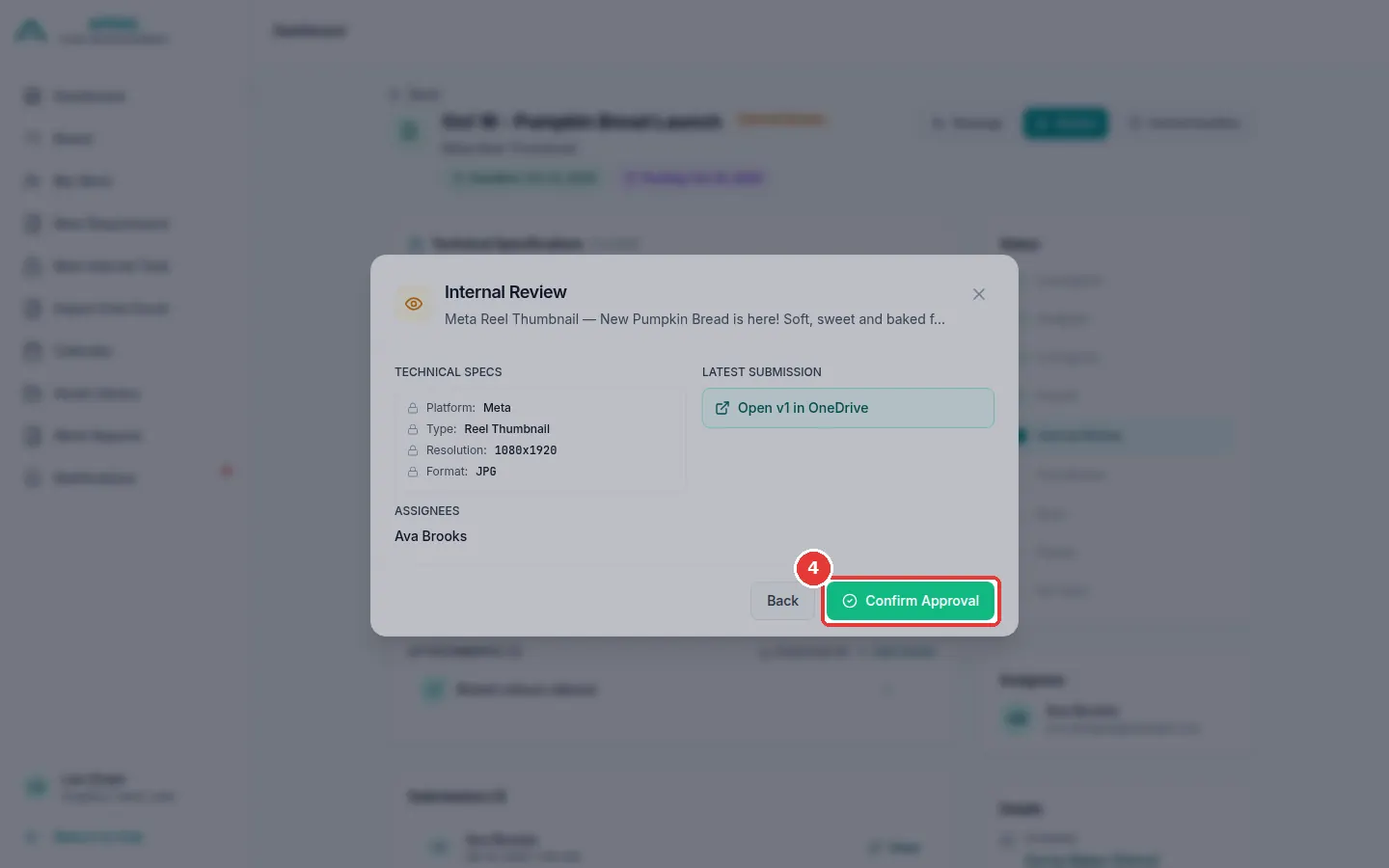
Click Confirm Approval.
-
The work moves to Final Review. The coordinator checks it next.
Internal tasks
Internal tasks skip the coordinator. When you approve them, they become Done straight away.
Send it back for changes
- Click Review on the requirement page (as above).
-
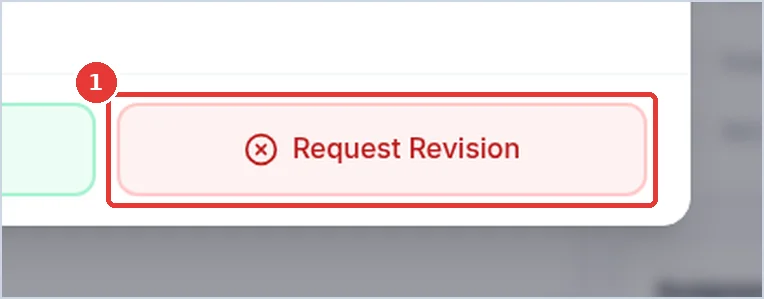
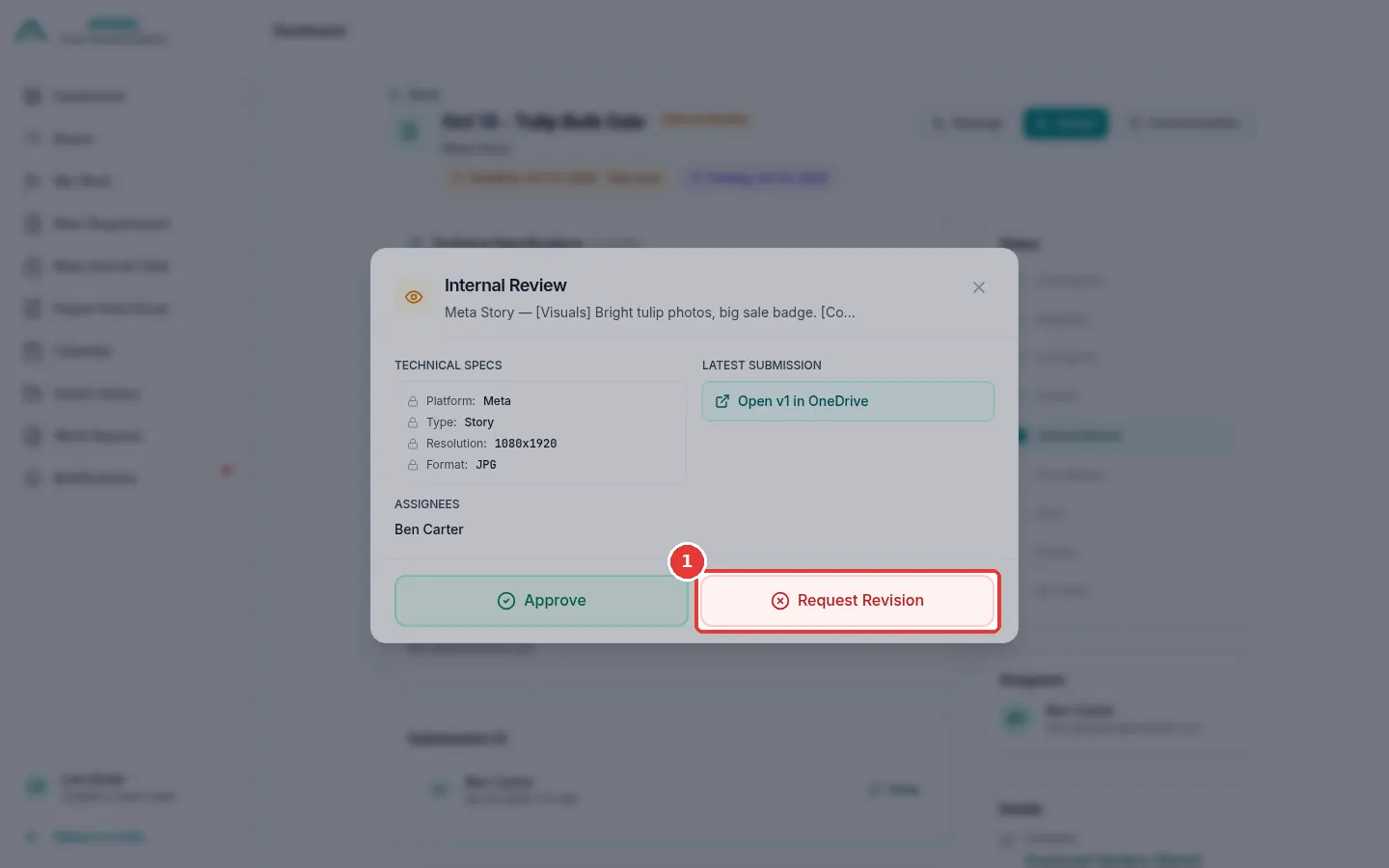
Click Request Revision.
-
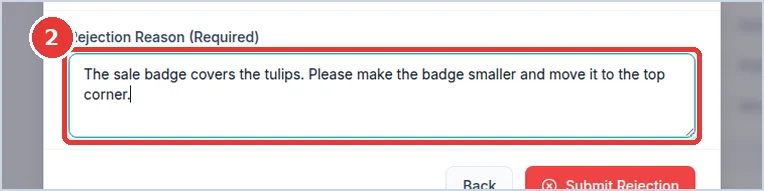
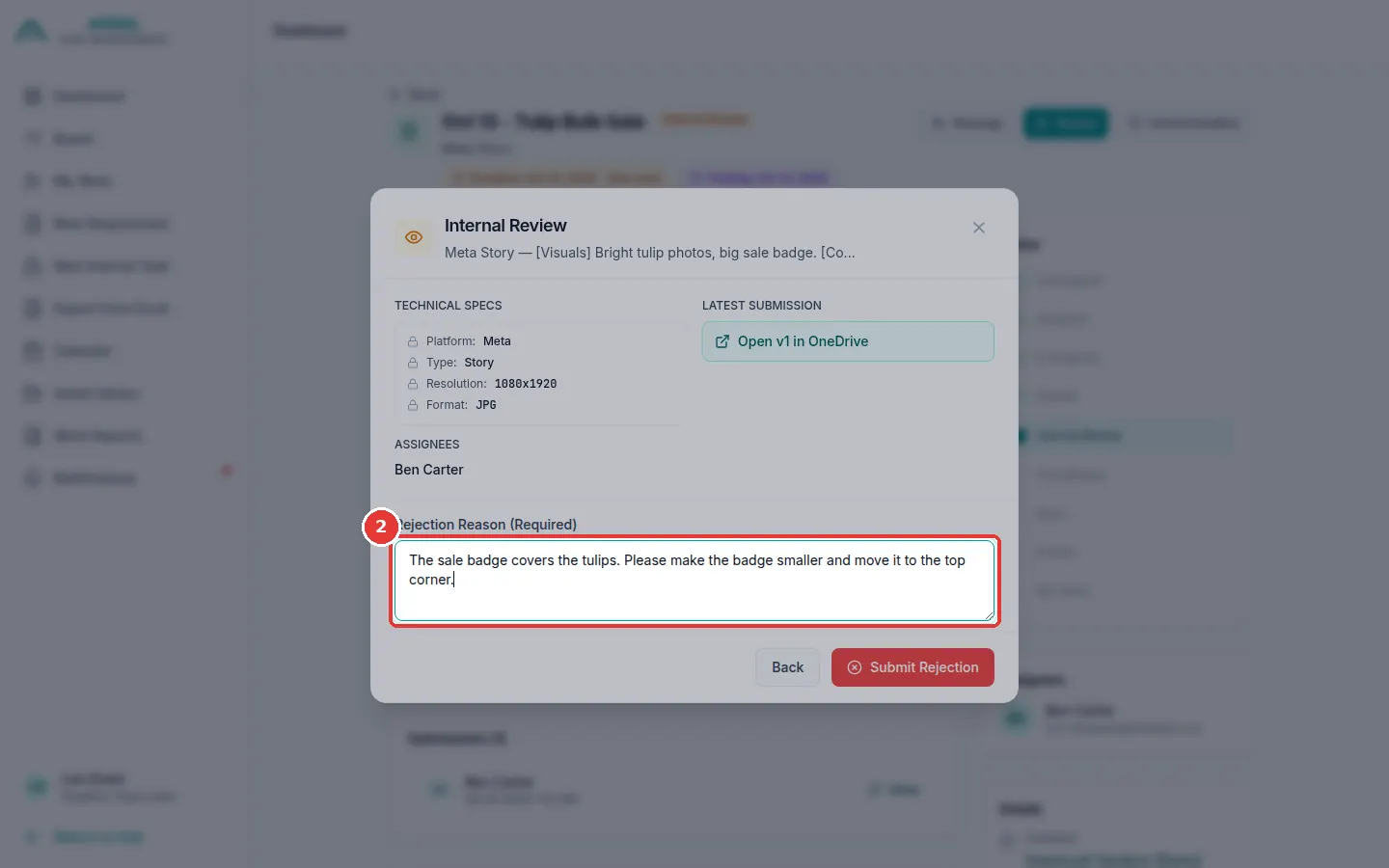
Write clearly what the designer must change.
-
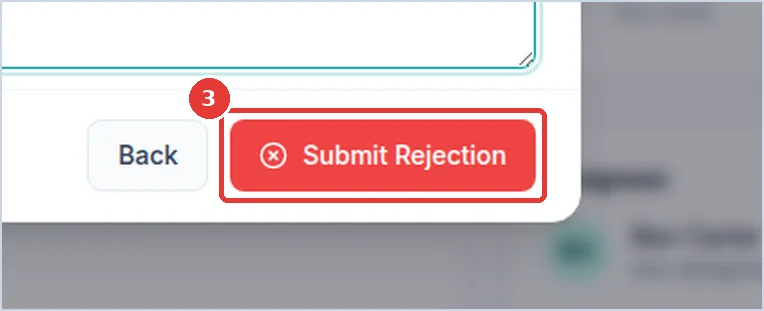
Click Submit Rejection.
-
The work goes back to the designer (Assigned) with a red Rejected - Internal label.
Quick buttons on the Board
On a card in Internal Review you see:
- Approve: opens the same review window.
- Reject: opens a Request Revision window. You can click common problems (like "Wrong resolution or aspect ratio") to add them to your reason. Then click Send Back for Revision.
- Reassign: give the work to another designer.
Check many at once (Table view)
- On the Board, click Table.
- Tick the rows in Internal Review.
- Click Approve (N) at the top. (N is how many you ticked.) Then click Approve (N) in the window.