Work Reports
The Work Report shows the tasks you finished. You can also save it as an Excel file.
Open your report
-
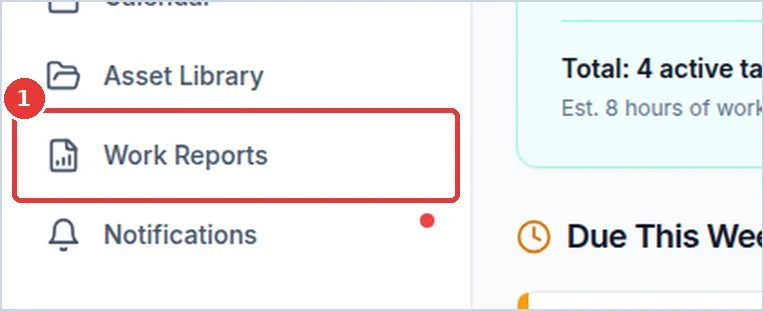
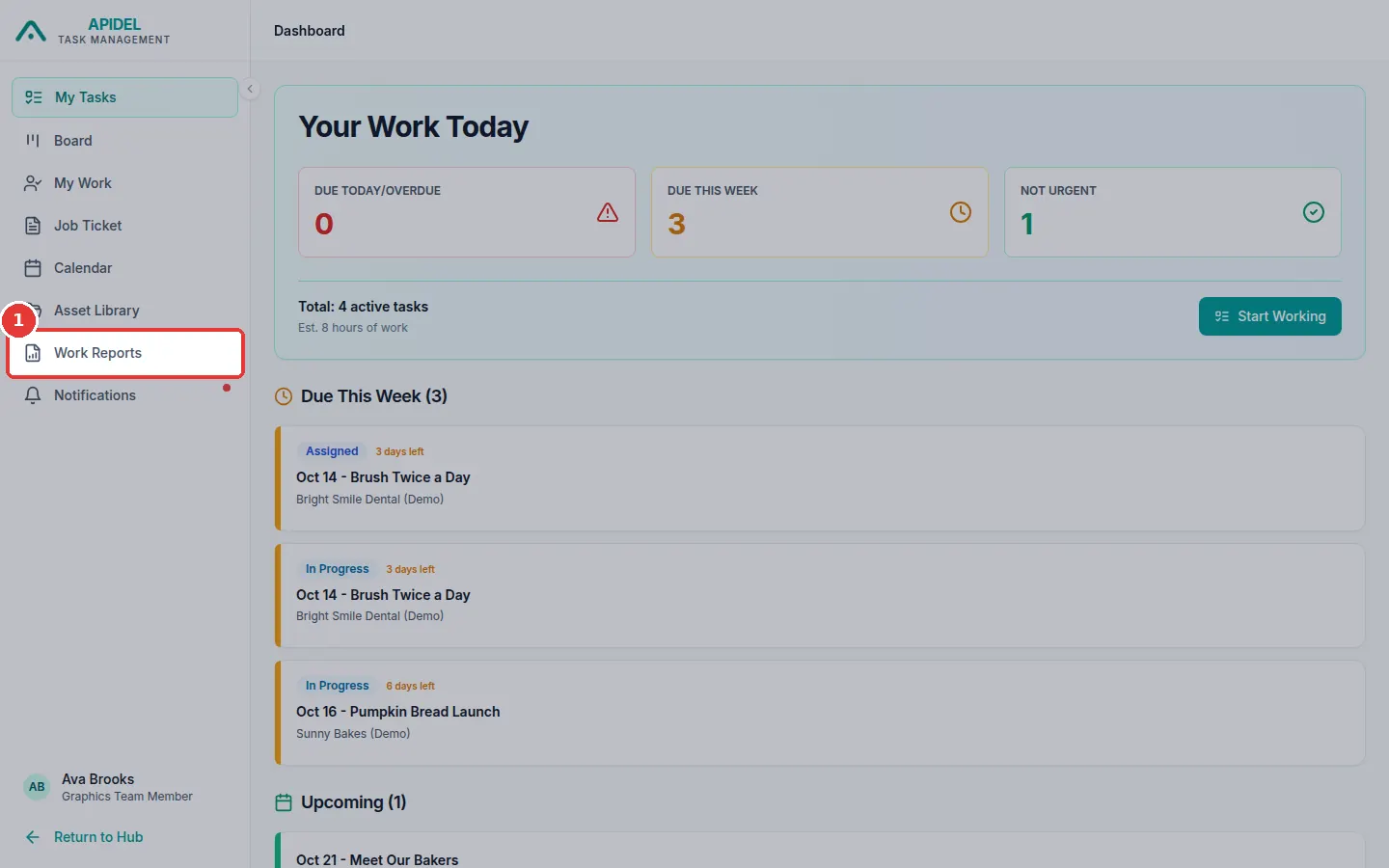
Click Work Reports in the menu on the left.
-
You will see your report for today.
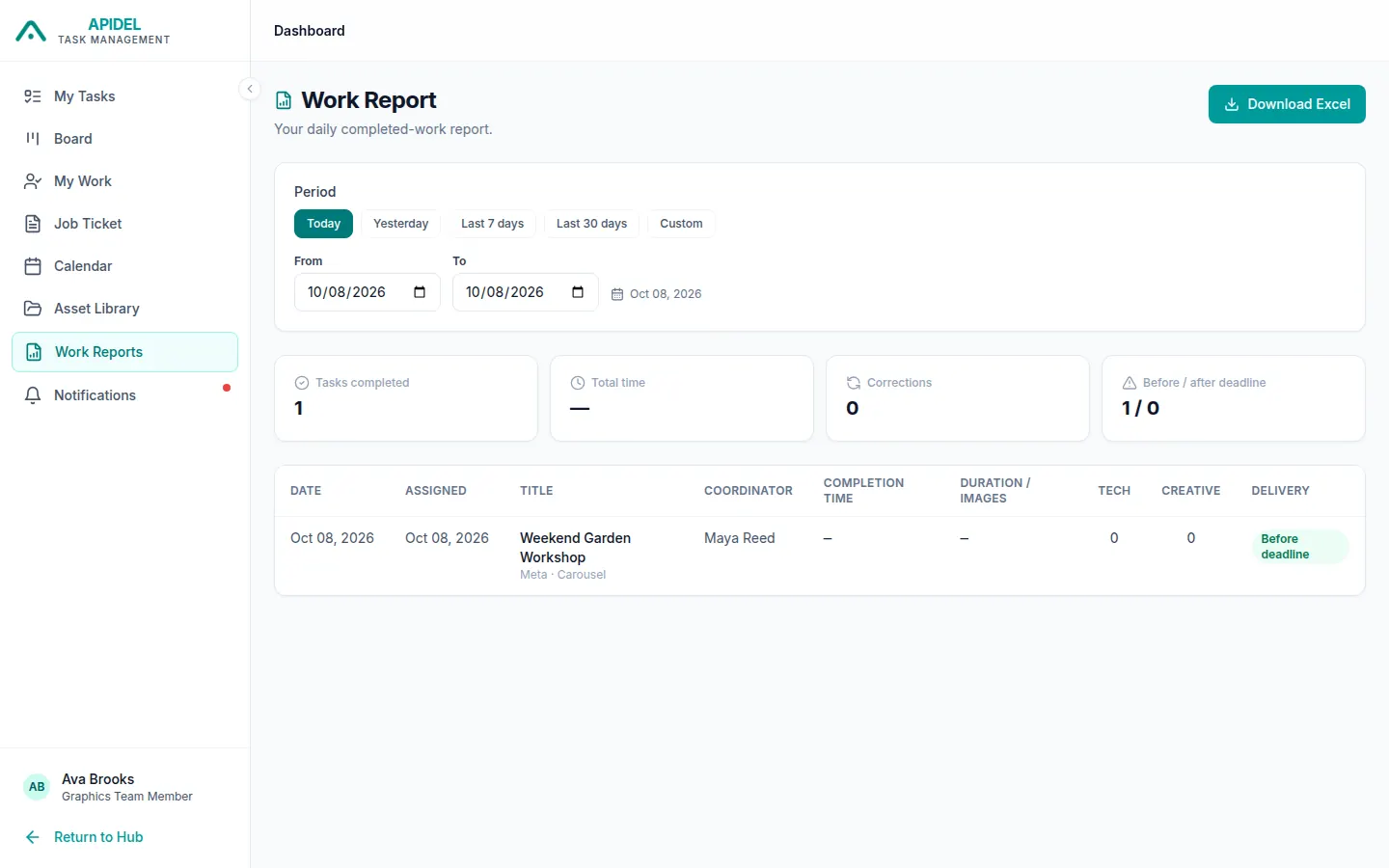
The boxes at the top show:
- Tasks completed: how many tasks you finished.
- Total time: how long you worked on them.
- Corrections: how many times work was sent back.
- Before / after deadline: how many were on time and how many were late.
The table shows one line for each finished task.
Choose the days
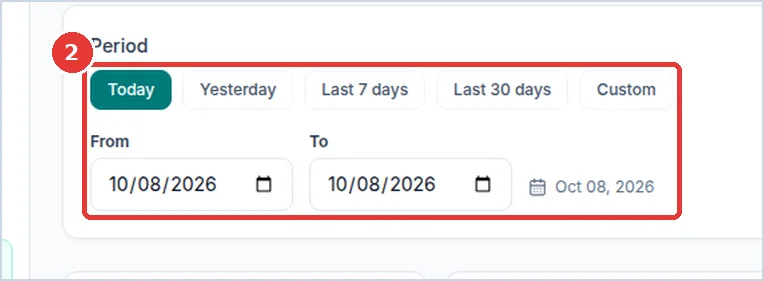
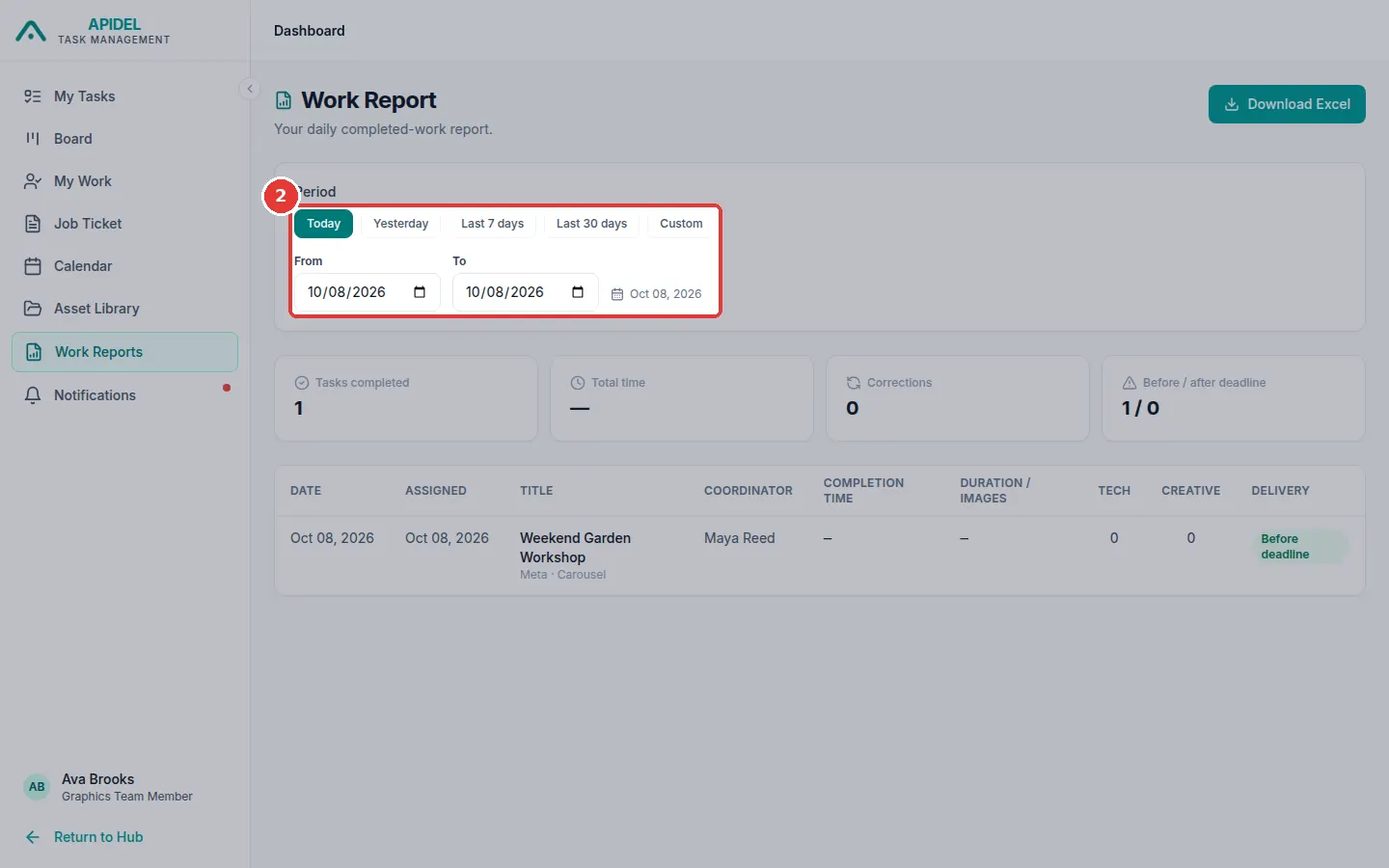
- Click one of the buttons: Today, Yesterday, Last 7 days or Last 30 days.
-
Or choose your own days in the From and To boxes.
Save the report as an Excel file
-
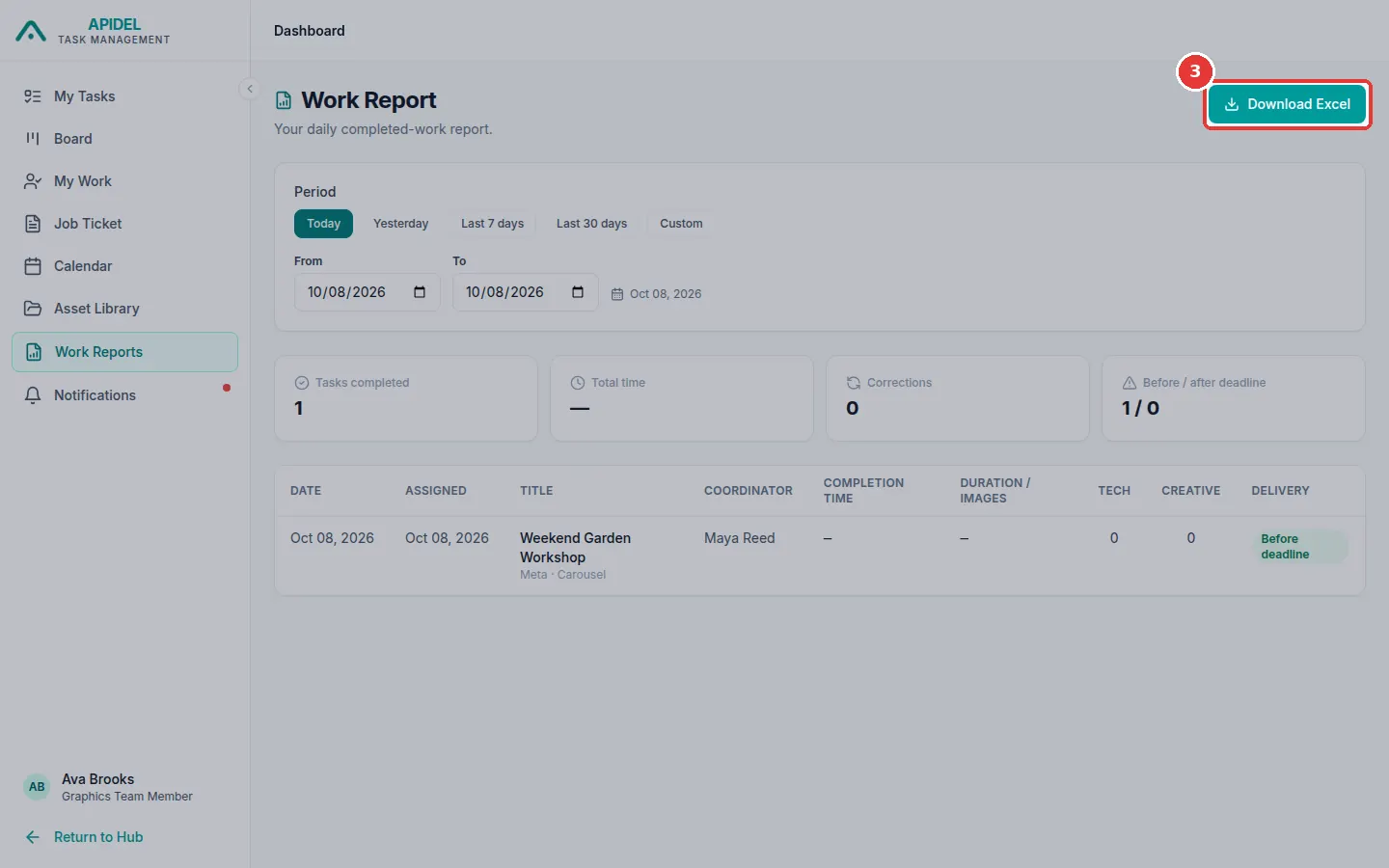
Click Download Excel at the top right.
-
The file is saved in your Downloads folder.
Note
The report shows only tasks that are Done. Tasks that were later marked Posted do not show here.