Work on a task (Job Ticket)
The Job Ticket page shows all tasks given to you as cards. Here you open a task, start it, and send your finished work.
Open the Job Ticket page
-
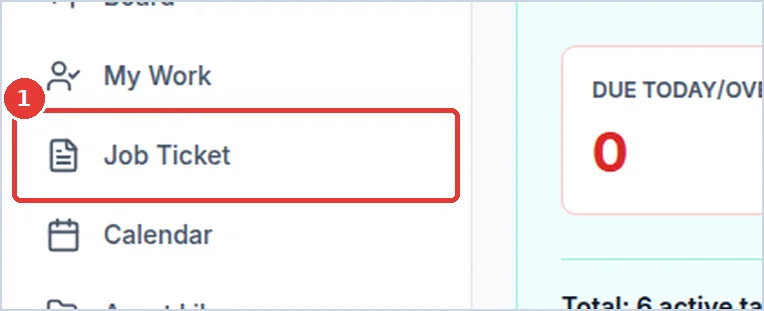
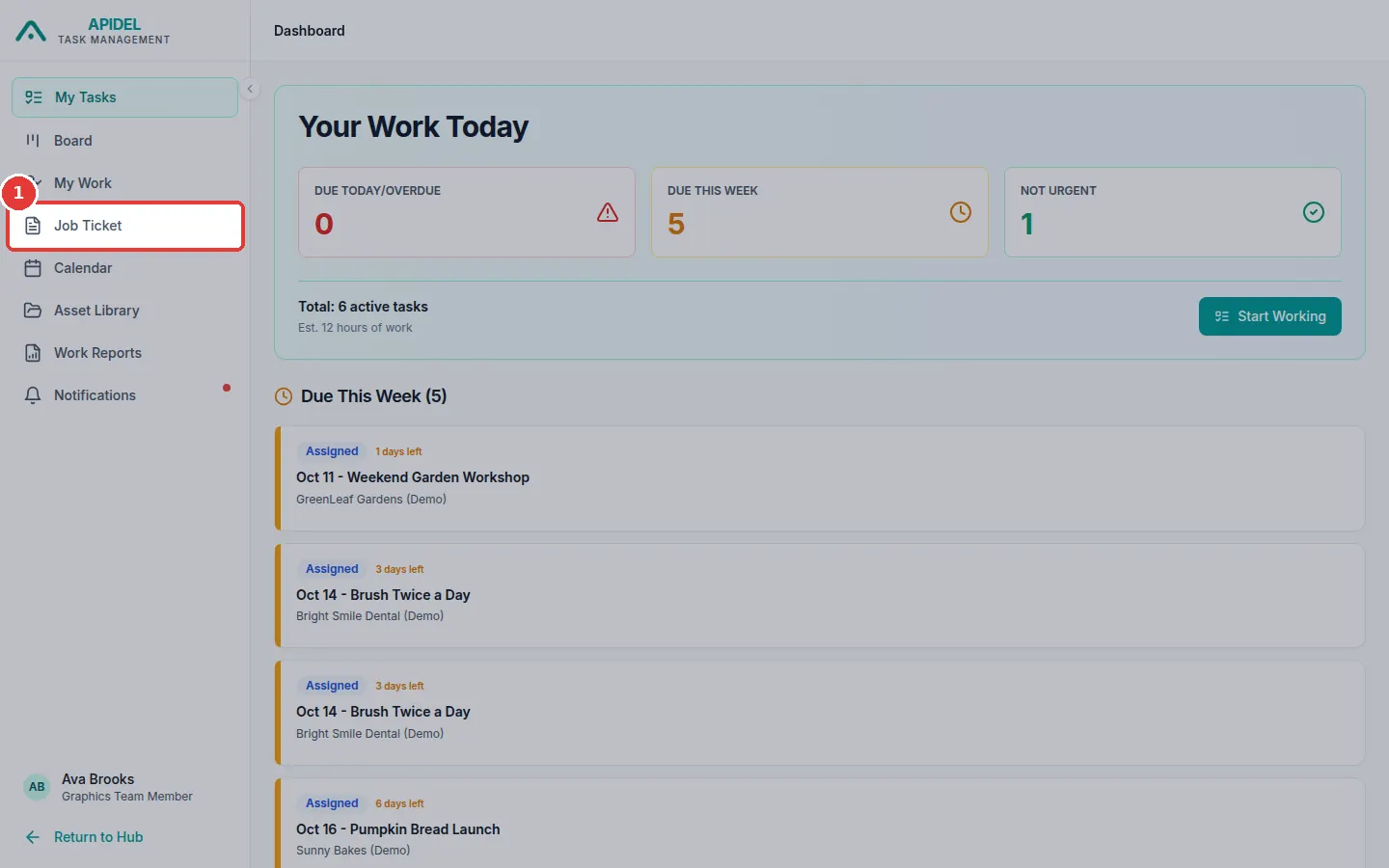
Click Job Ticket in the menu on the left.
-
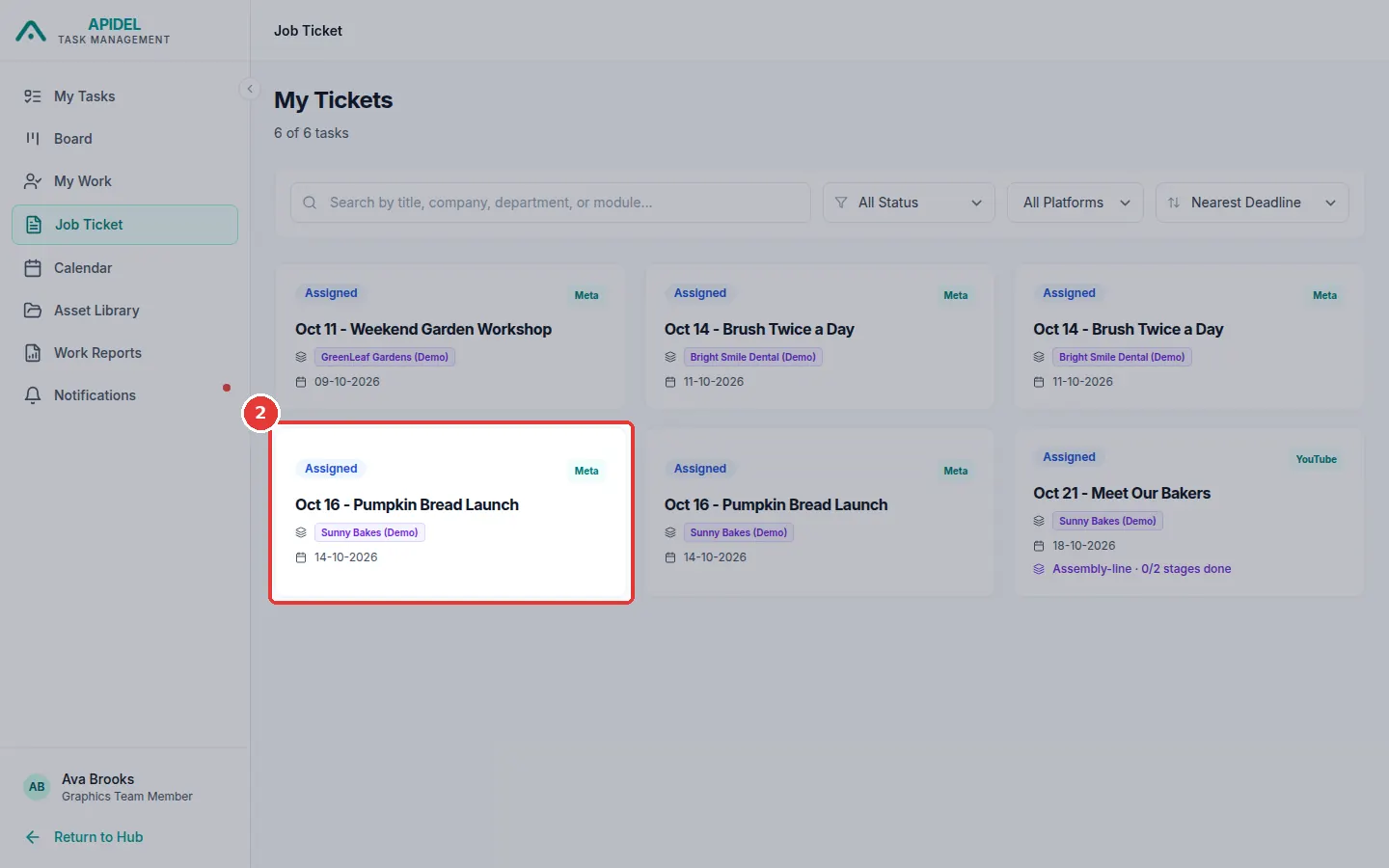
You will see My Tickets. Each card is one task. The task due first is at the top left.
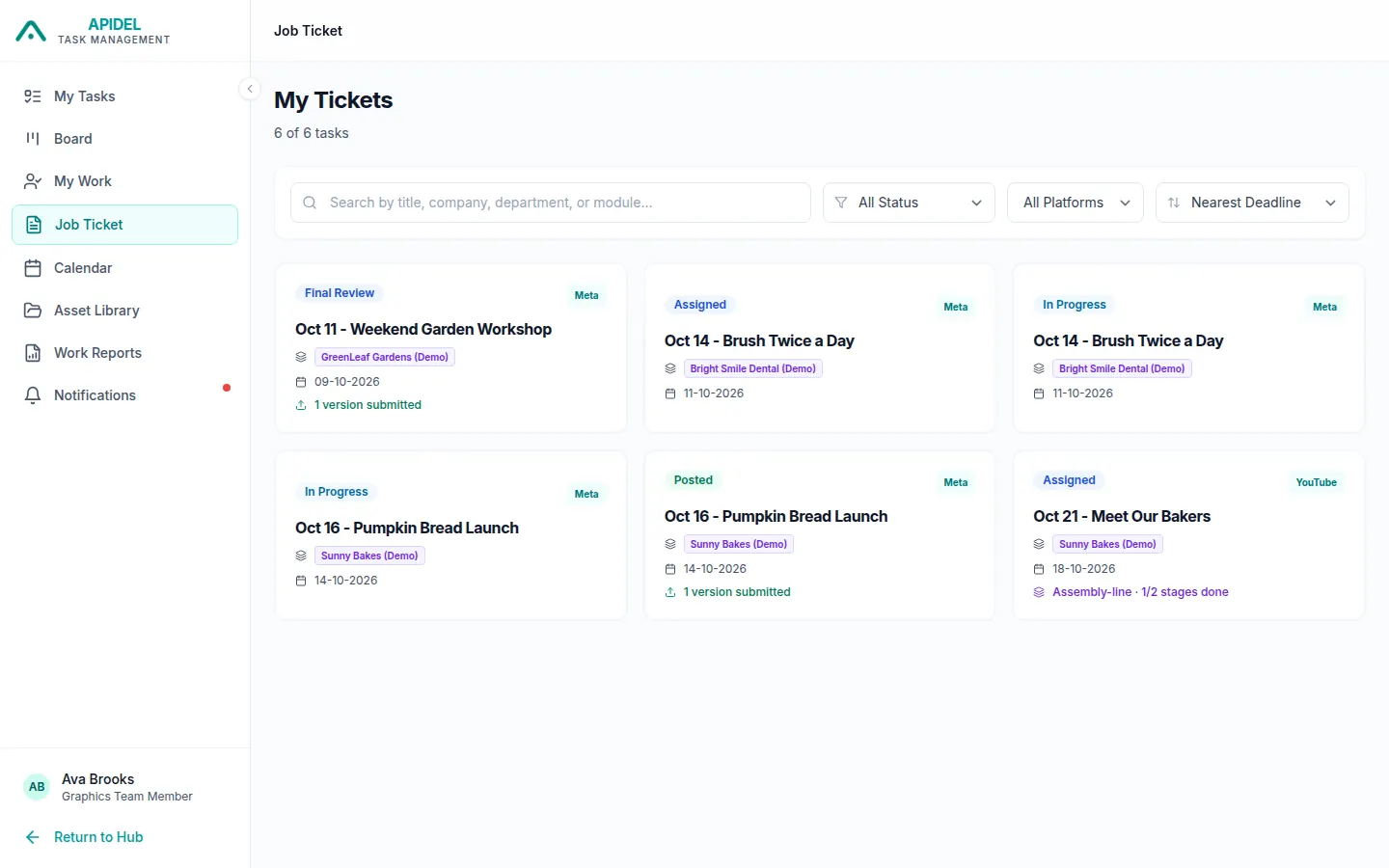
Each card shows:
- the step the task is at (for example Assigned)
- the platform (for example Meta)
- the title and the company
- the deadline (the last day)
Find a task
At the top of the page there is a search box and some boxes to choose from.

- Type a word in the search box to find a task by its title or company.
- Click All Status to see only tasks at one step, for example only In Progress.
- Click All Platforms to see only one platform, for example only YouTube.
- Click Nearest Deadline to change the order of the cards.
Old finished tasks
Finished tasks older than 30 days are hidden. To see them, choose Done in the All Status box.
Open a task
-
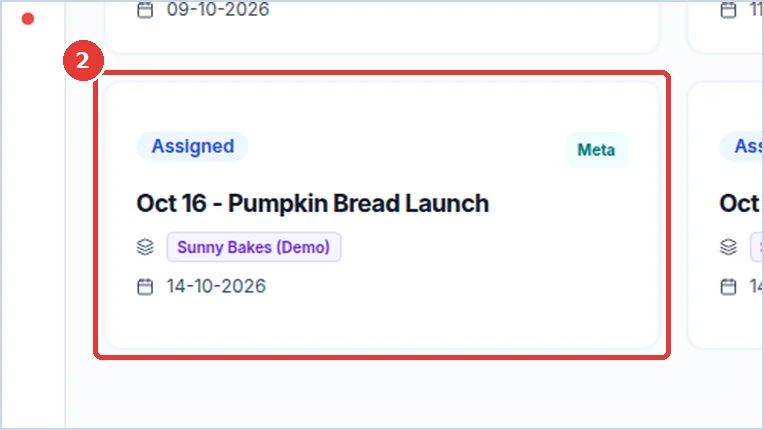
Click the card of the task.
-
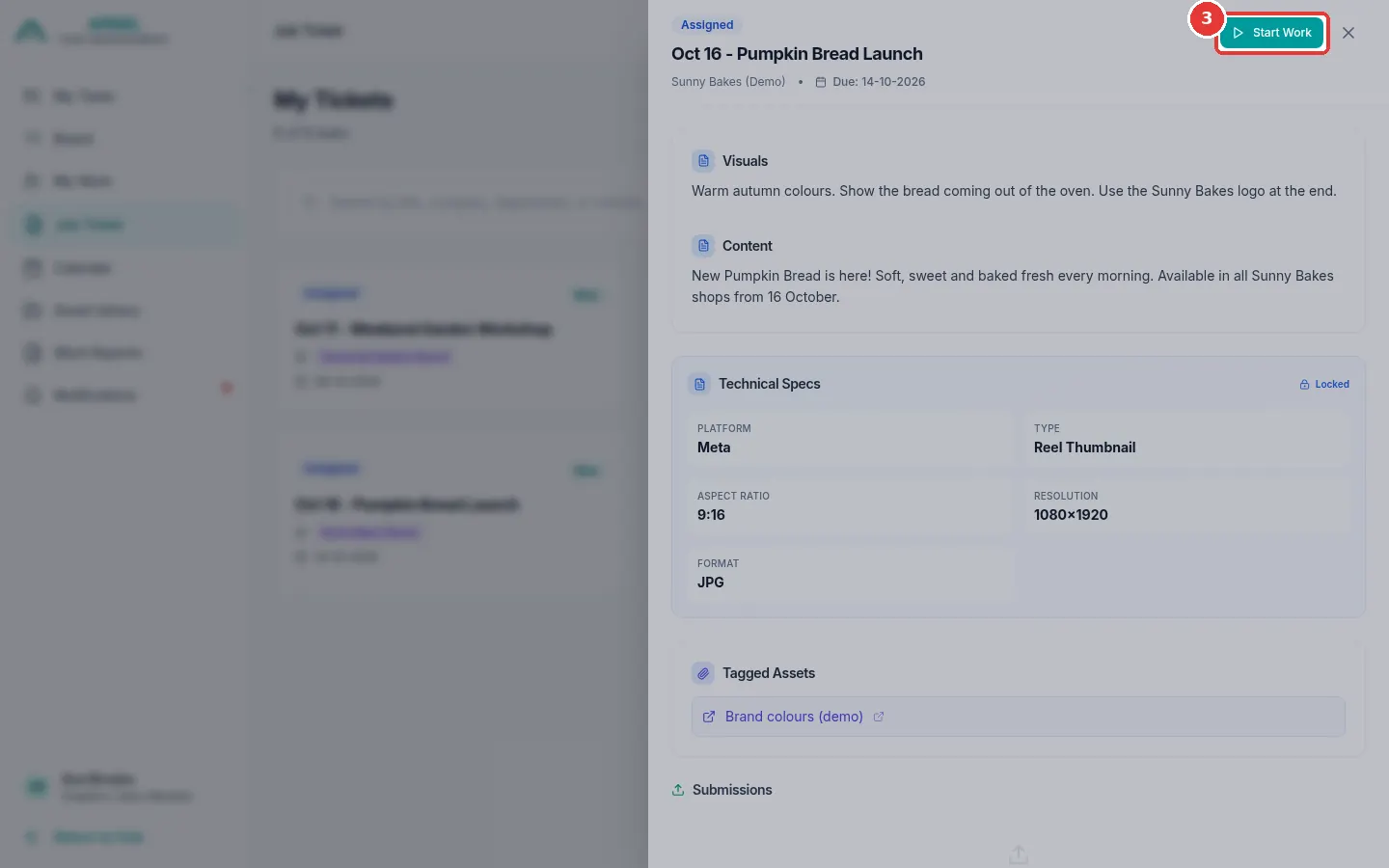
A panel opens on the right side. It shows everything about the task:
- Visuals and Content: what the customer wants.
- Technical Specs: the size and file kind you must use. These cannot change.
- Tagged Assets: files and links to help you, like brand colours.
- Submissions: the work you already sent.
- Comments: questions and answers.
- Timeline: important dates.
- To close the panel, click the X at the top right.
Start a task
Do this when you begin working on the task.
- Open the task (see above).
-
Click the green Start Work button at the top of the panel.
-
The task now says In Progress. The system remembers the time you started.
Send your finished work
First, save your design in OneDrive, Google Drive or Dropbox. Copy the share link of the file. Make sure other people are allowed to open it.
- Open the task.
-
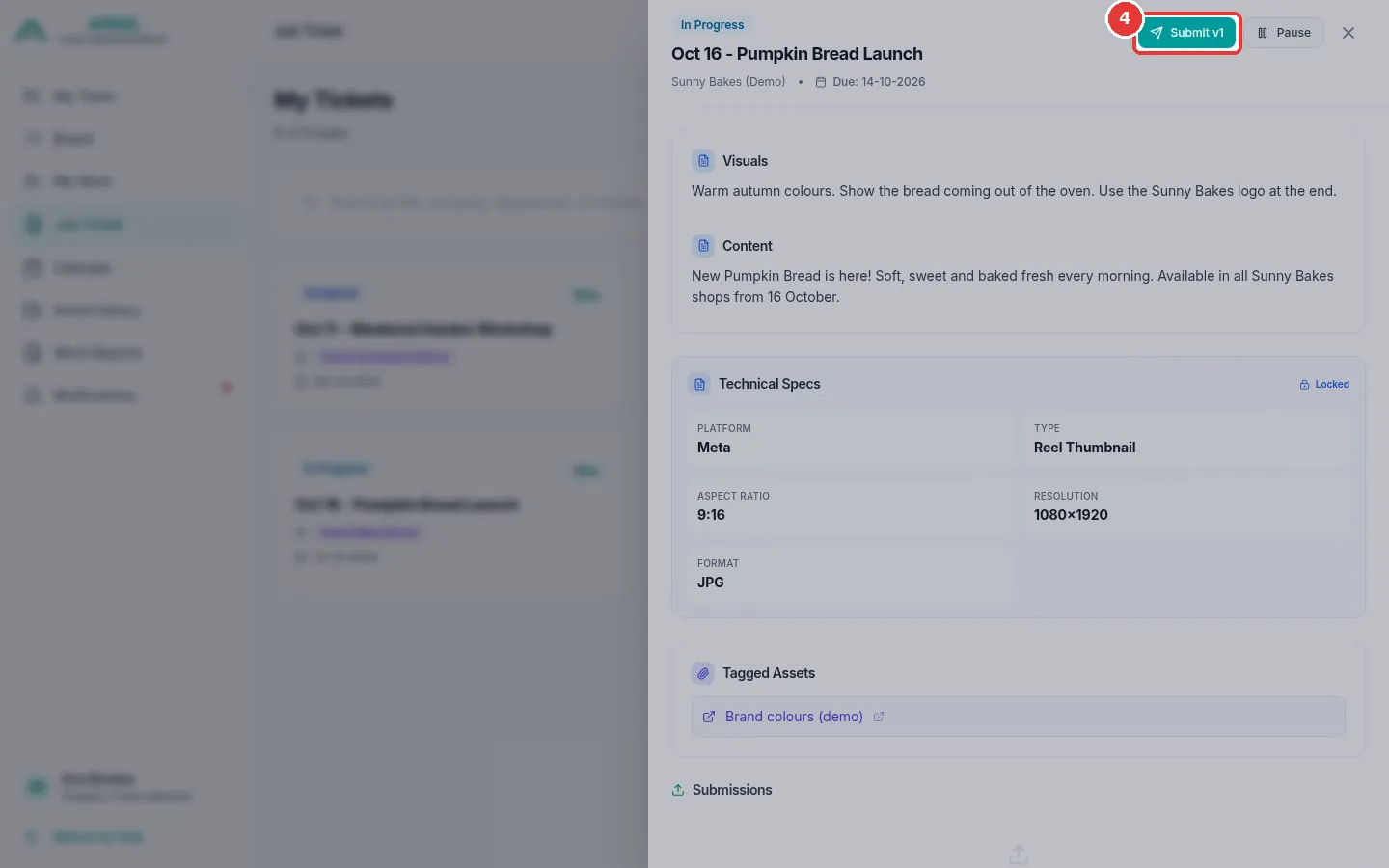
Click the green Submit v1 button at the top of the panel. (If this is your second try, it says Submit v2.)
-
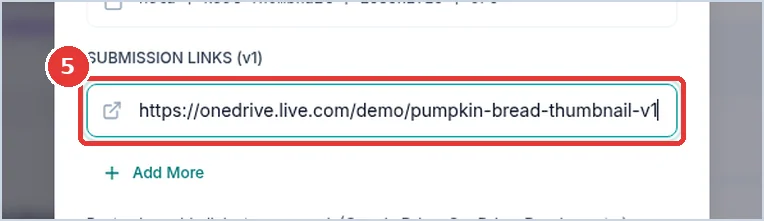
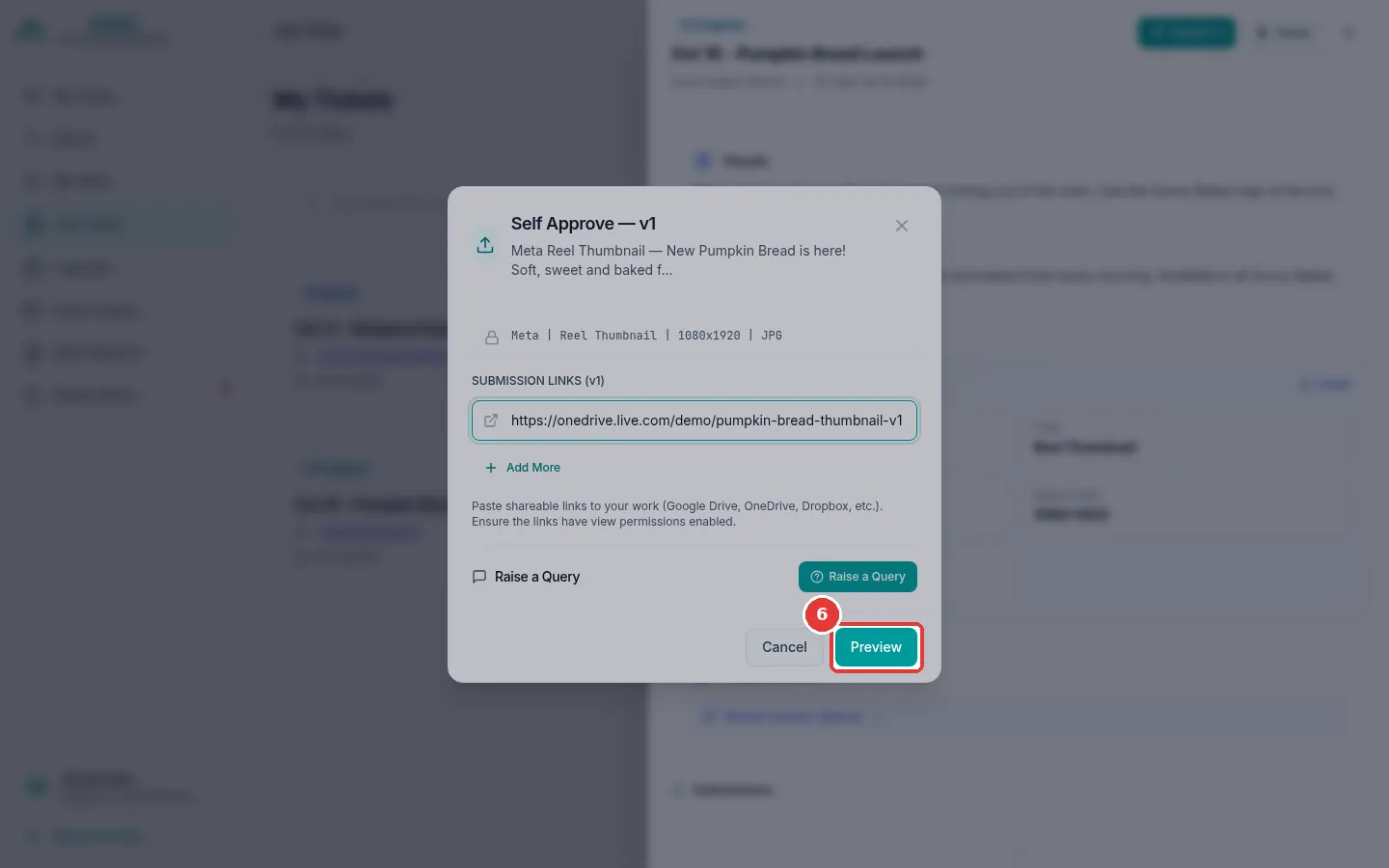
A window opens. Click the link box. Paste your link. (Press Ctrl and V together on your keyboard to paste.)
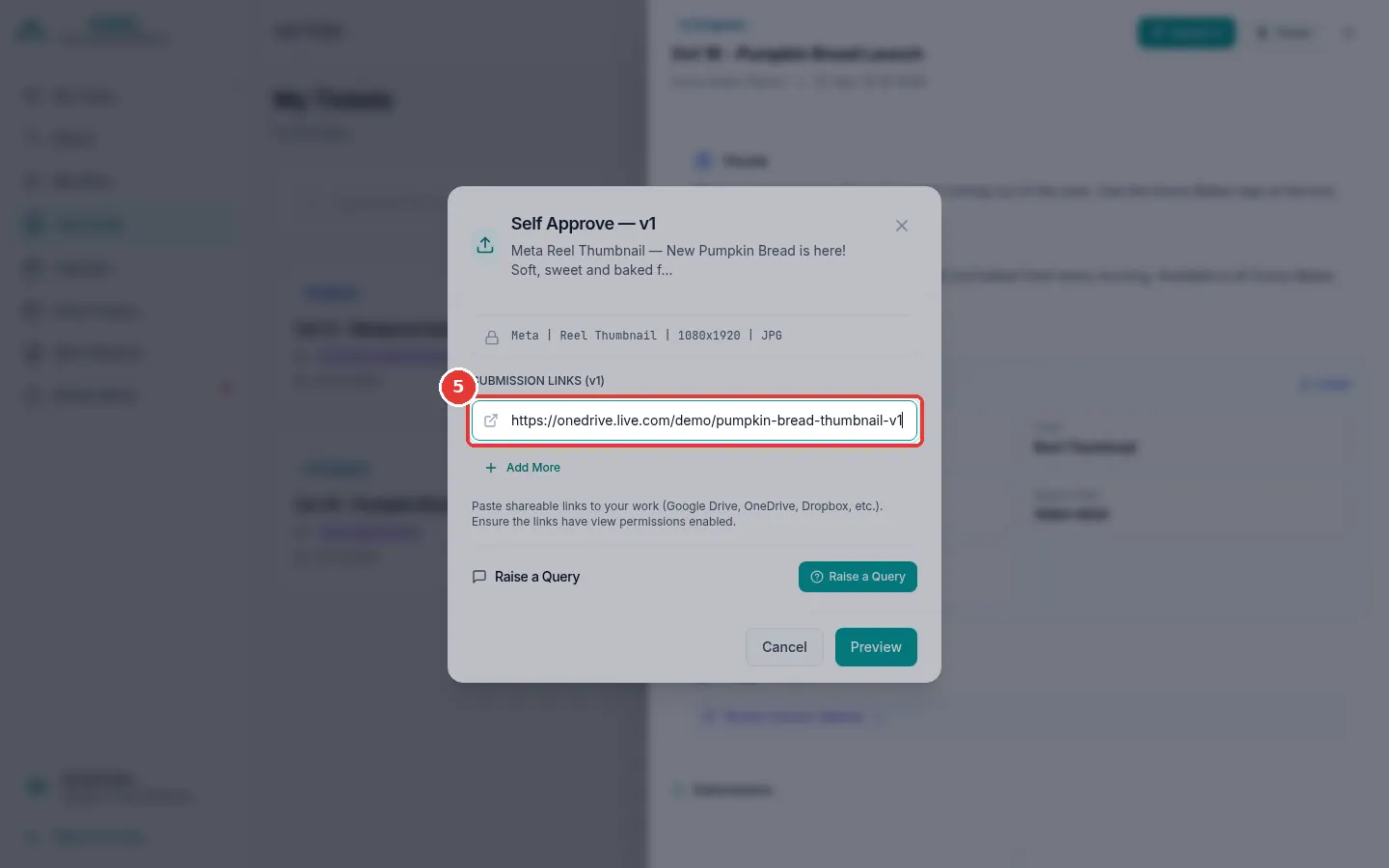
- Do you have more than one file? Click Add More and paste the next link.
- For some videos you may see a Duration box. Type how long the video is (minutes and seconds).
- For some image posts you may see a Number of images box. Type how many pictures you made.
-
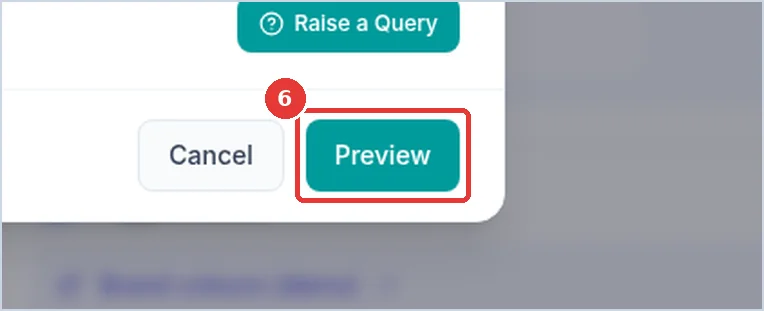
Click Preview.
-
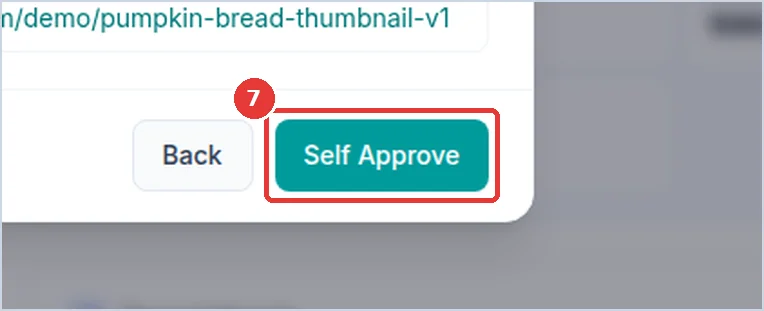
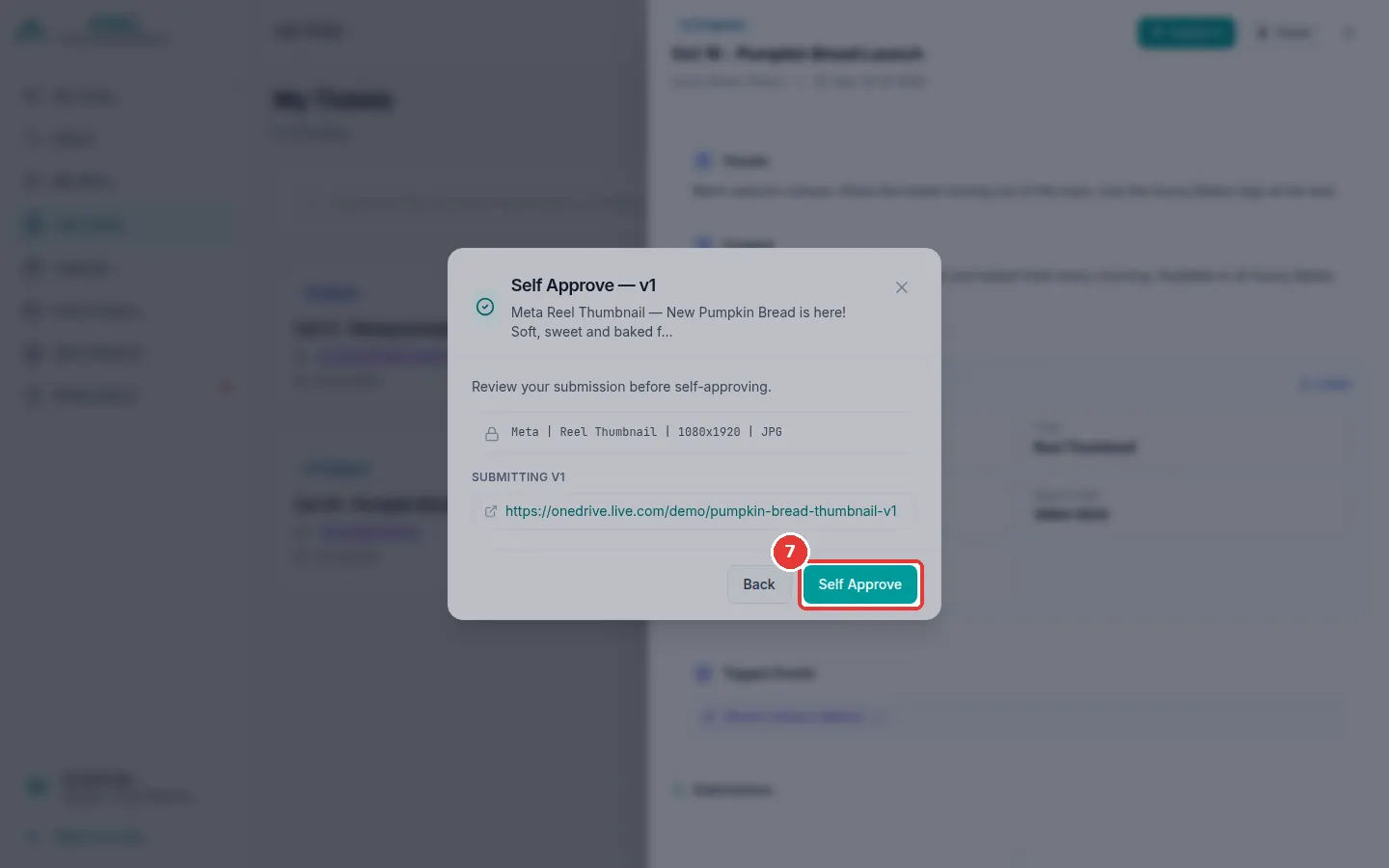
Check your link one more time. Then click Self Approve.
-
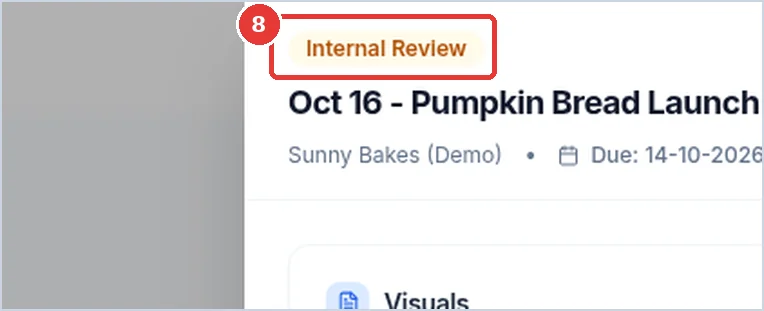
Your work is sent. The task now says Internal Review. Your link is shown under Submissions as v1.
Self Approve does not approve your work
The button is called Self Approve, but it only sends your work. The Graphics Team Lead checks it next. Then the person who asked for it checks it.
Take a break from a task (Pause)
Use this if you must stop working on a task for a while, for example to do a more urgent task.
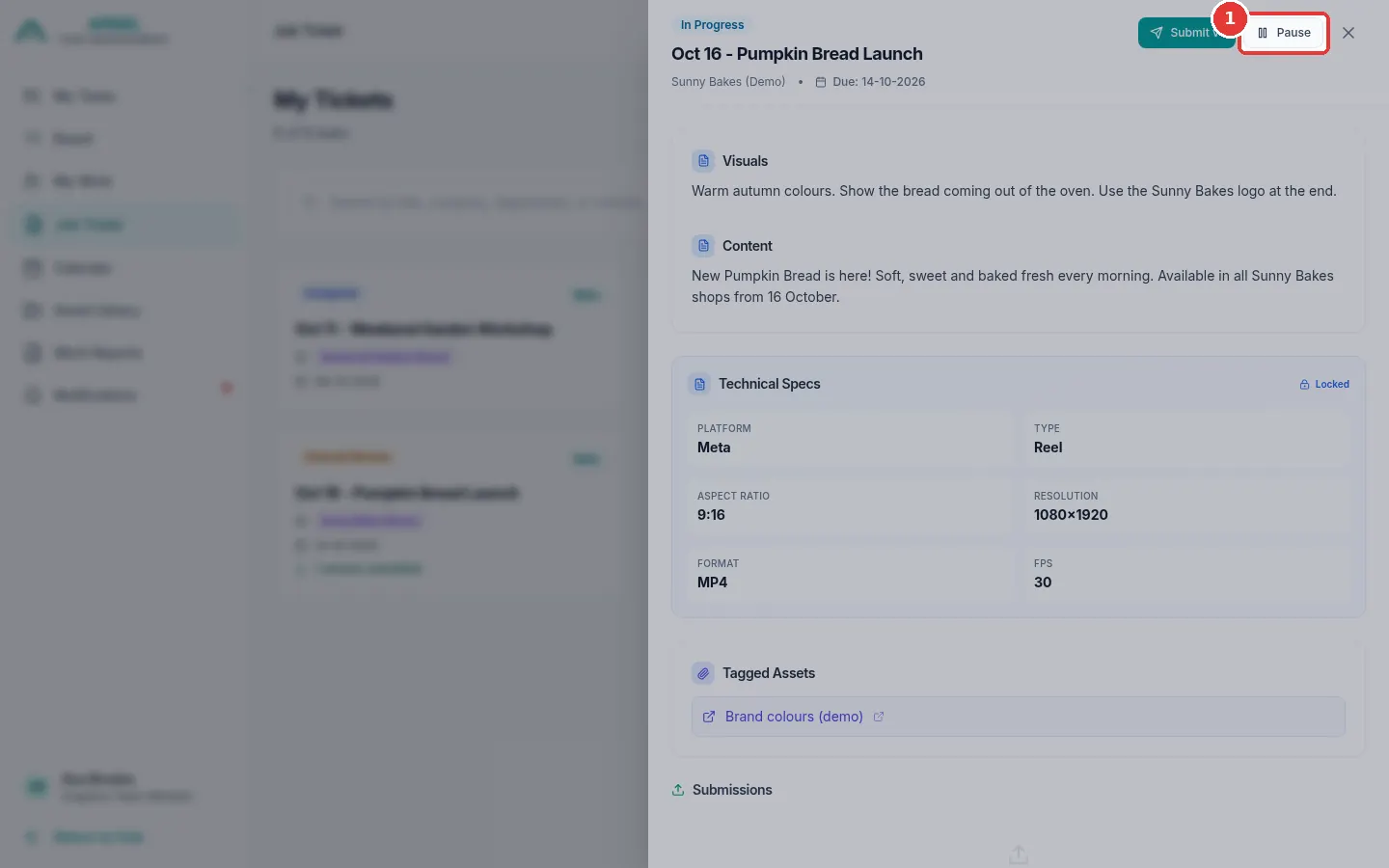
- Open the task. It must say In Progress.
-
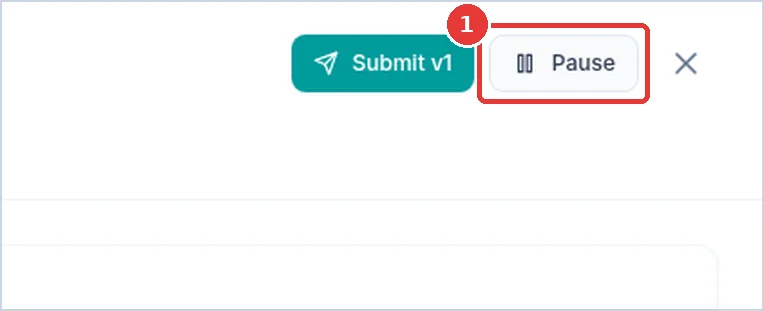
Click Pause at the top of the panel.
-
The task now says Paused.
Continue a paused task (Resume)
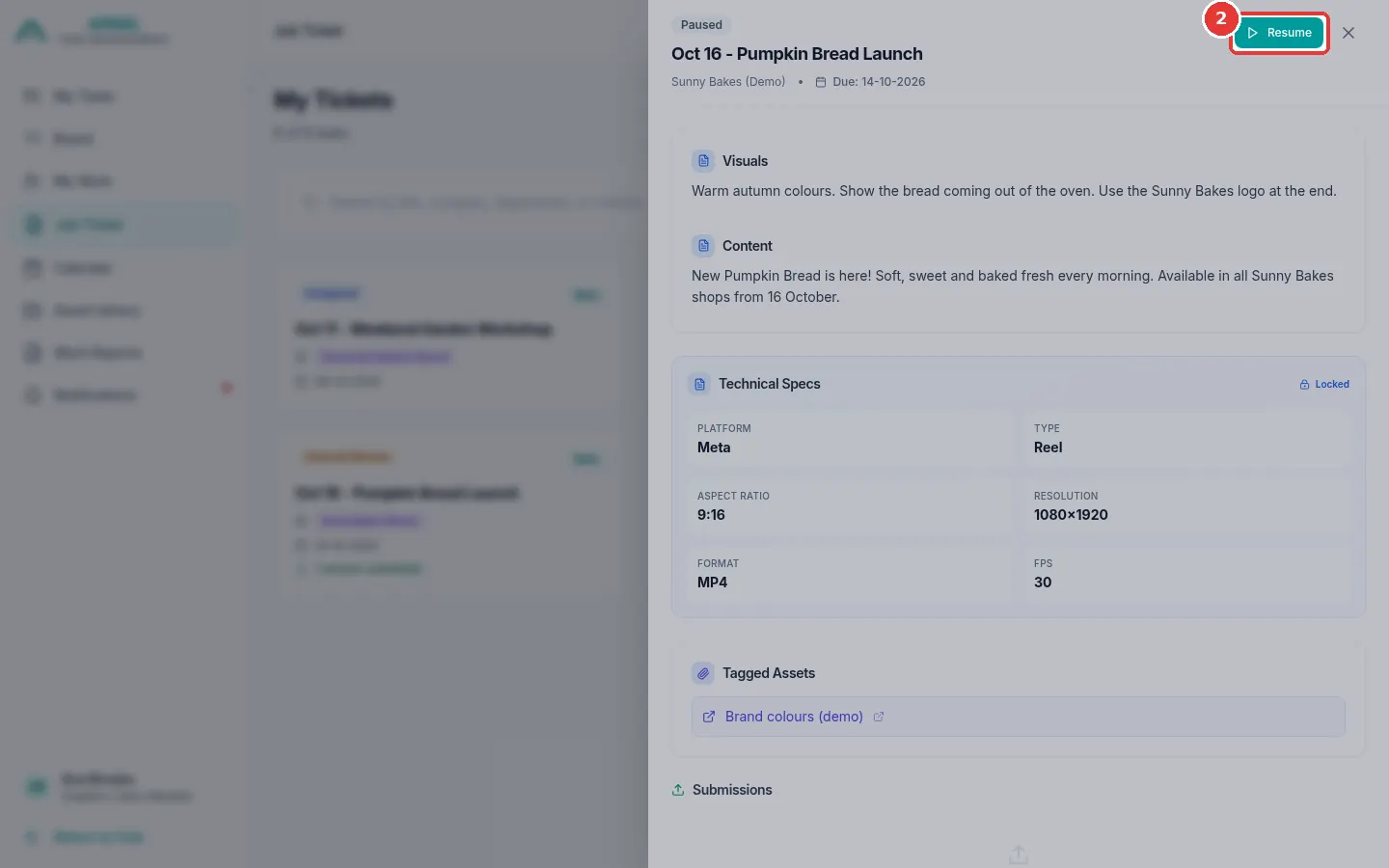
- Open the task. It says Paused.
-
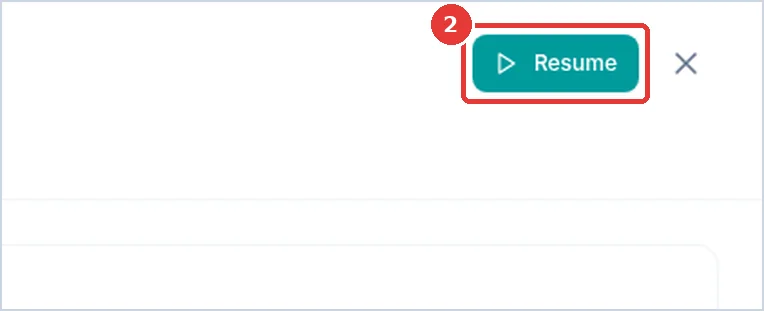
Click Resume at the top of the panel.
-
The task says In Progress again. You can now send your work.