Your companies
The Companies page shows the companies you work for, and how much of their work is finished.
Open your companies
-
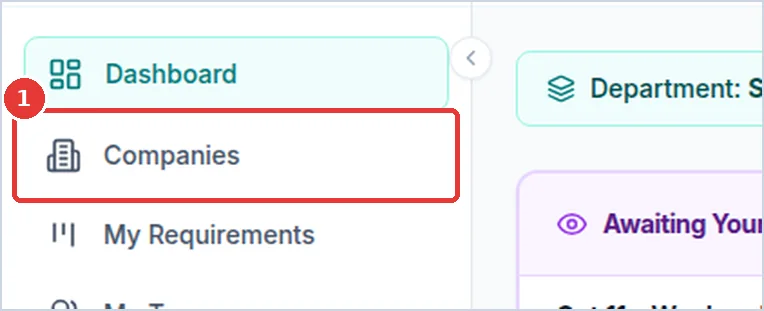
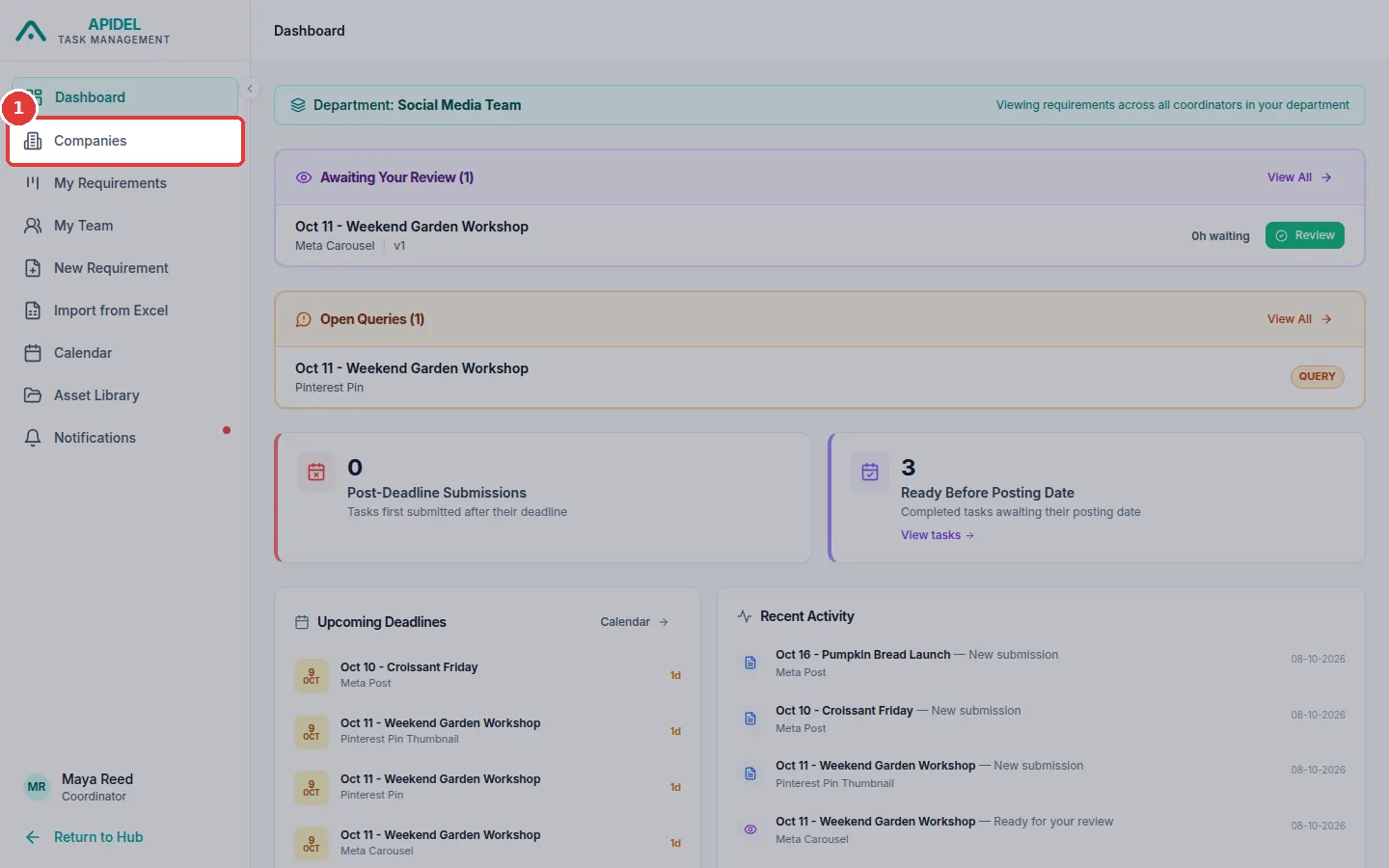
Click Companies in the menu on the left.
-
You will see Your Companies. There is one card for each company.
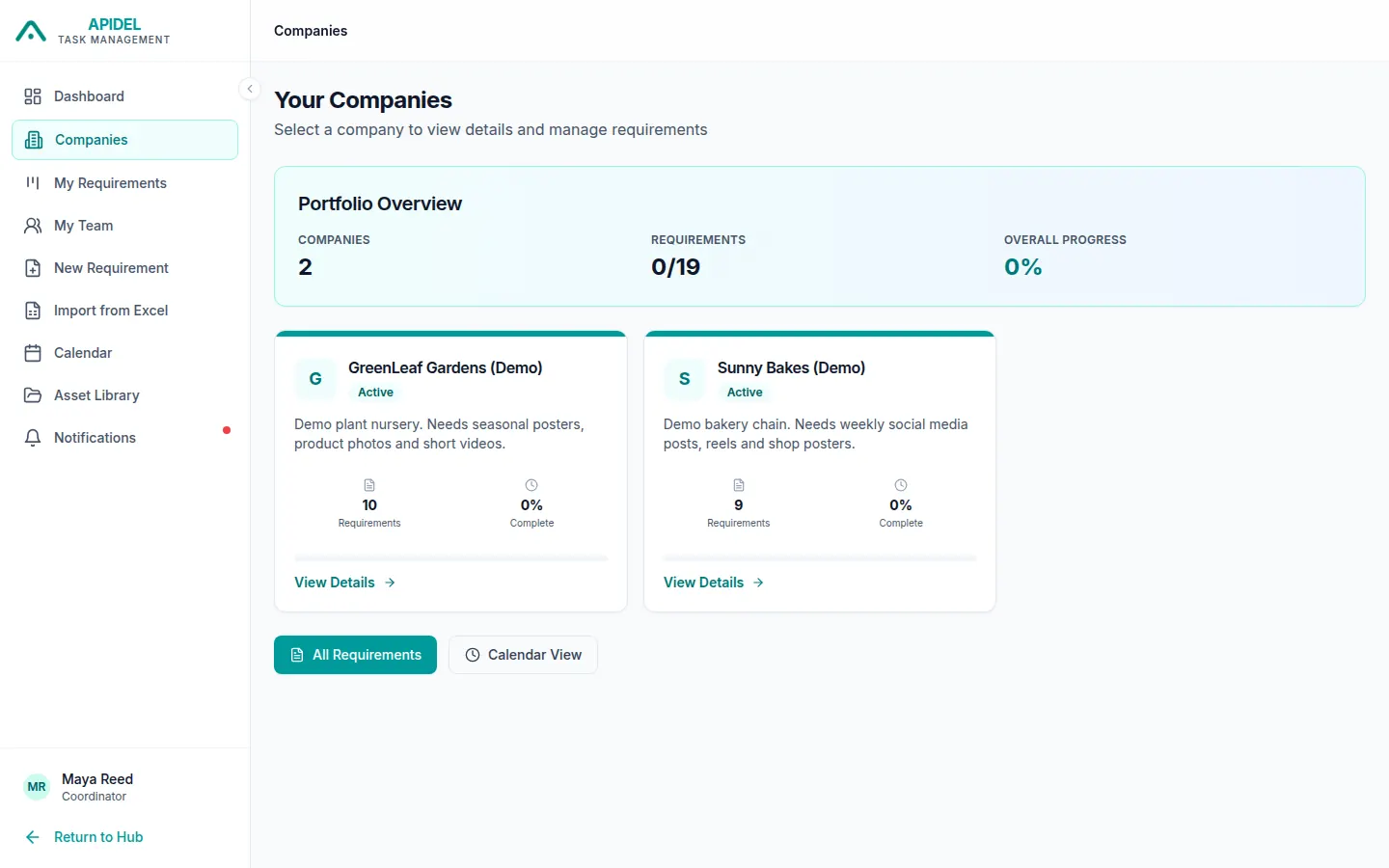
Each card shows:
- the company name and a short description
- Requirements: how many requirements the company has
- Complete: how much of the work is finished, as a percent and a green bar
If you have more than one company, the Portfolio Overview box at the top adds them all together.
See one company
- Click a company card, or click View Details on it.
- You will see the company page. It shows how many requirements are at each step: Unassigned, Assigned, In Review and Done.
Note
You may see Edit and Archive buttons on the company page. Only a Super Admin can change a company. If you click them, you will see an error.
Other buttons on this page
- All Requirements opens the Board with all your work.
- Calendar View opens the calendar.