When your work is sent back
Sometimes the Team Lead or the person who asked for the work wants changes. Then your task comes back to you.
How you know
- You get a message in Notifications.
- On My Tasks, the task shows under Items Requesting Changes.
-
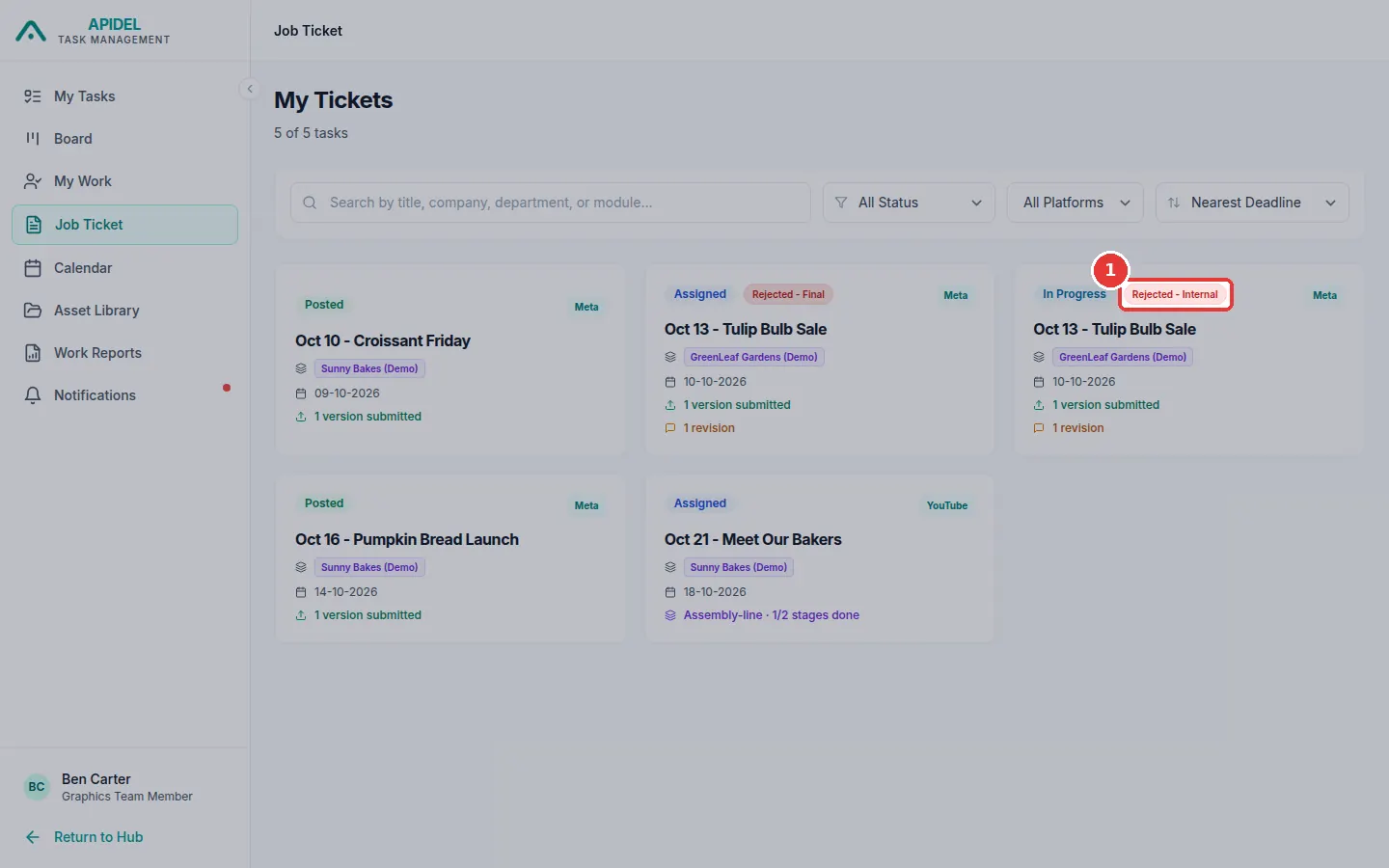
On the Job Ticket card you see a red label:
- Rejected - Internal means the Team Lead asked for changes.
- Rejected - Final means the person who asked for the work asked for changes.
See what to change
- Click Job Ticket in the menu. Click the card with the red label.
- Read the box at the top called Revision Requested. It says what to change.
-
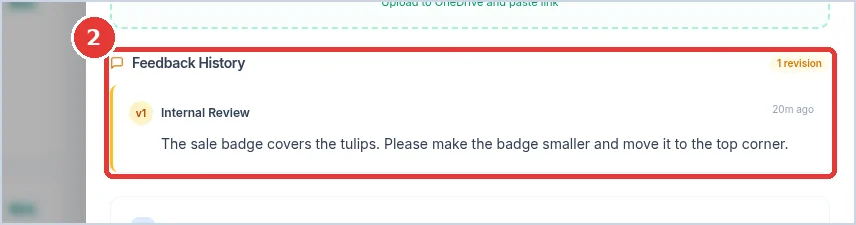
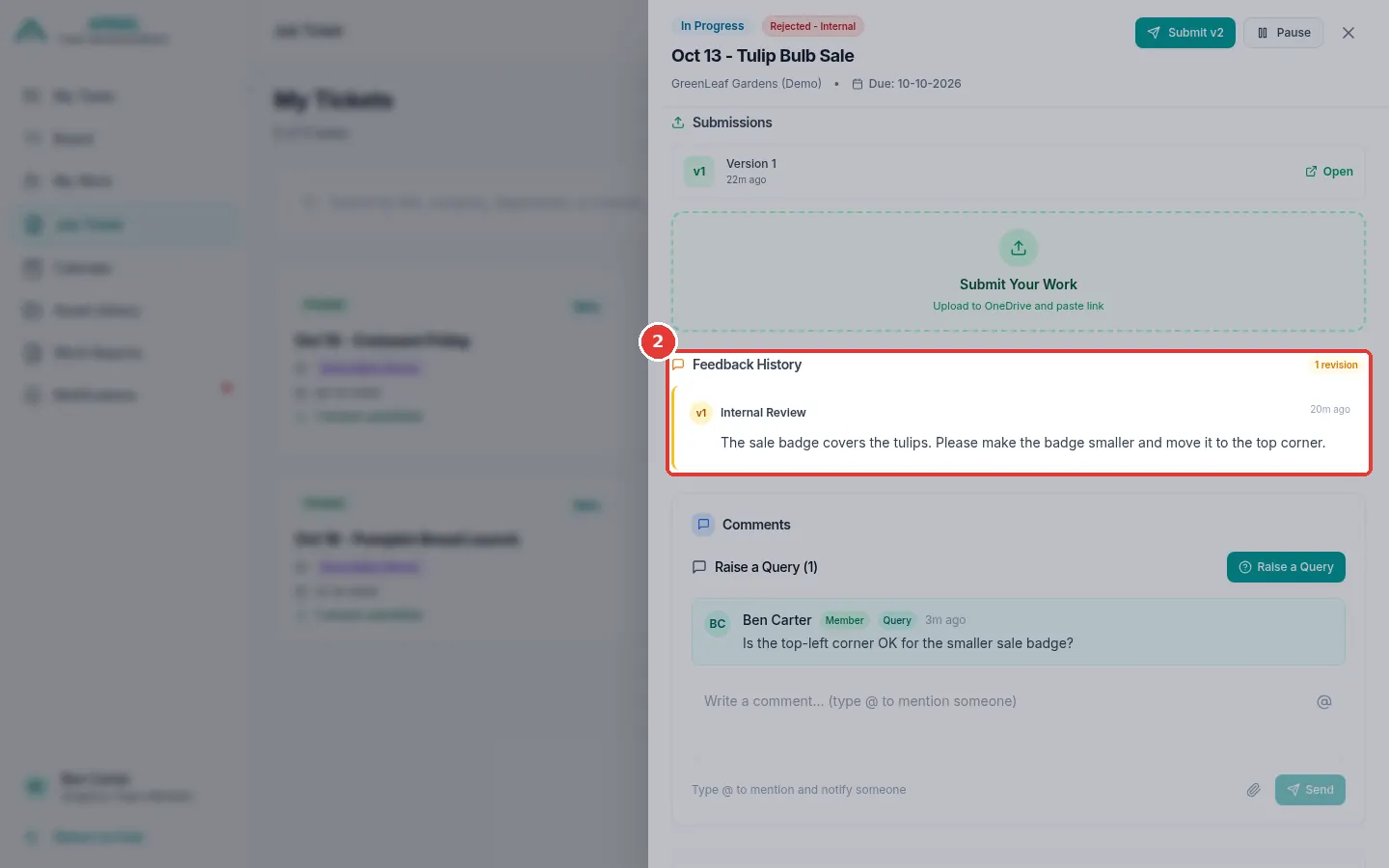
Scroll down to Feedback History. It shows every change that was asked for, newest first.
Fix it and send it again
- Click Start Work.
- Make the changes in your design. Save it and copy the new share link.
- Click Submit v2 (the number goes up each time).
- Paste the new link. Click Preview. Then click Self Approve.
The steps are the same as the first time. See Send your finished work.
Not sure what they want?
Ask a question in the comments of the task. See Ask a question.