Check and approve work
When the Team Lead says a design is good, it is in Final Review. You can check it and approve it. You can approve work from any coordinator of your companies.
Approve from the Dashboard
-
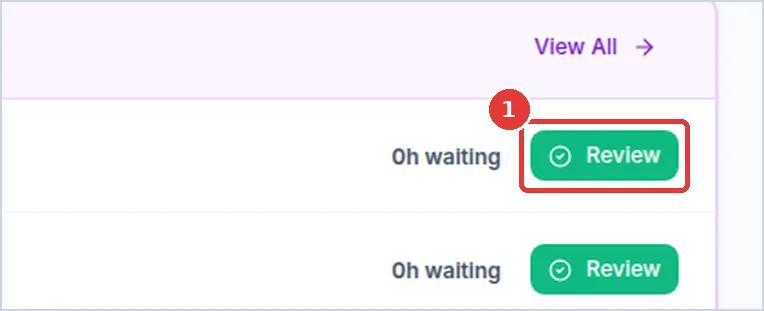
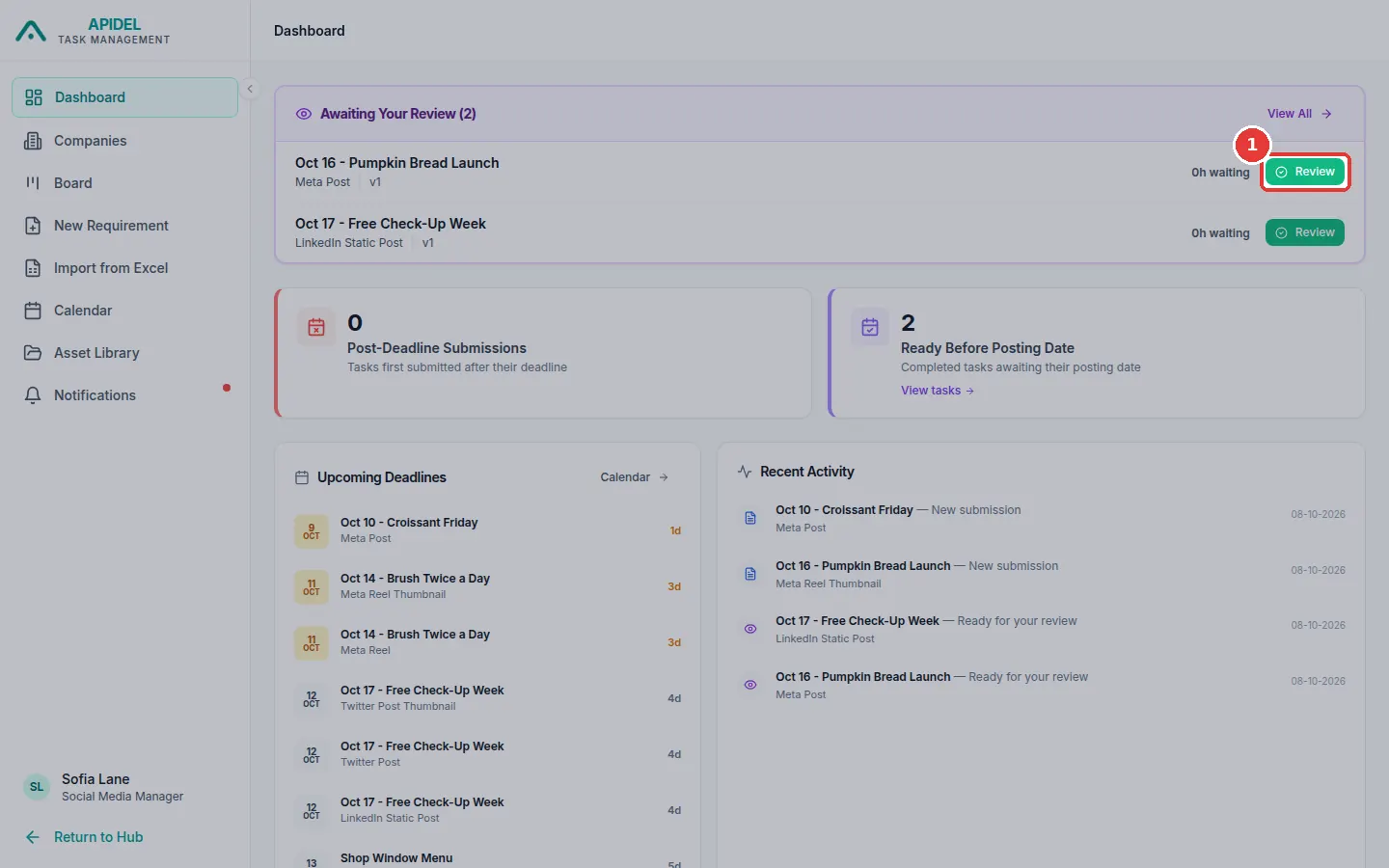
On your Dashboard, find the work under Awaiting Your Review. Click the green Review button.
-
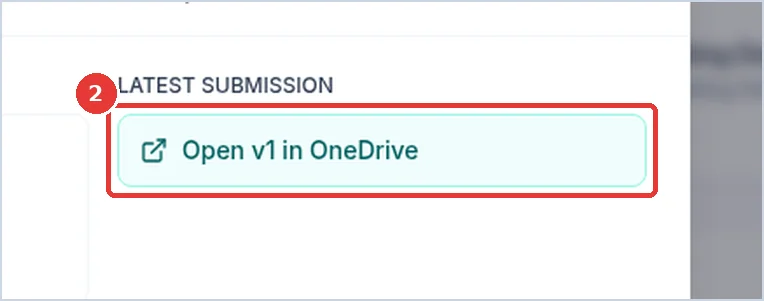
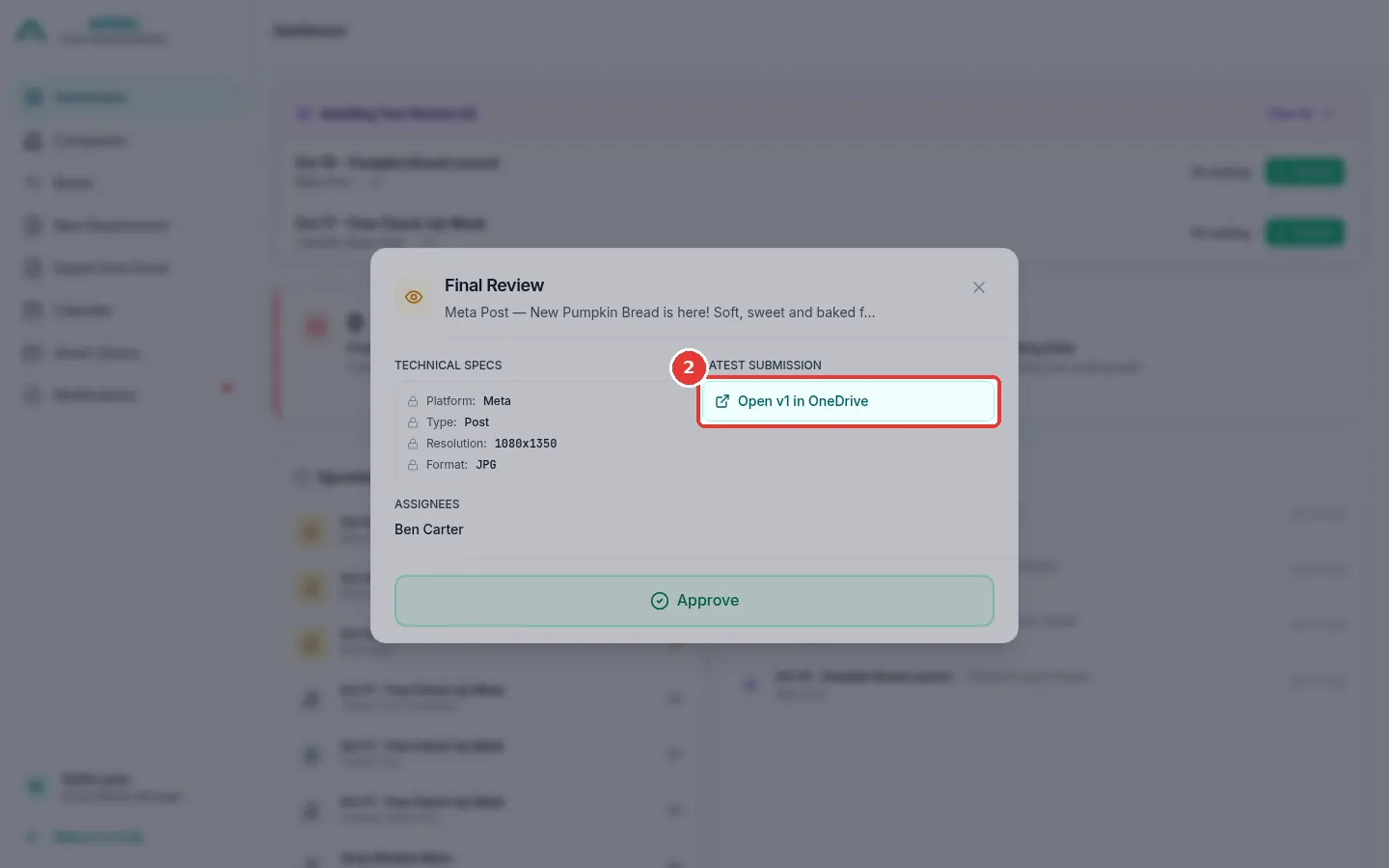
The Final Review window opens. Click Open v1 in OneDrive to look at the design. It opens in a new tab.
-
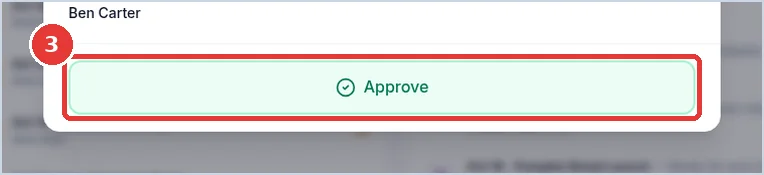
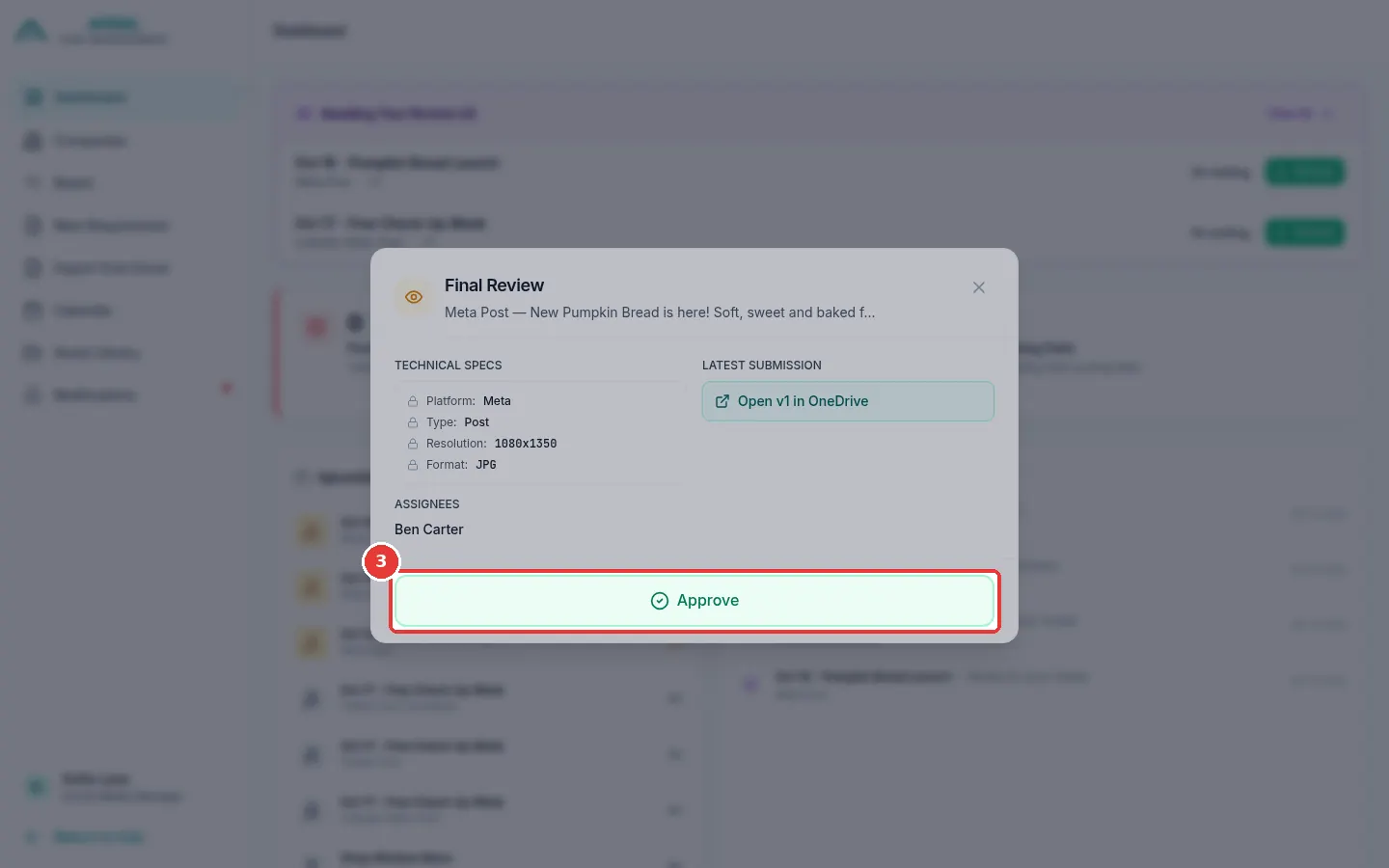
Is the design good? Click the green Approve button.
-
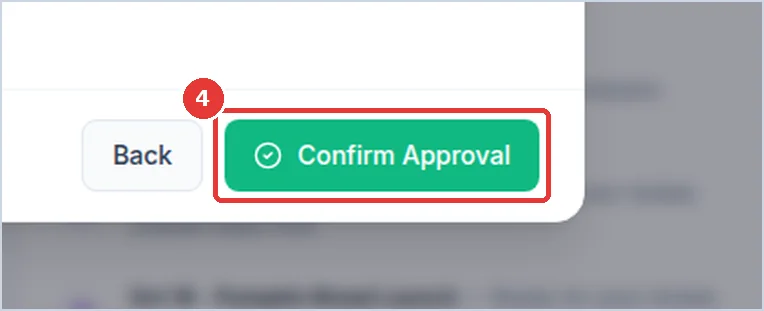
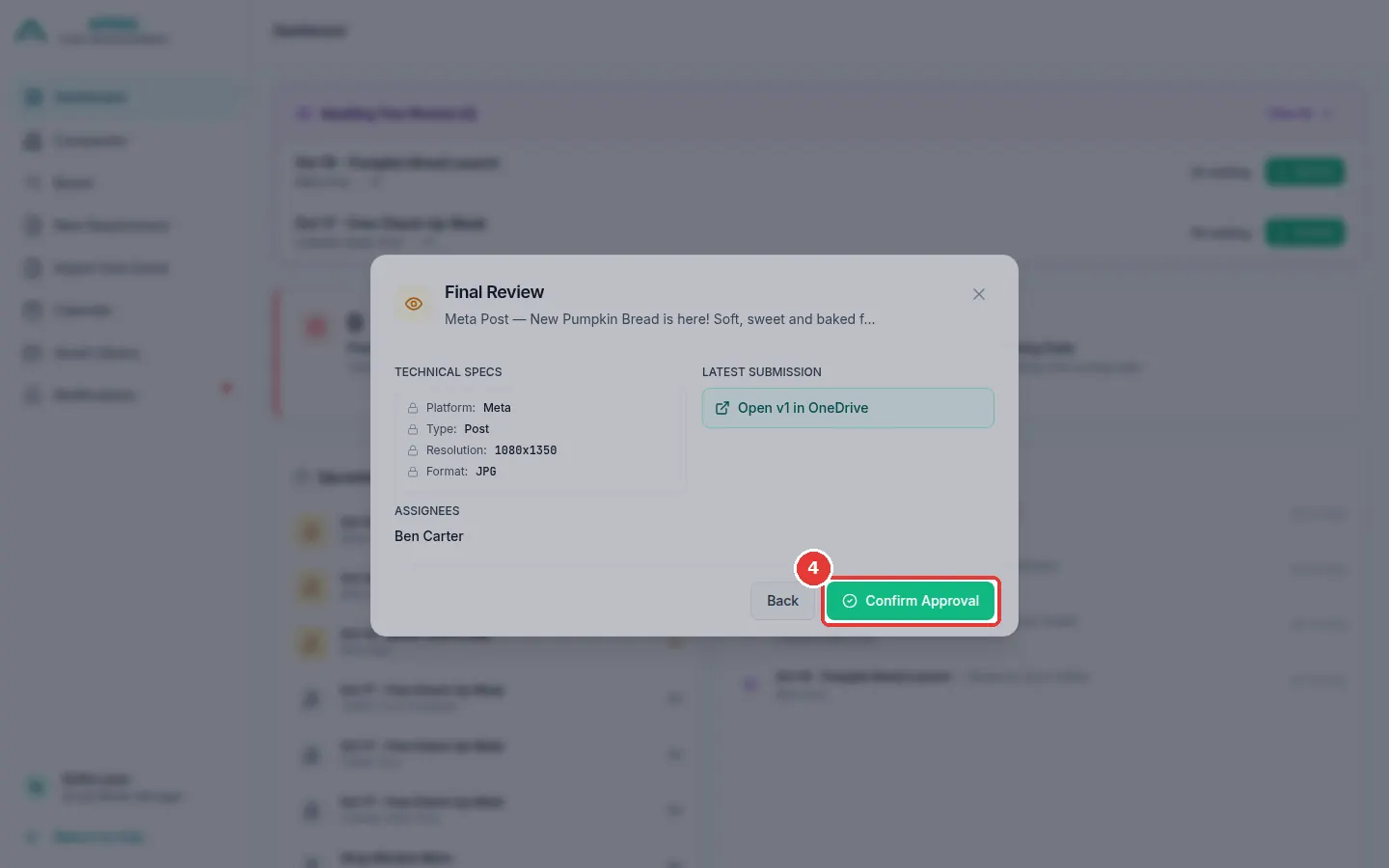
Click Confirm Approval.
-
The work is now Done.
Approve from the Board
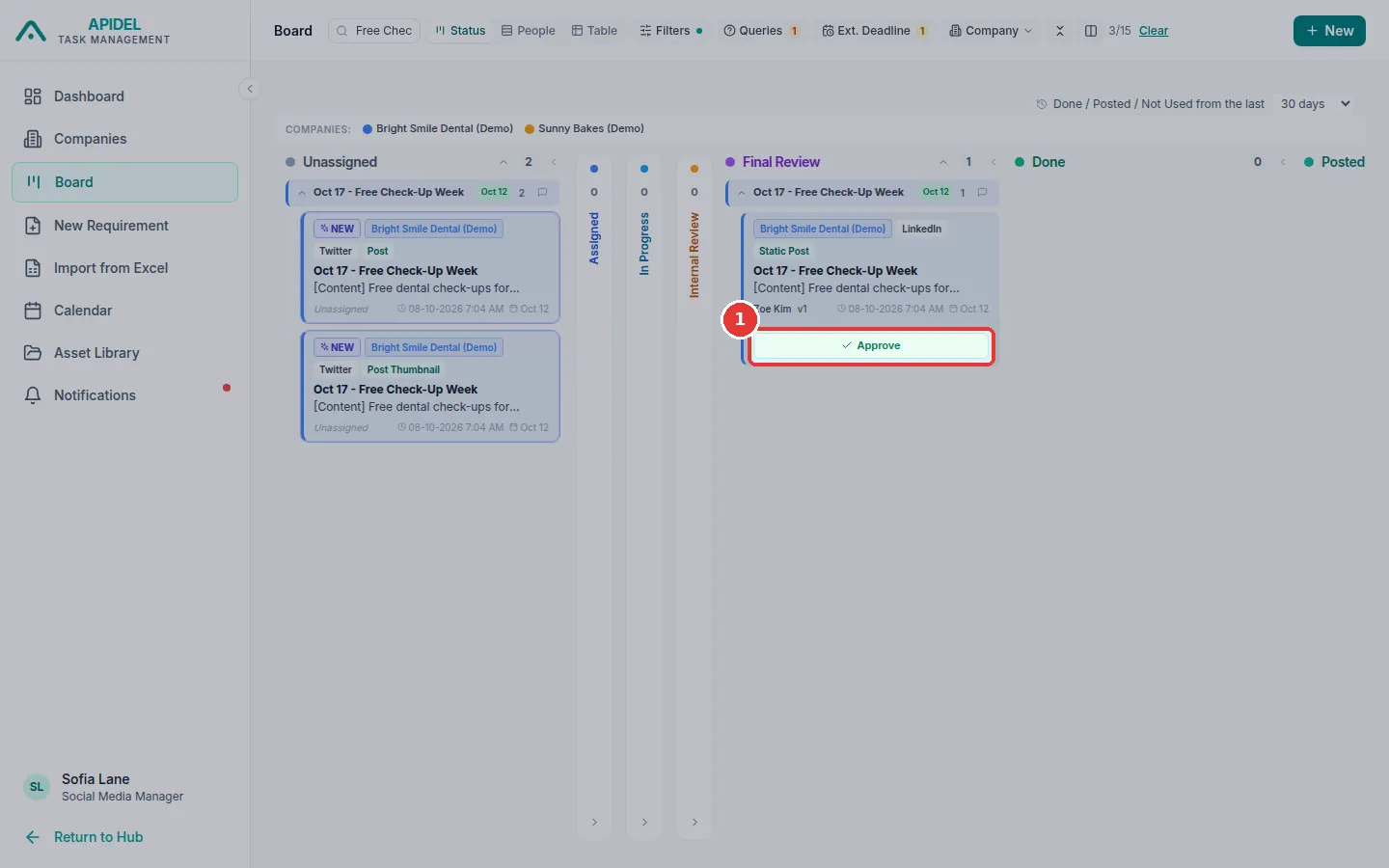
- Click Board in the menu. Find the card in the Final Review column.
-
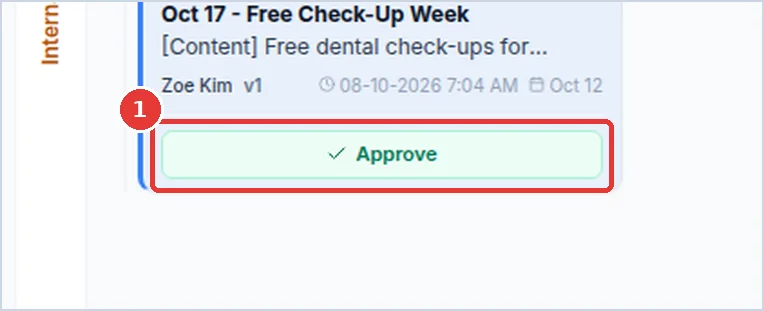
Click Approve on the card.
-
The Final Review window opens. Click Approve, then Confirm Approval.
The design is not good?
You cannot send work back for changes. Write a comment on the requirement to explain the problem, and tell the coordinator who asked for the work. They can click Request Revision.