Work Reports
The Work Report shows the work each designer finished. You can save it as an Excel file.
See a designer's report
-
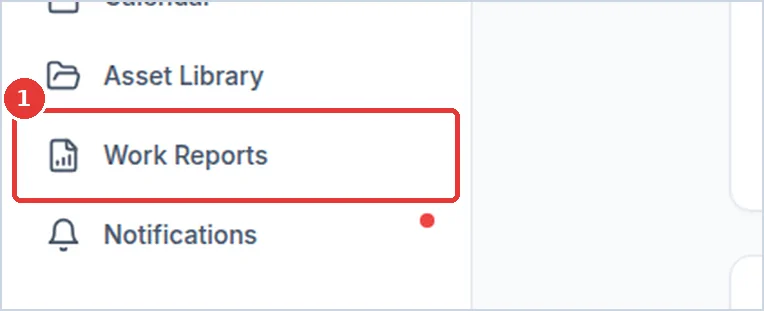
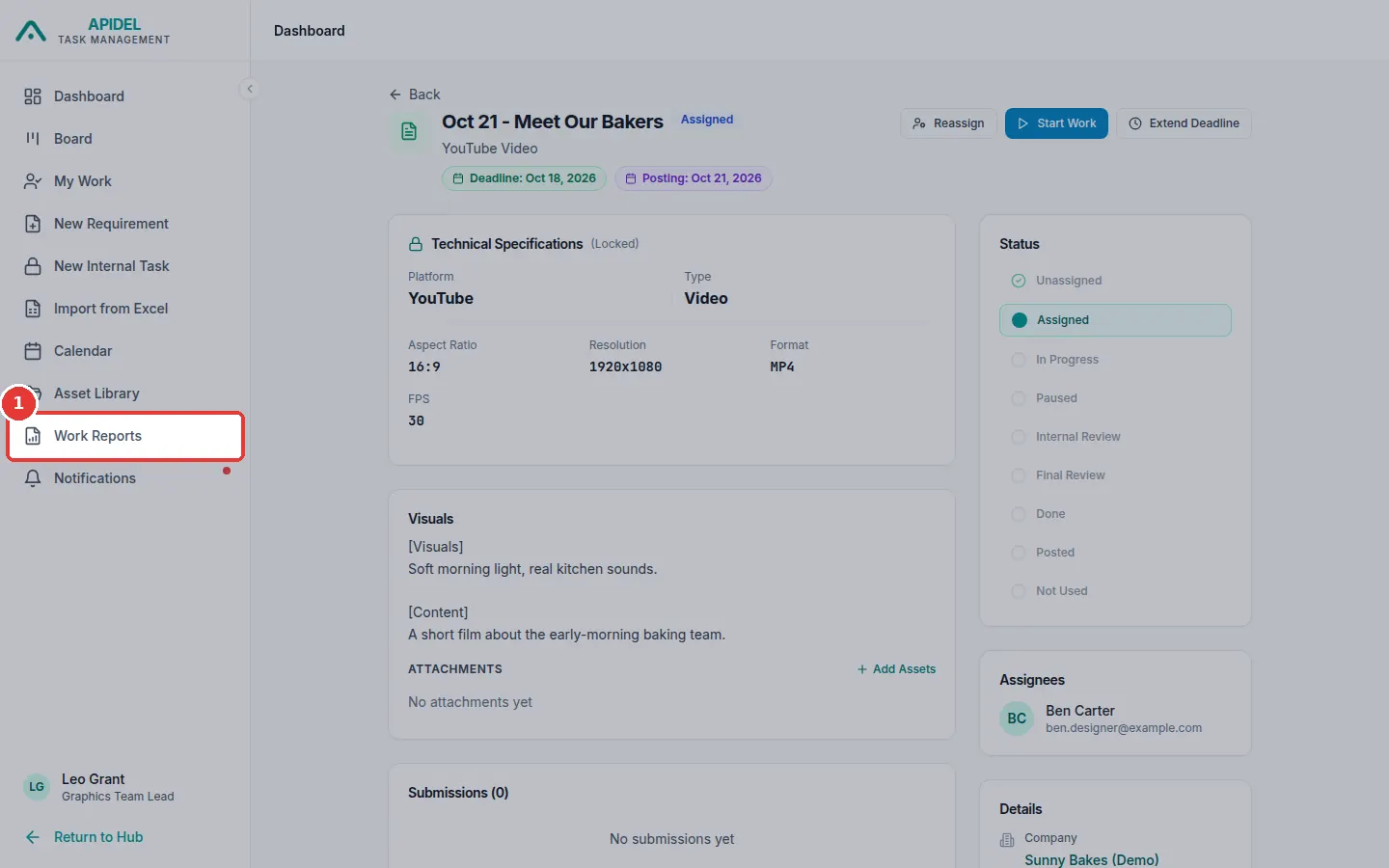
Click Work Reports in the menu on the left.
-
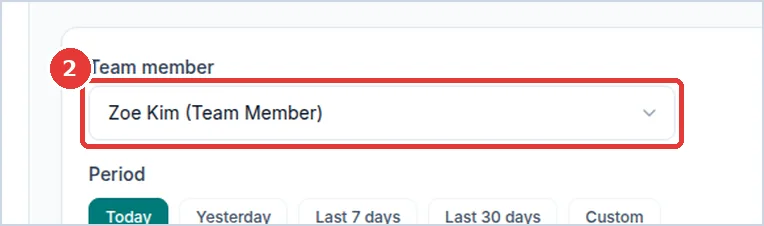
Click the Team member box. Choose the designer.
-
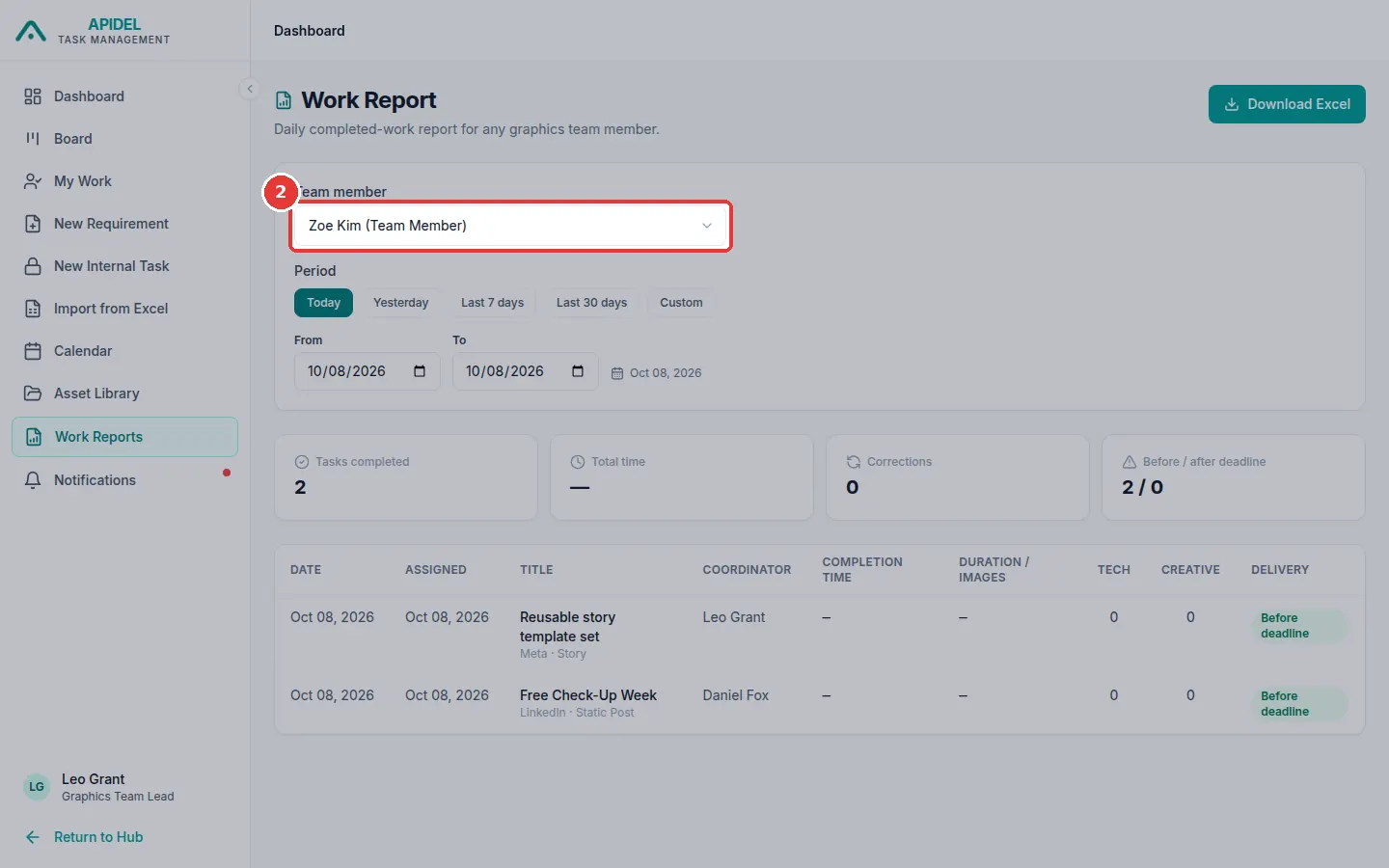
Choose the days: Today, Yesterday, Last 7 days, Last 30 days, or your own days in From and To.
-
You will see the report.
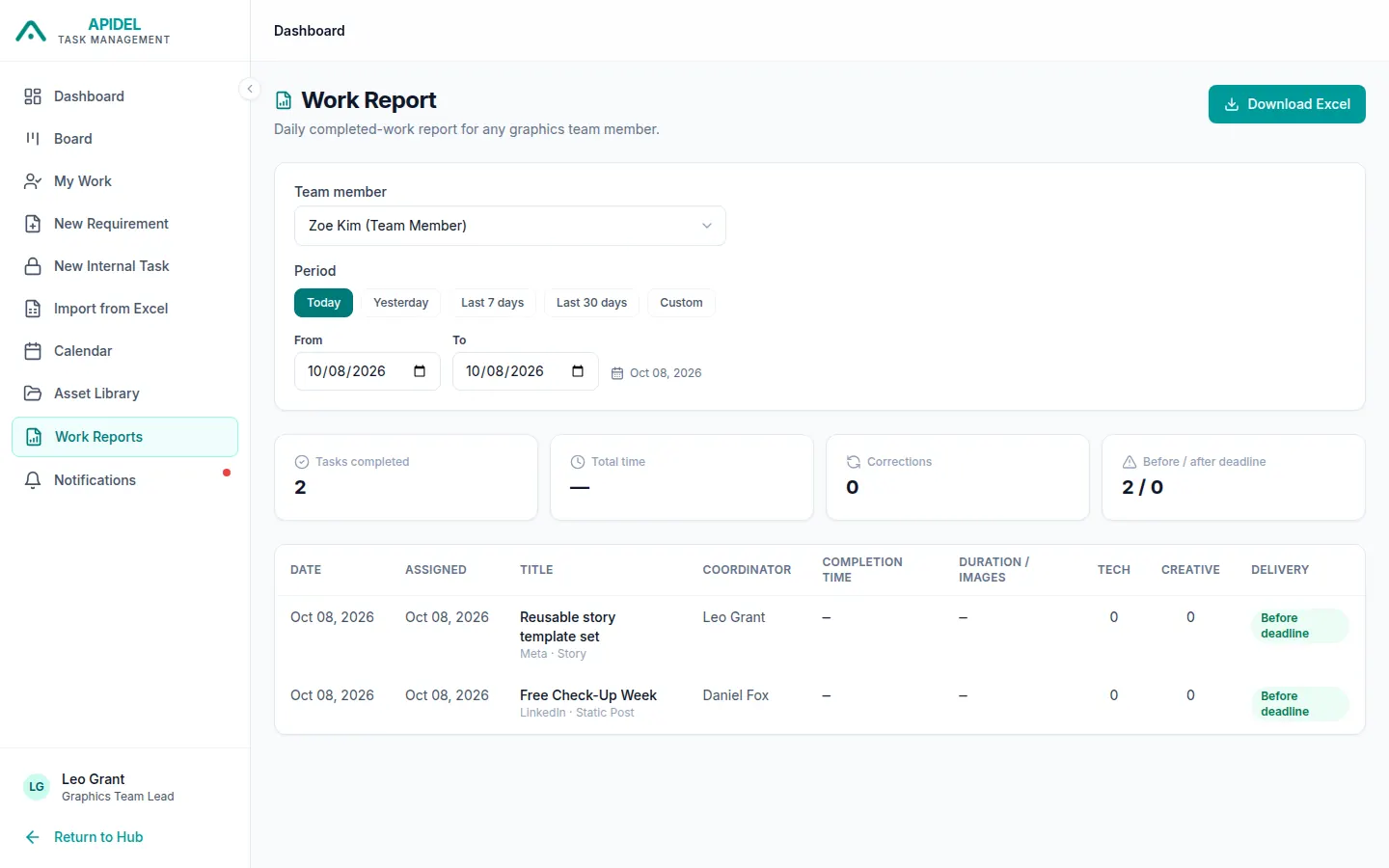
The boxes at the top show:
- Tasks completed: how many tasks they finished.
- Total time: how long they worked on them (only working hours).
- Corrections: how many times work was sent back.
- Before / after deadline: how many were on time and how many were late.
In the table, Tech is how many times you sent the work back. Creative is how many times the coordinator sent it back.
Save the report as an Excel file
-
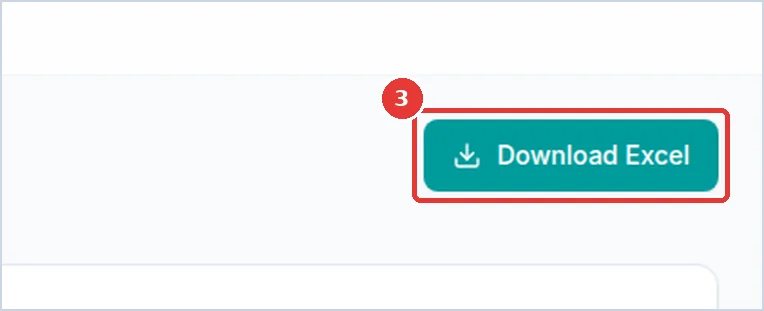
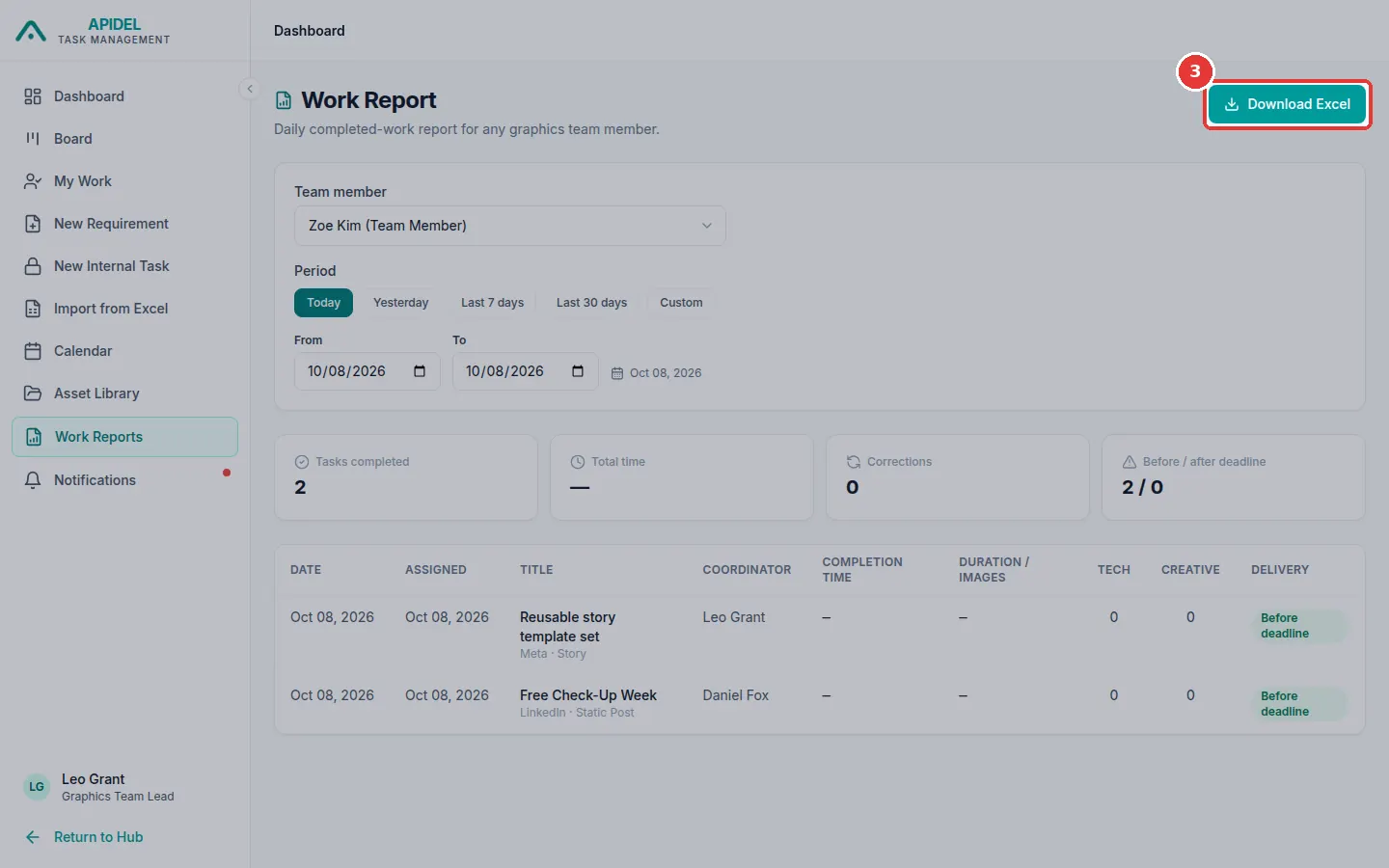
Click Download Excel at the top right.
-
The file is saved in your Downloads folder.
Note
The report shows only work that is Done. Work that was later marked Posted does not show here.