Ask a question
If something about a task is not clear, ask a question. In the system a question is called a query. The Team Lead and the coordinator can see it and answer it.
Note
You can ask questions only on tasks that are given to you right now.
Ask a question
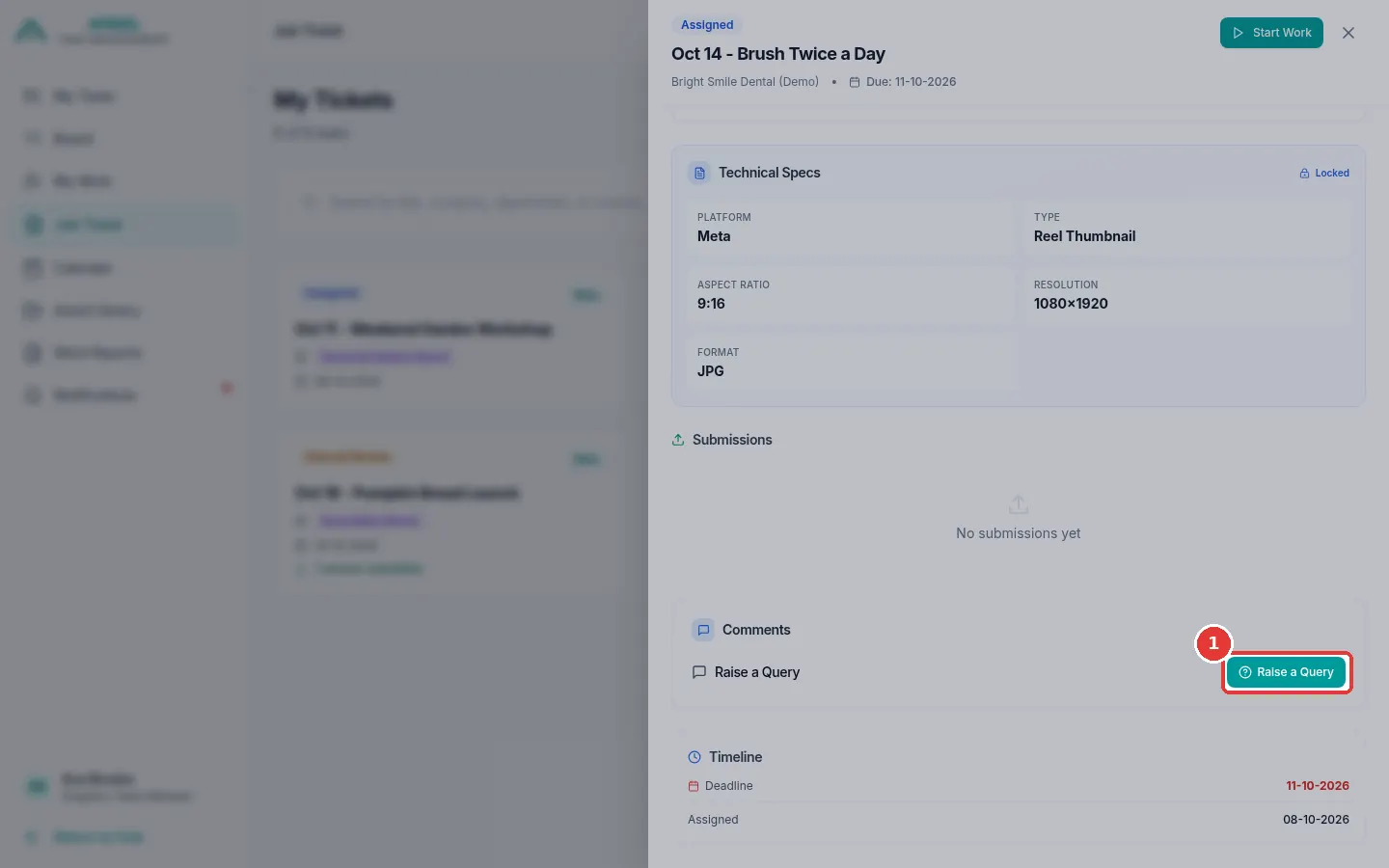
- Click Job Ticket in the menu. Click the card of the task.
-
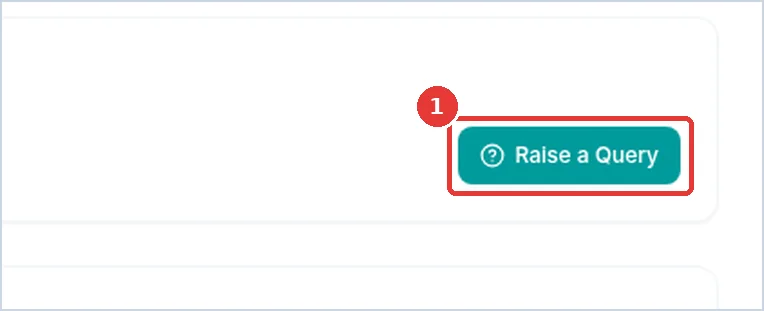
Scroll down to Comments. Click the green Raise a Query button.
-
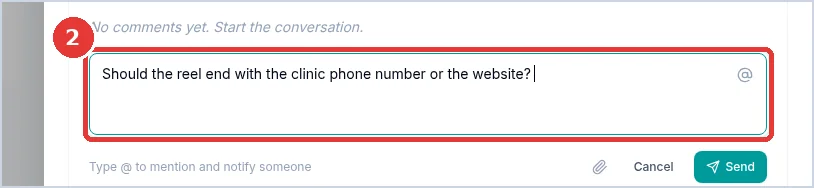
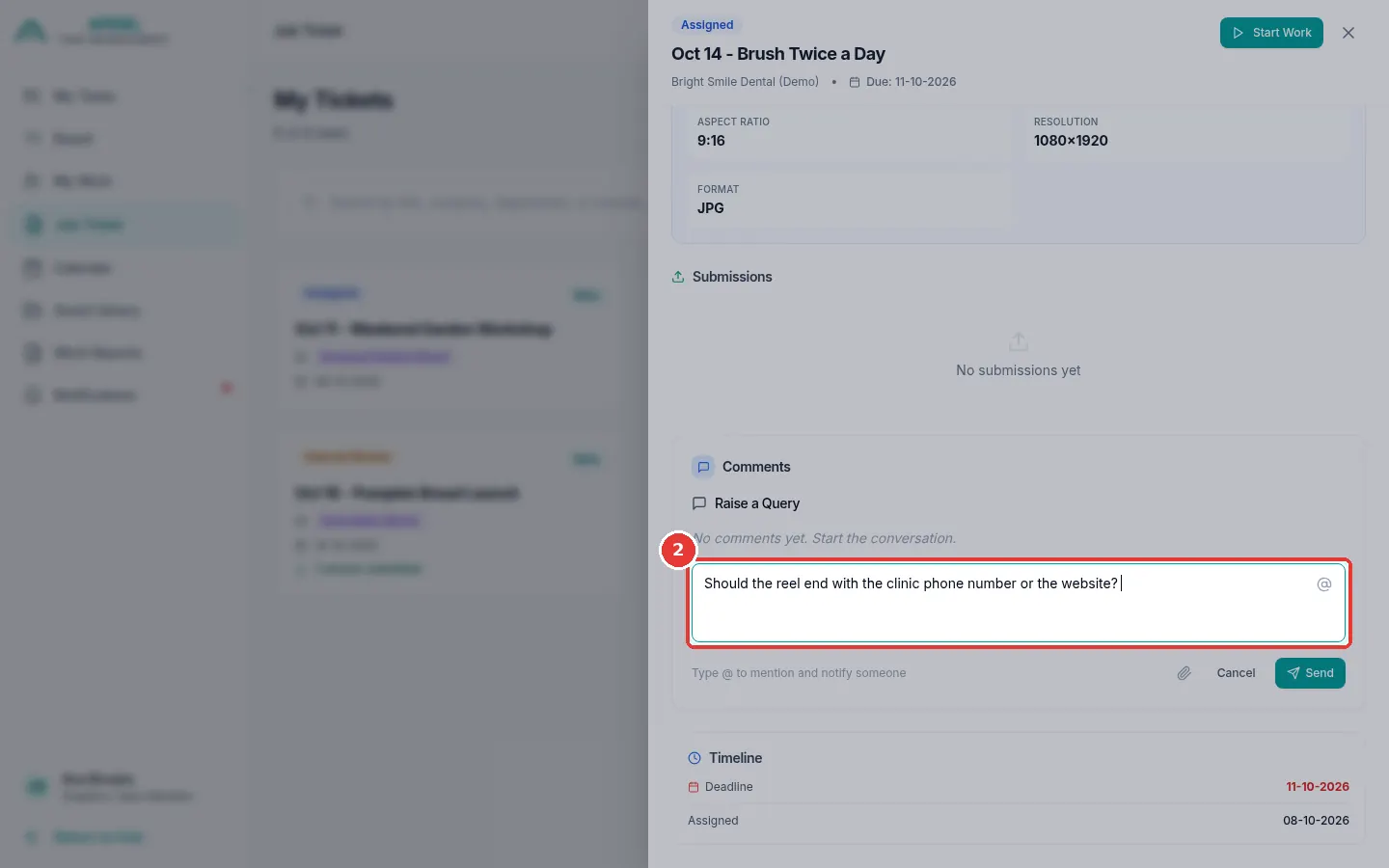
A writing box opens. Click it and type your question.
-
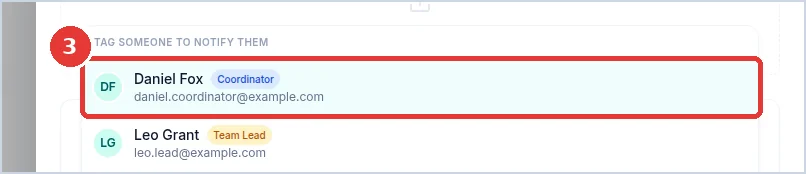
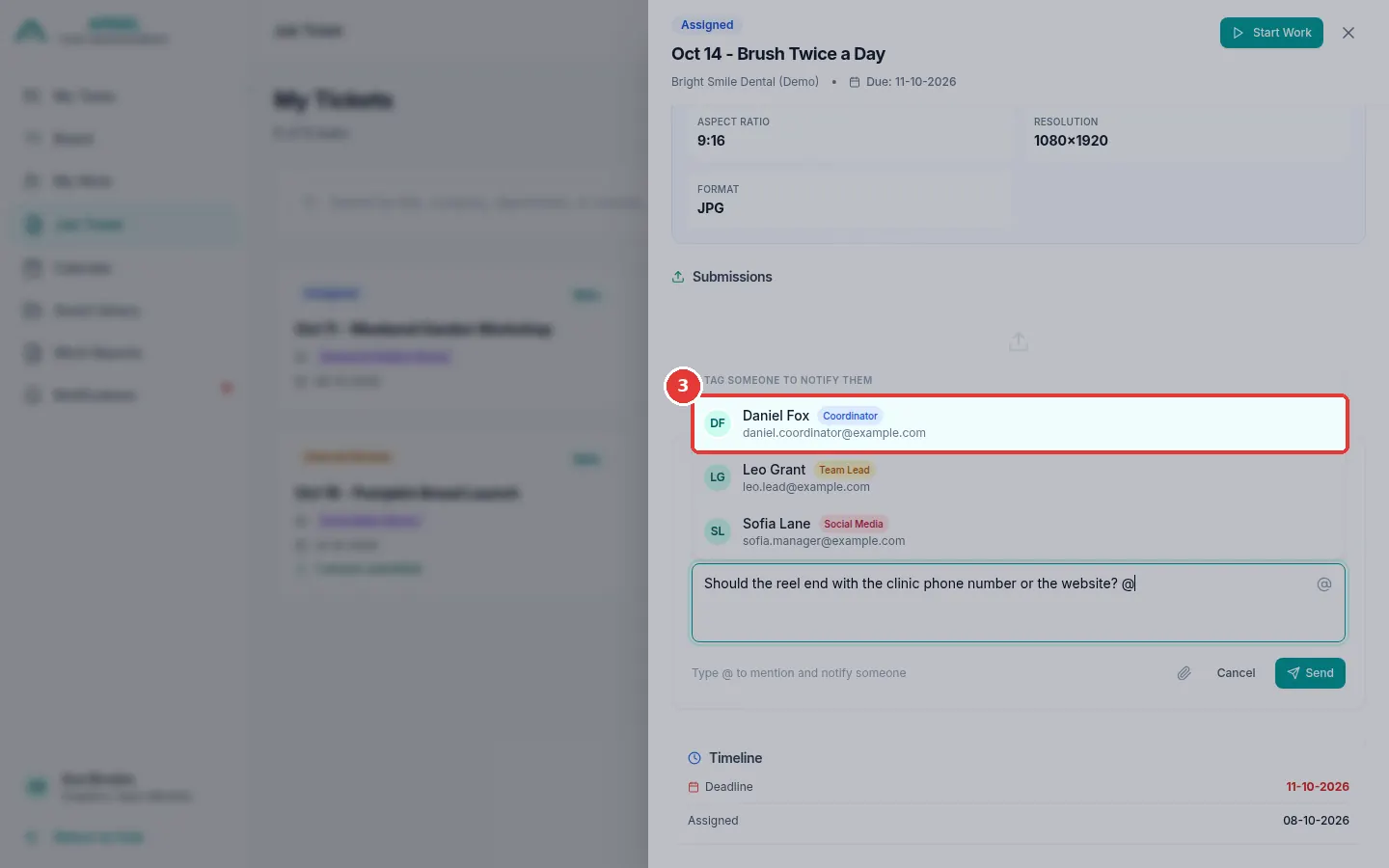
Do you want a special person to get a message? Type @ in the box. A list of names appears. Click the name.
-
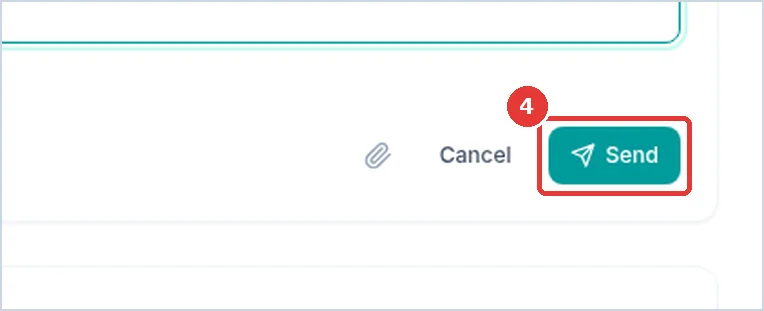
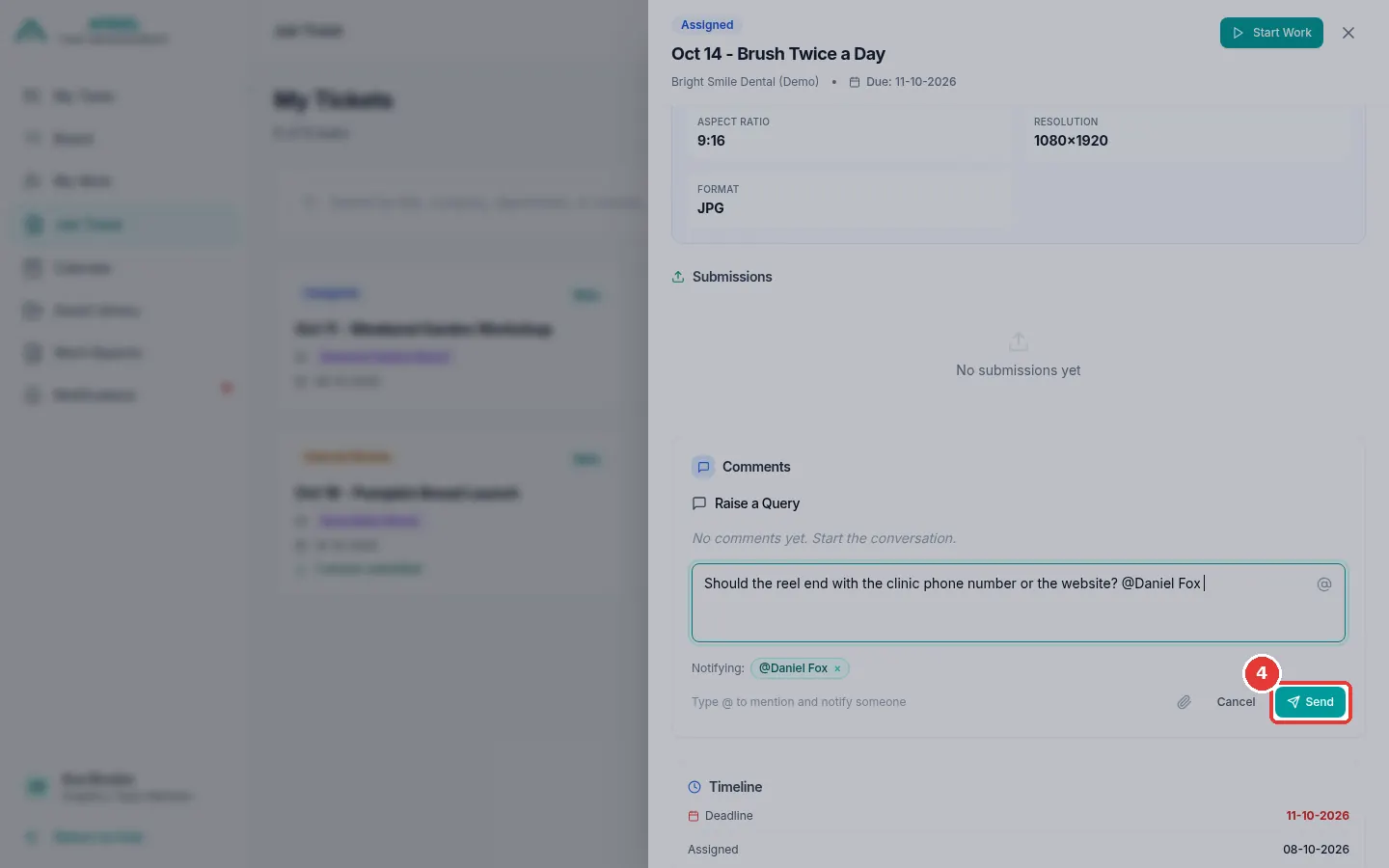
Click Send.
-
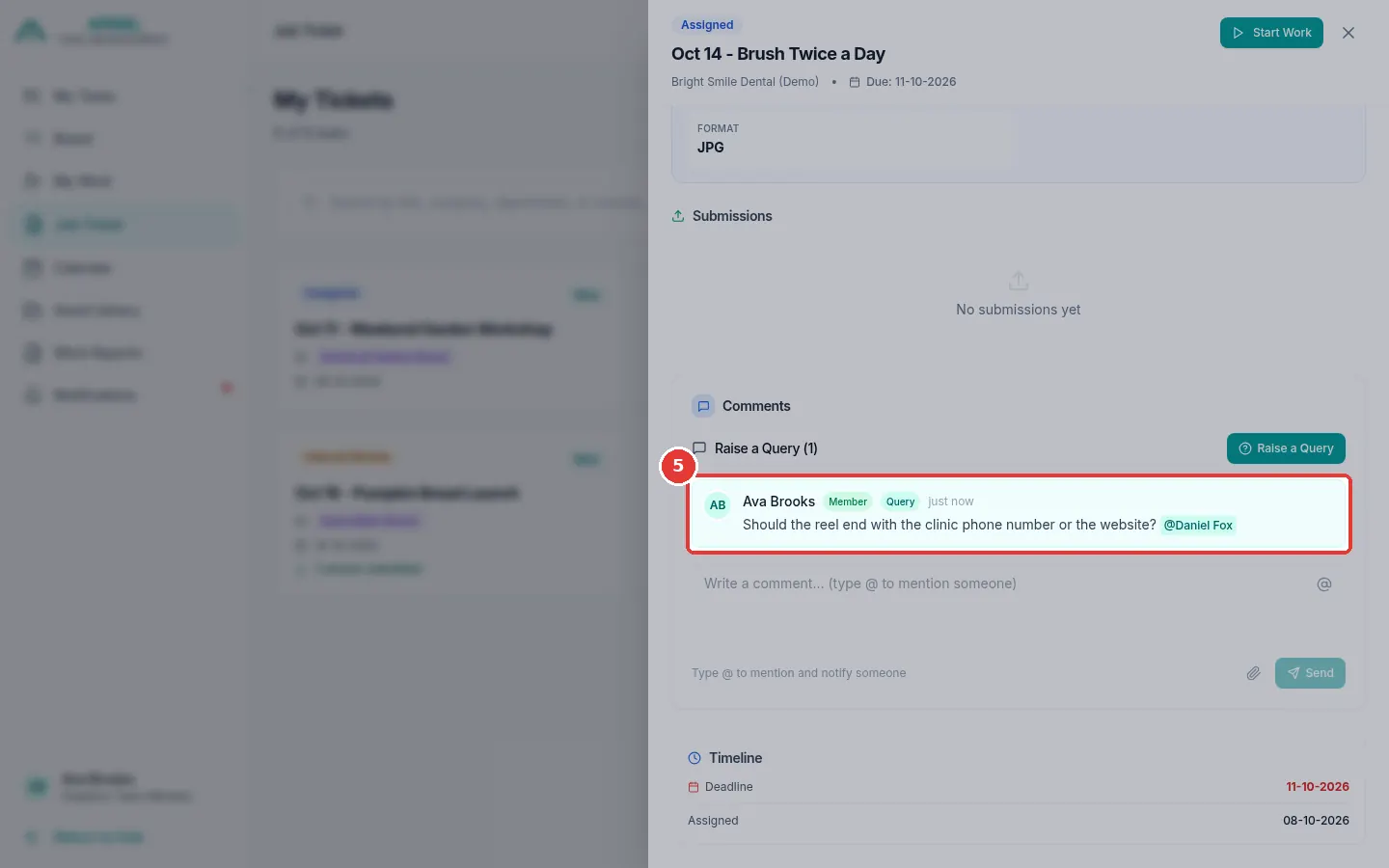
Your question appears in the comments with a Query label.
See the answer
- You get a message in Notifications when someone answers.
- Open the task again and look at Comments.
- When the question is answered, its label changes from Query to Resolved. The answer has a Response label.
Add a file to your question
Click the paper clip next to Send to add a file, like a picture. Files can be up to 30 MB.