Assembly line tasks
Some big tasks are split into stages (steps). Each stage is done by a different designer, one after the other. For example: stage 1 is Film editing, stage 2 is Colour and sound.
- You can only work on your stage.
- Your stage opens when the stage before it is finished.
- When you send your stage, the next stage opens for the next designer.
On the card of such a task you see Assembly-line and how many stages are done, for example 0/2 stages done.
Send your stage
First, save your work in OneDrive, Google Drive or Dropbox and copy the share link.
- Click Job Ticket in the menu. Click the card of the assembly line task.
-
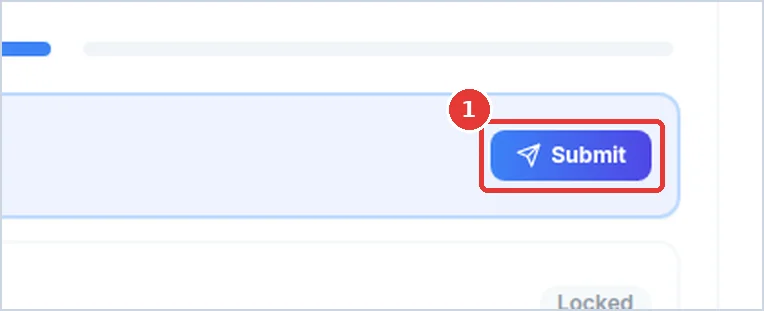
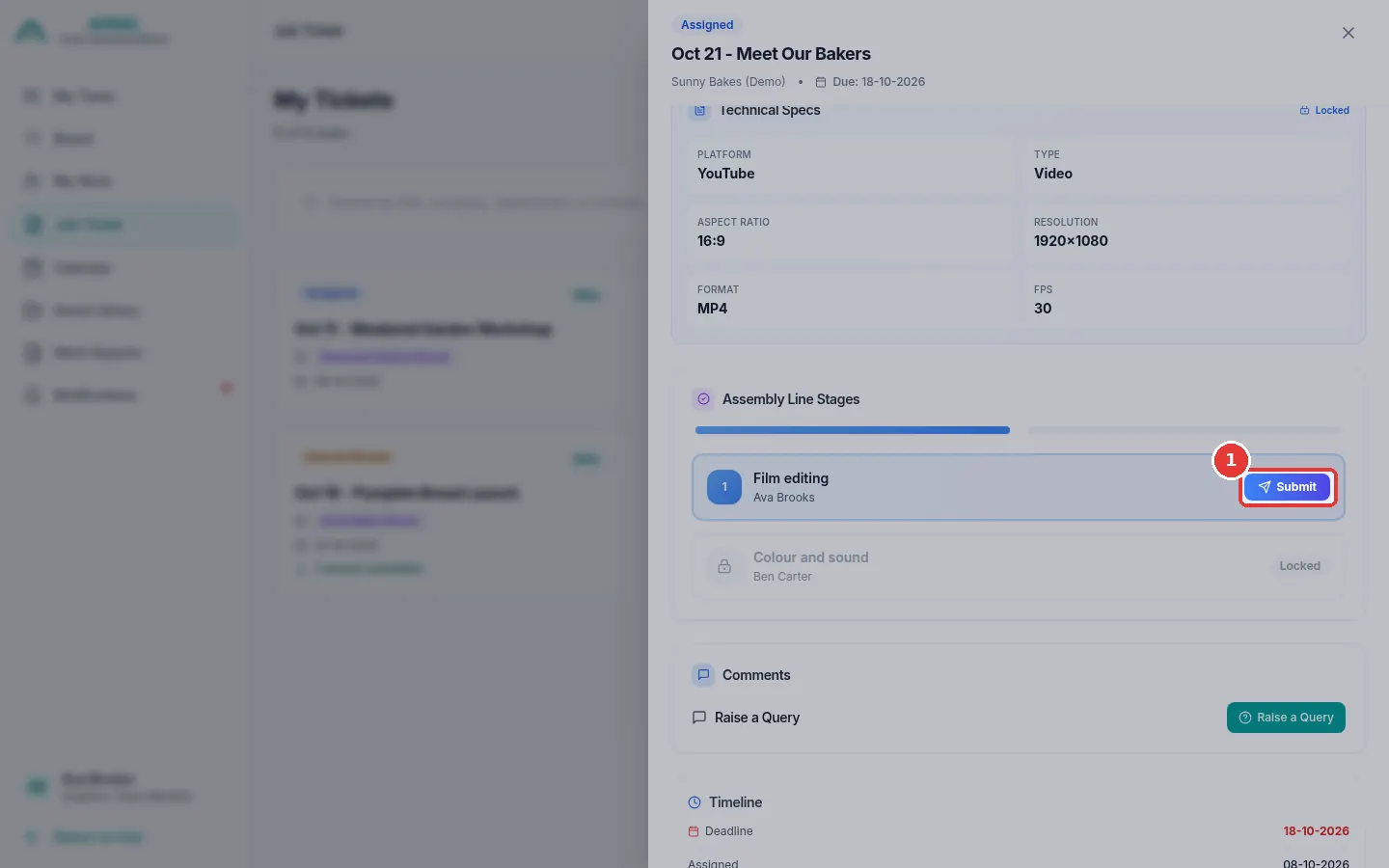
Find the Assembly Line Stages part of the panel. Your stage has a green Submit button.
-
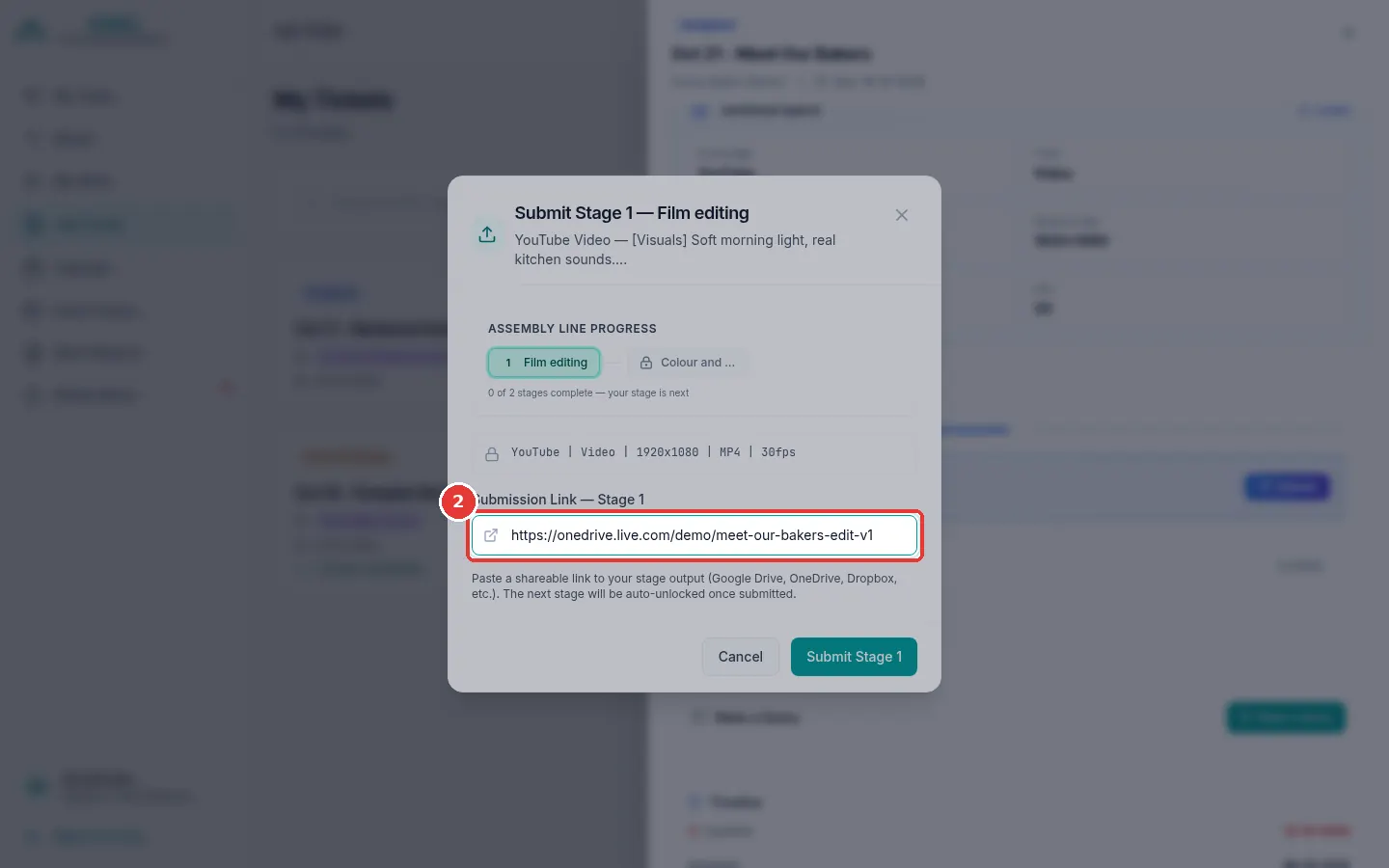
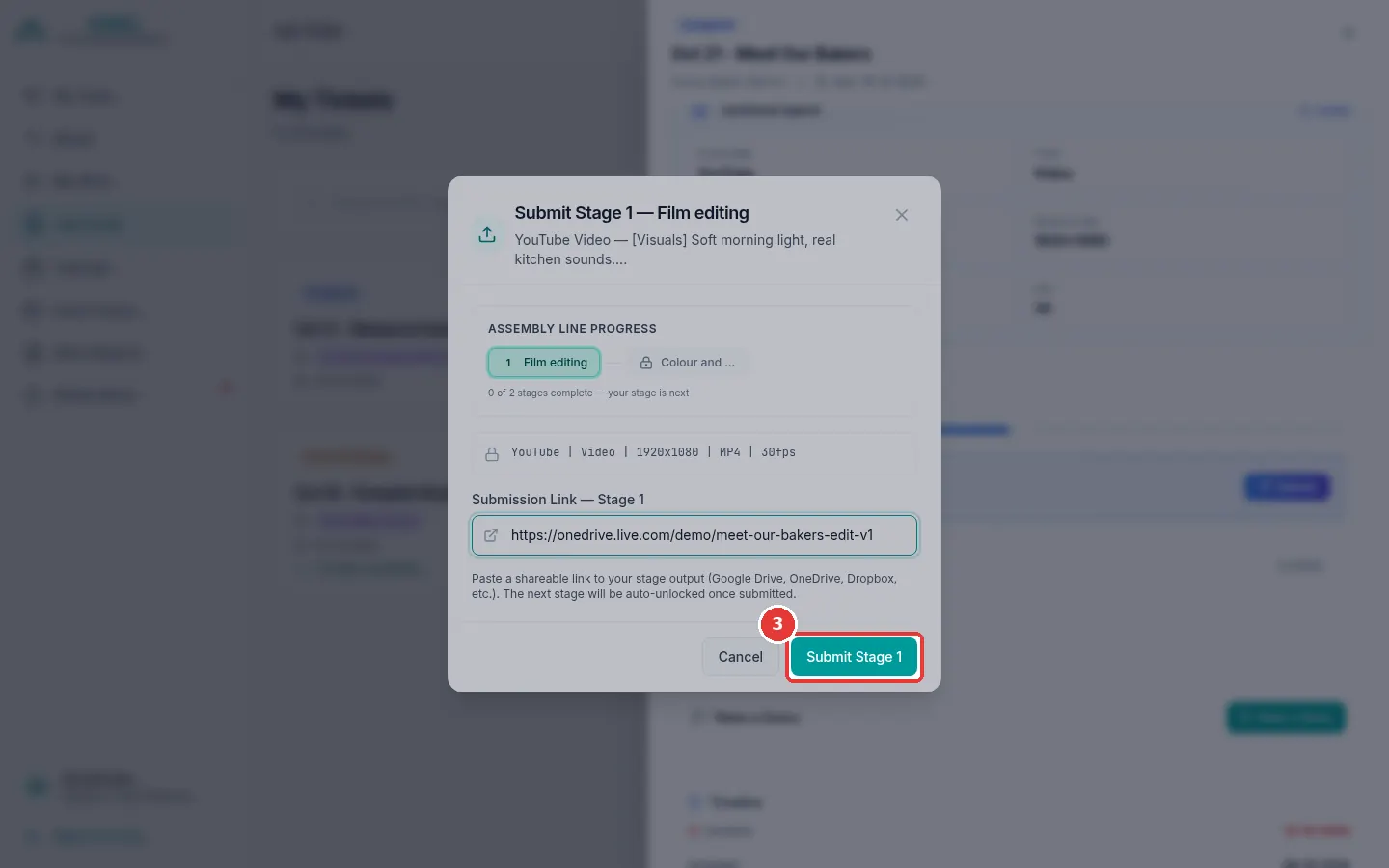
Click Submit. A window opens. If the stage before yours is done, you can open its work from here.
-
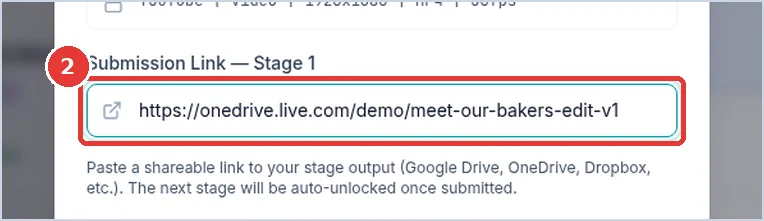
Click the Submission Link box. Paste your link.
-
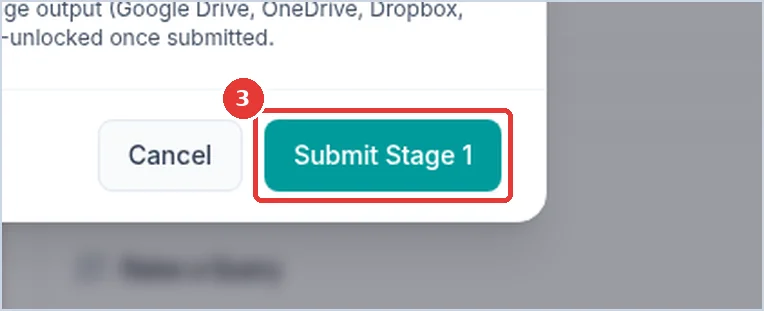
Click Submit Stage 1 (the number is your stage number).
-
Your stage now says Done. The next designer gets a message that their stage is ready.
When the last stage is sent
When the last stage is sent, the whole task goes to the Team Lead to check (Internal Review).
If your stage comes back
The Team Lead can open a finished stage again if it needs changes. You will get a message. Your stage opens again, and the stages after it wait until you send it again.