Mark as posted or not used
When work is Done, tell the system what happened to it.
- Posted: you put the design on social media.
- Not Used: the design will not be used.
From the Board
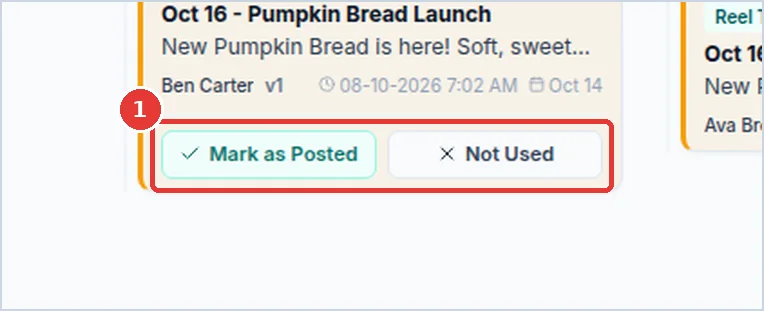
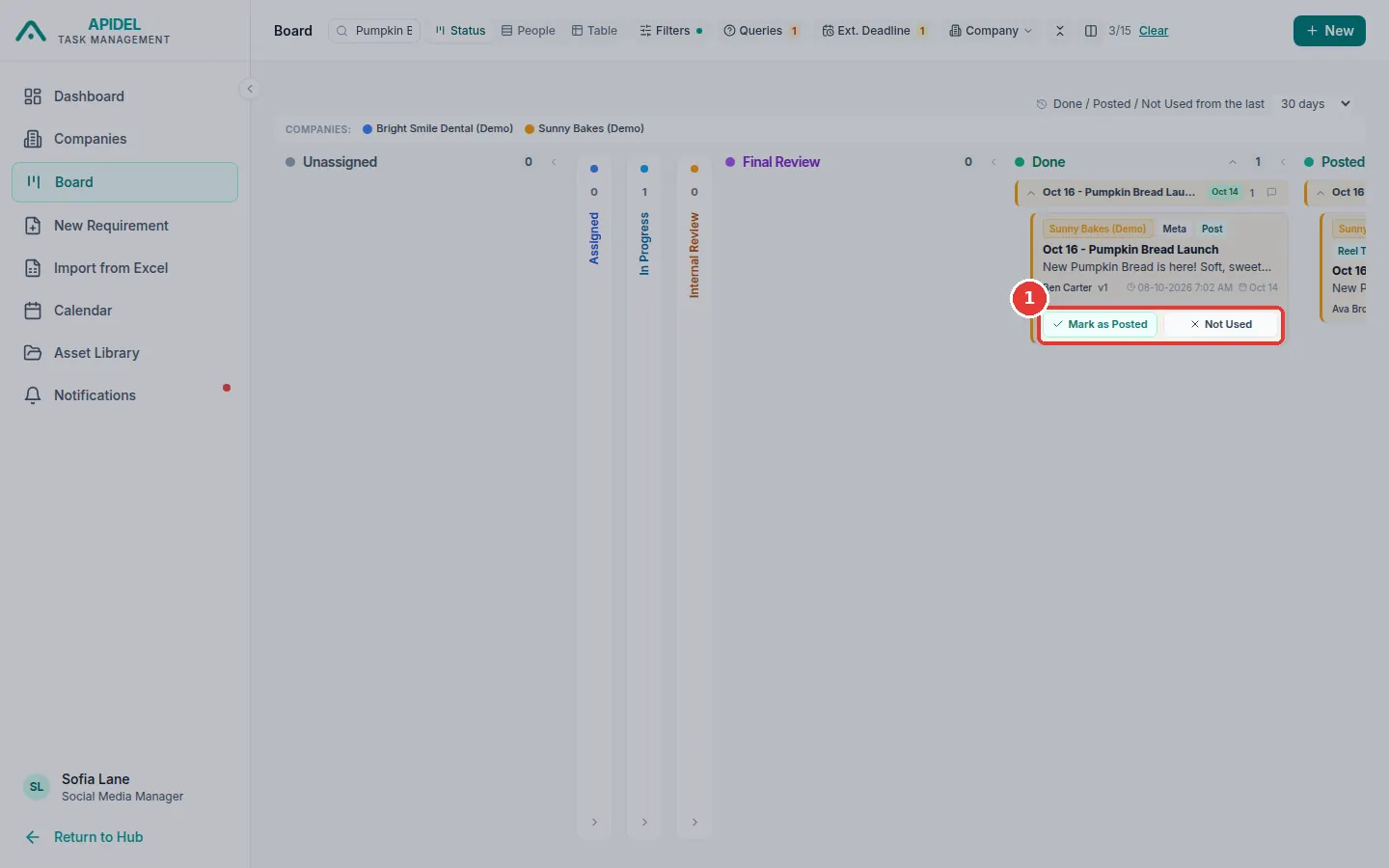
- Click Board in the menu. Find the card in the Done column.
-
Click Mark as Posted after you posted it. Or click Not Used if it will not be used.
-
The card moves to the Posted or Not Used column.
From the requirement page
- Click the card to open the requirement page.
-
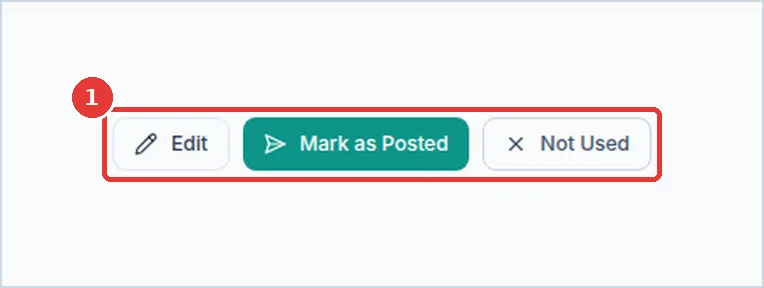
Click Mark as Posted or Not Used at the top.
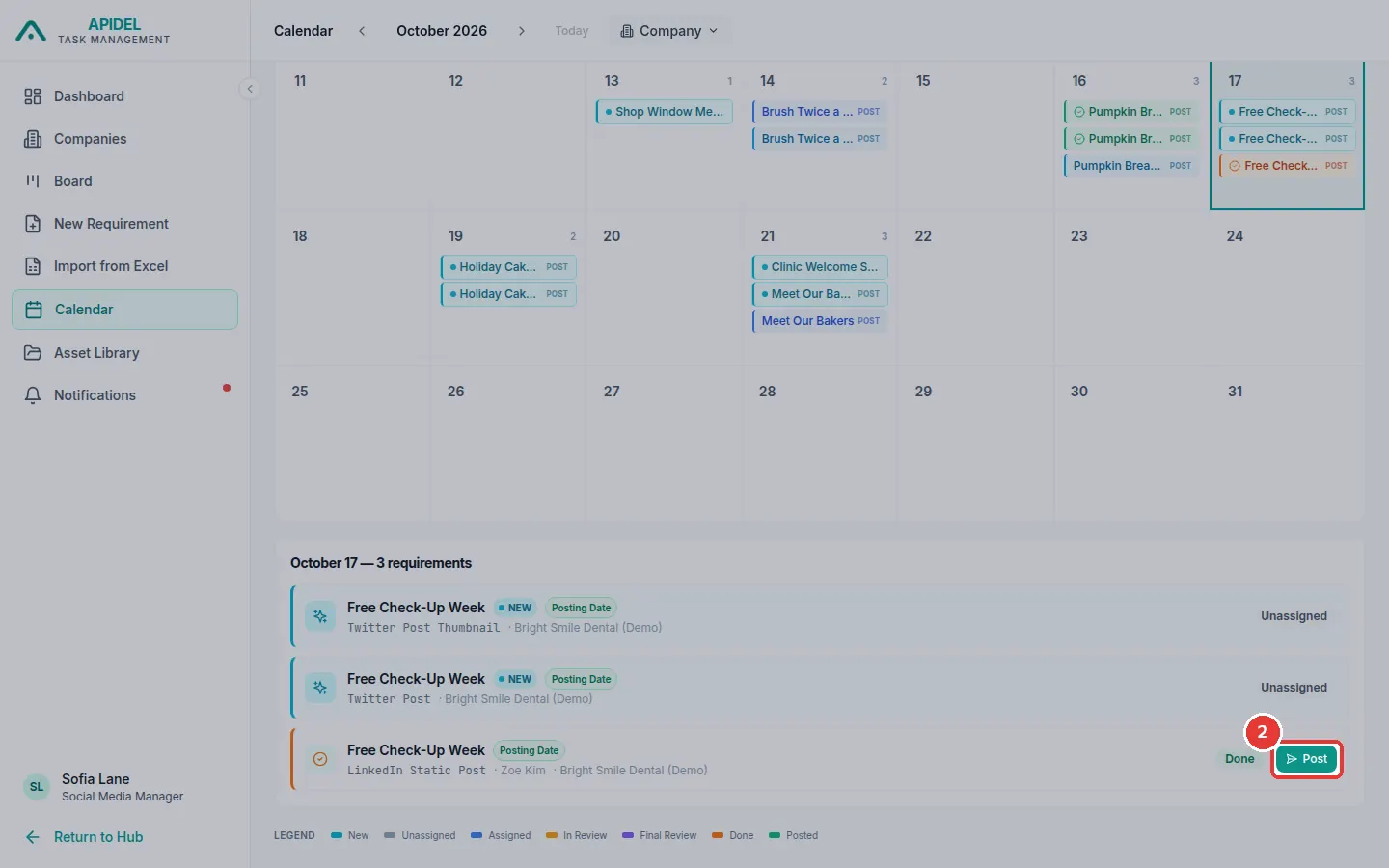
From the Calendar
- Click Calendar in the menu. Click the day.
-
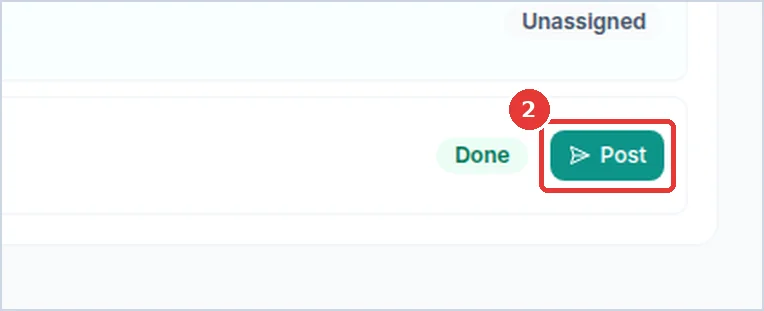
In the list under the calendar, find the work that says Done. Click Post.
Note
You can mark work Not Used only when it is Done.