The Board
The Board shows the work of all companies. Each column is one step of the work.
Open the Board
-
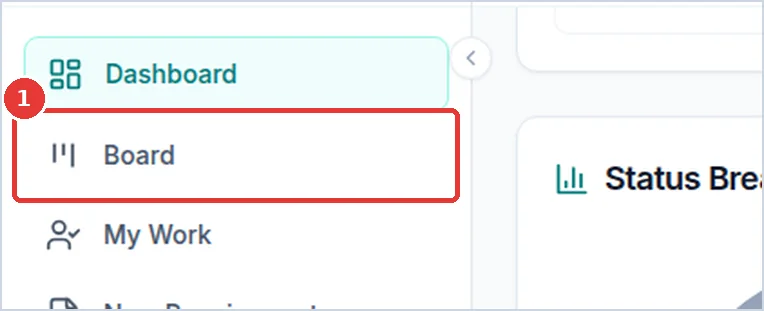
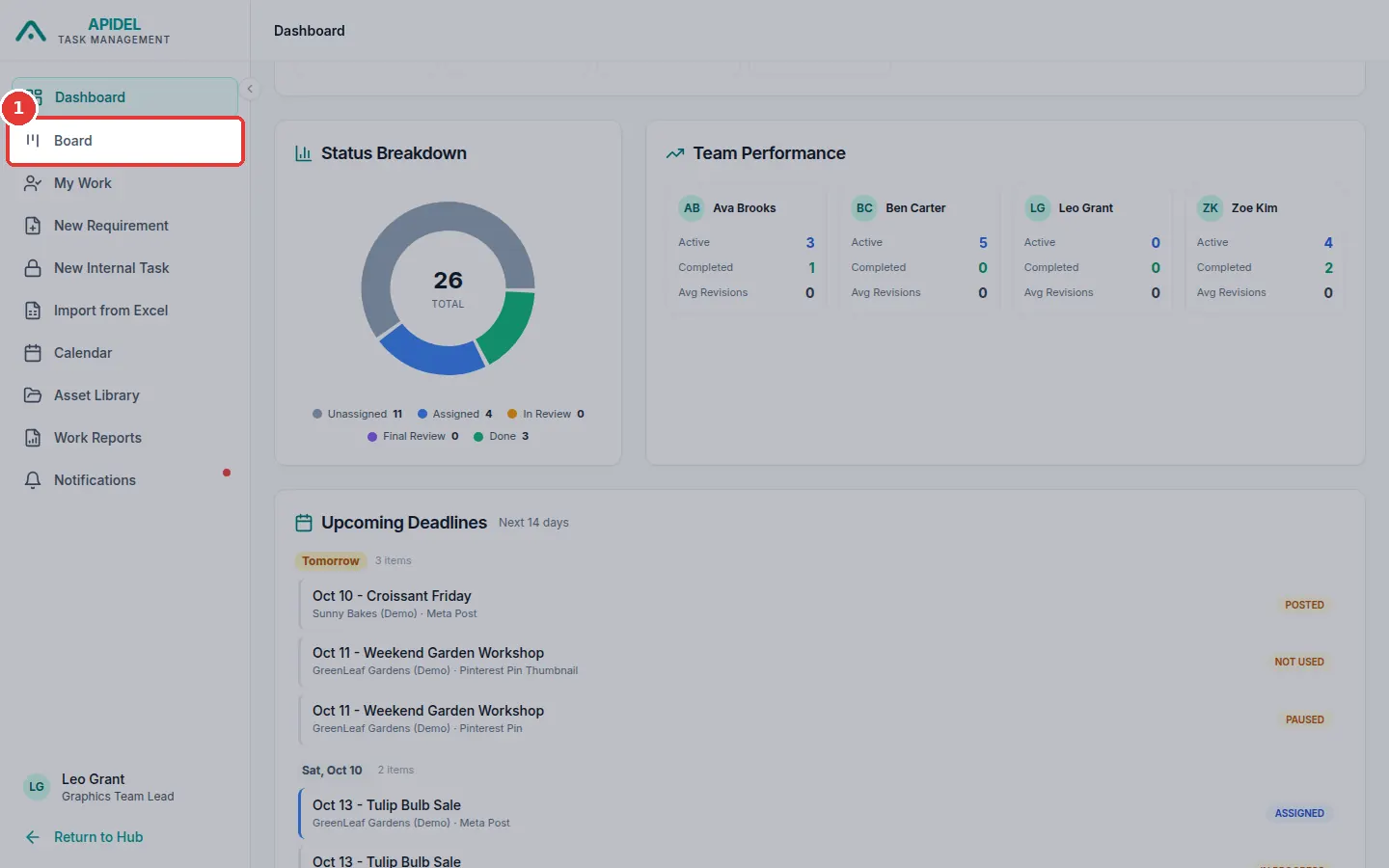
Click Board in the menu on the left.
-
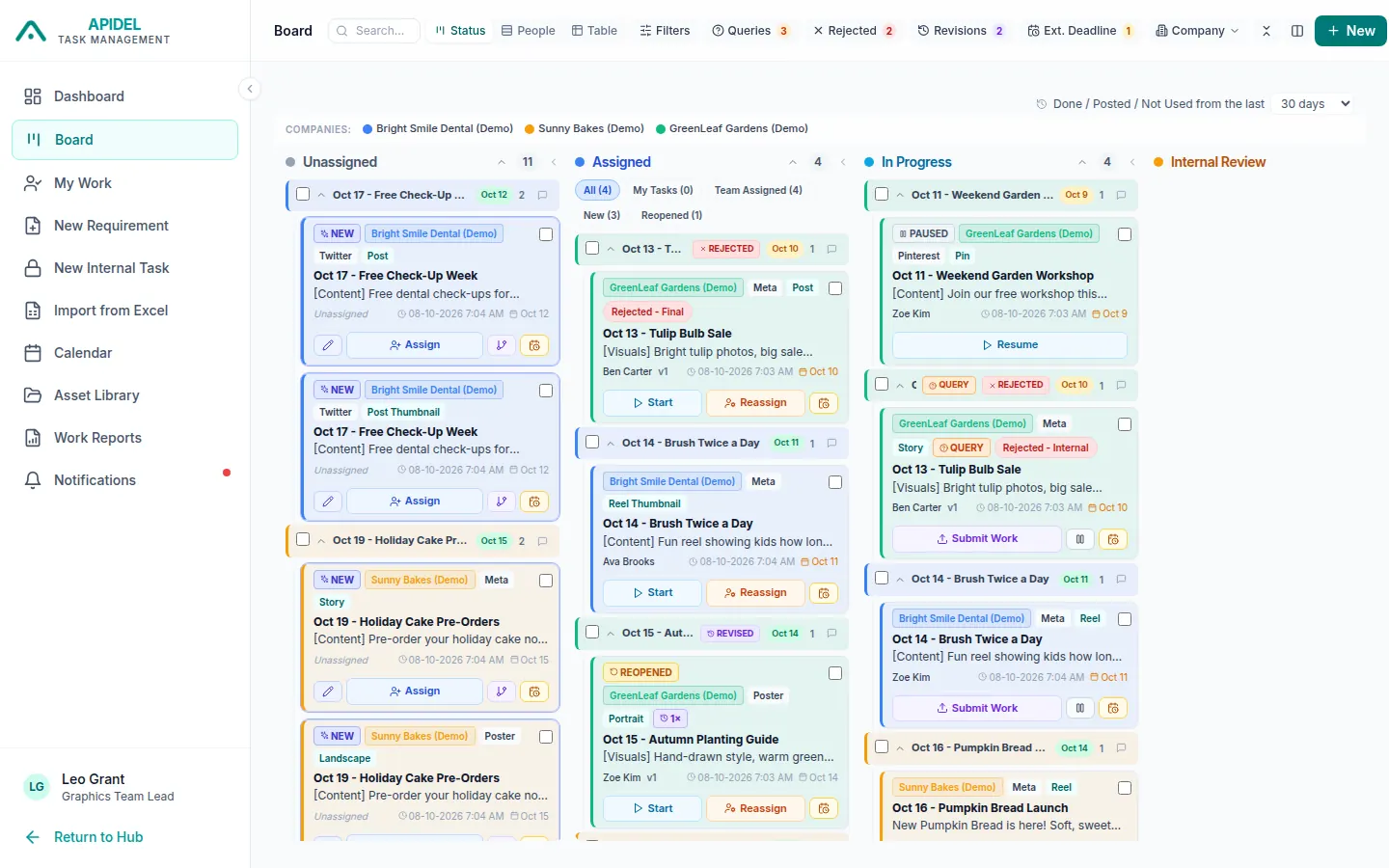
You will see the columns: Unassigned, Assigned, In Progress, Internal Review, Final Review, Done and Open Queries.
Read a card
Each card is one requirement. It shows:
- the company (in colour), the platform and the type
- NEW if it was made in the last few hours
- the title and a short description
- the designer, or Unassigned
- the deadline
- buttons for the next step, like Assign, Start, Approve or Reject
Click a card to open its full page.
In the Assigned column you can click All, My Tasks (given to you) or Team Assigned (given to designers).
Make the board easier to read
-
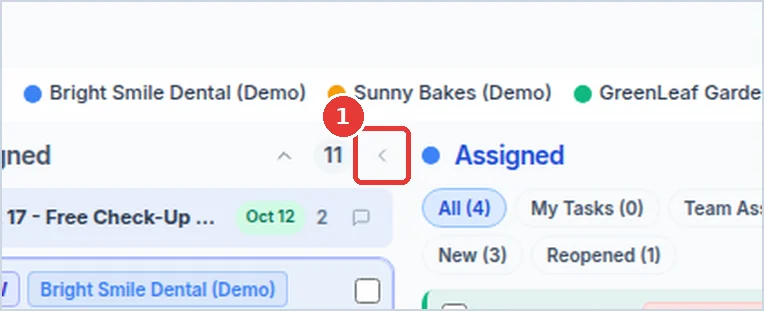
Click the small arrow next to a column's number to make the column thin. Click it again to open it.
-
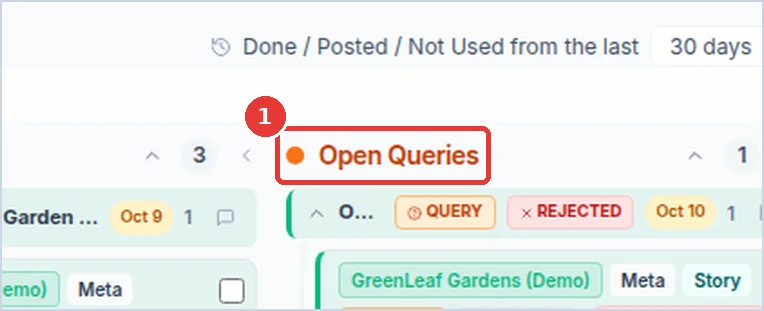
Scroll to the right to see more columns. The last column, Open Queries, shows all work with an unanswered question.
Three ways to look at the work
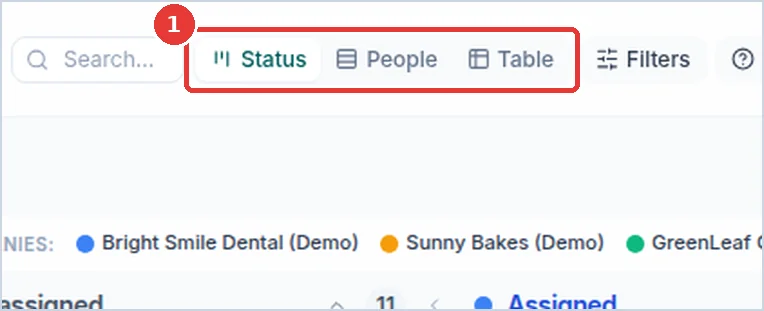
- Status: the columns (as above).
-
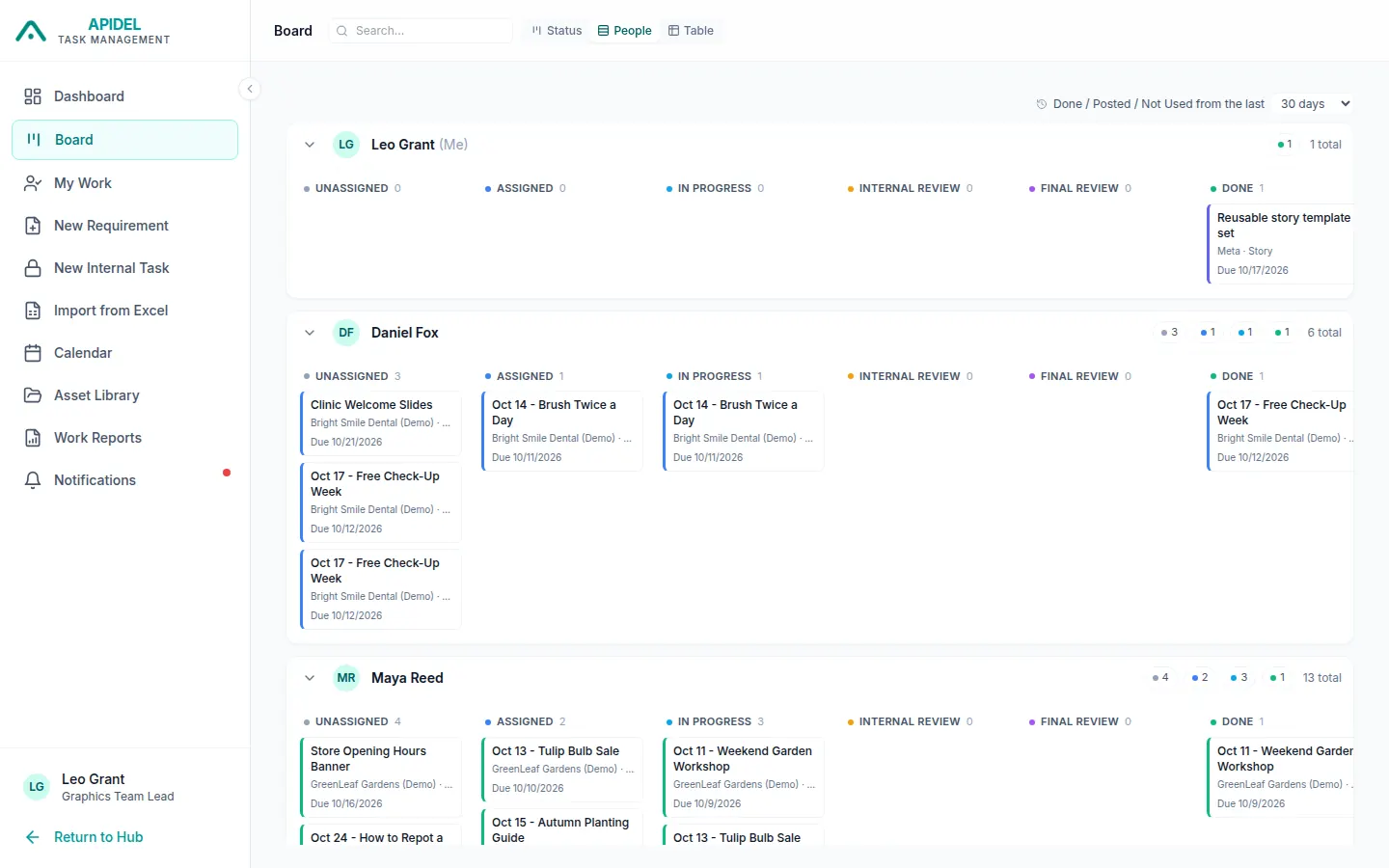
People: one row for each coordinator who asked for work.
-
Table: a list, like a spreadsheet. Here you can tick many rows and act on them together.
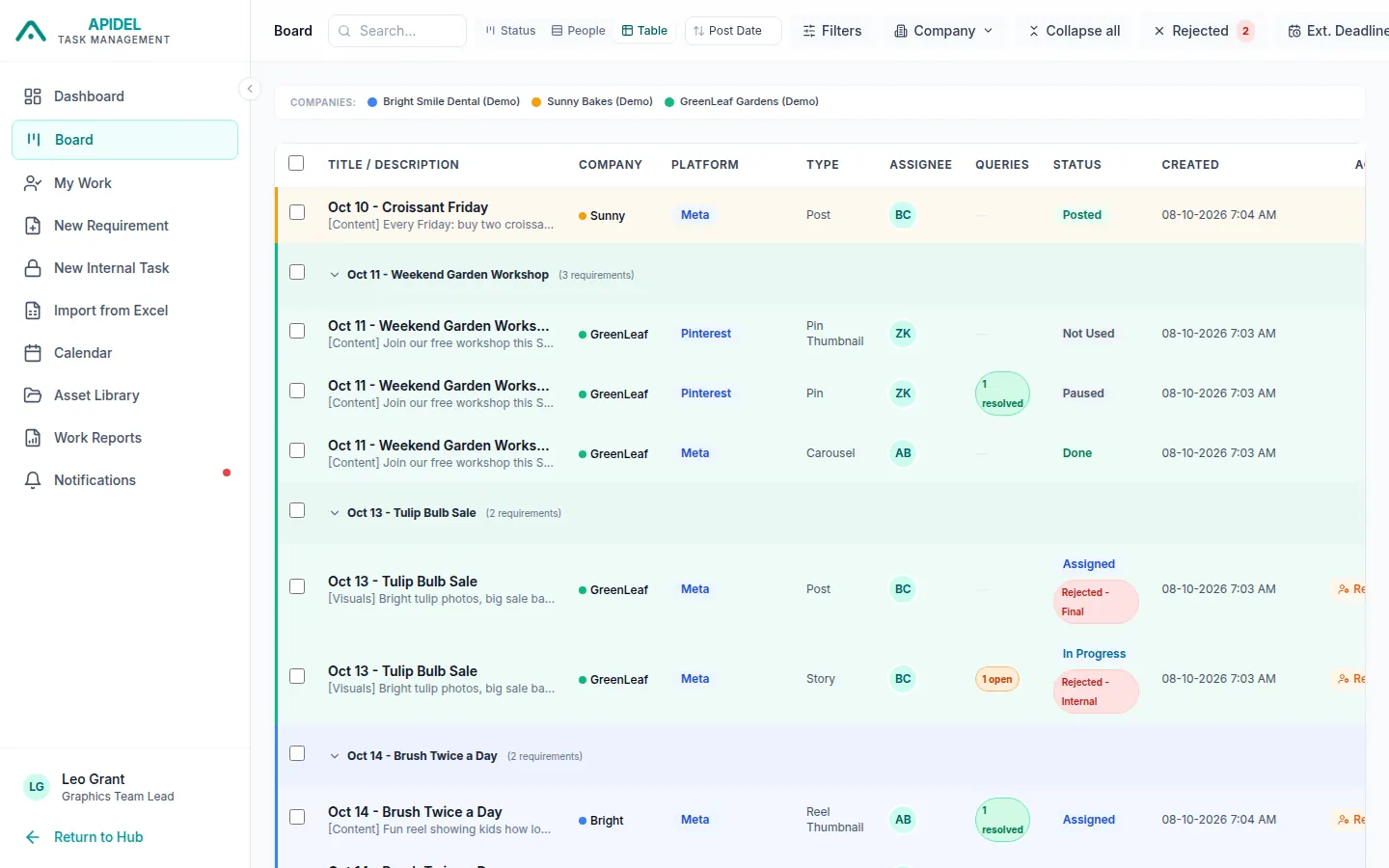
Find work
- Type in the Search... box to find work by its title.
- Click Company to see only one company.
-
Click Filters to choose more, for example only one designer (Assignee) or one coordinator. Then click Apply.
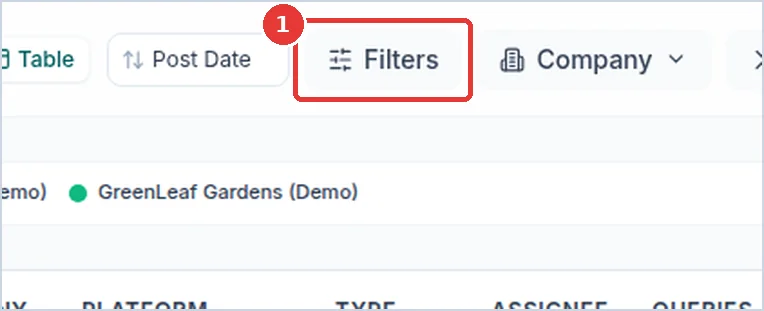
-
Small buttons like Queries, Rejected and Ext. Deadline show only work with questions, work sent back, or work with a moved deadline.
- Click Clear to show all work again.
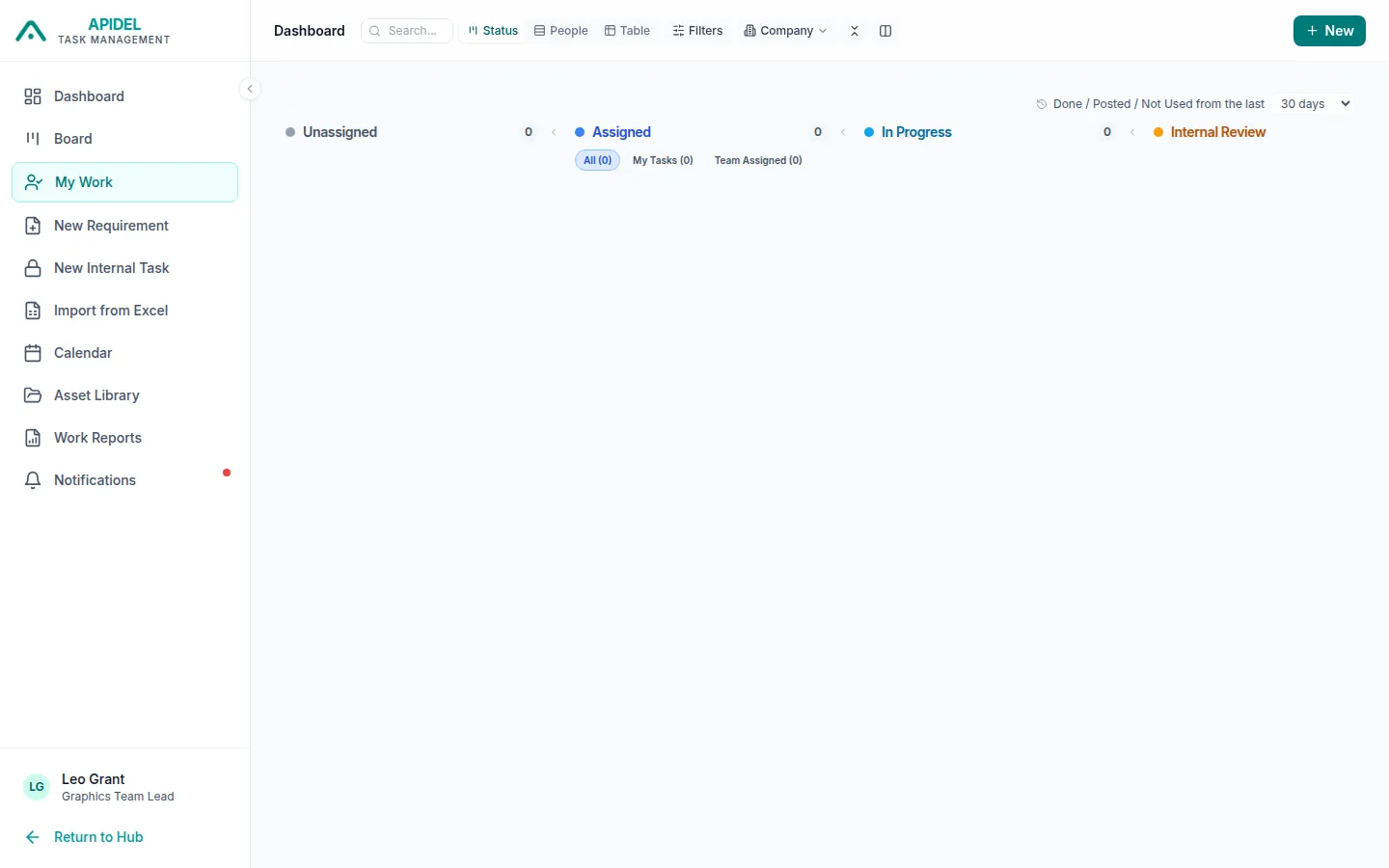
My Work
My Work shows only the work given to you.
-
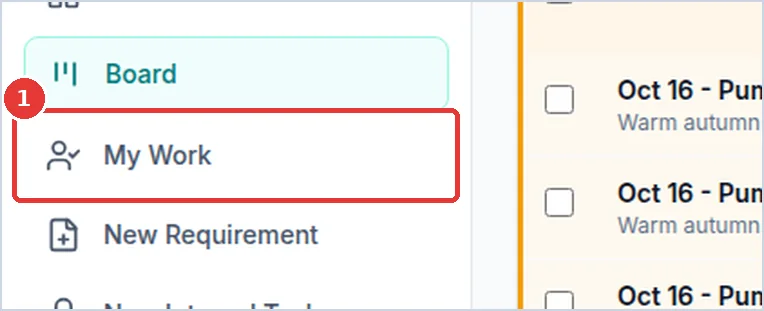
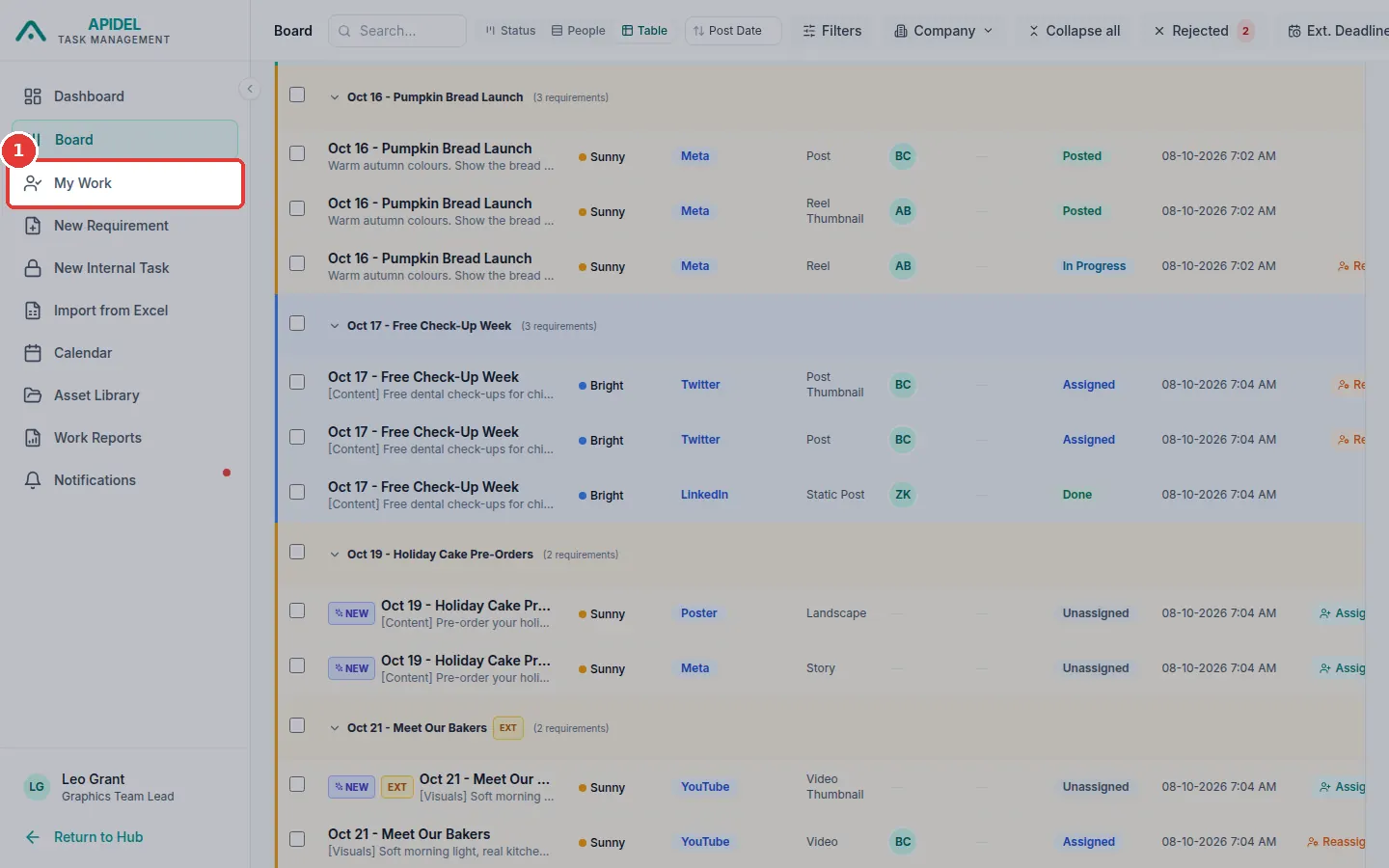
Click My Work in the menu.
-
You see the same board, but only with your own work.
The requirement page
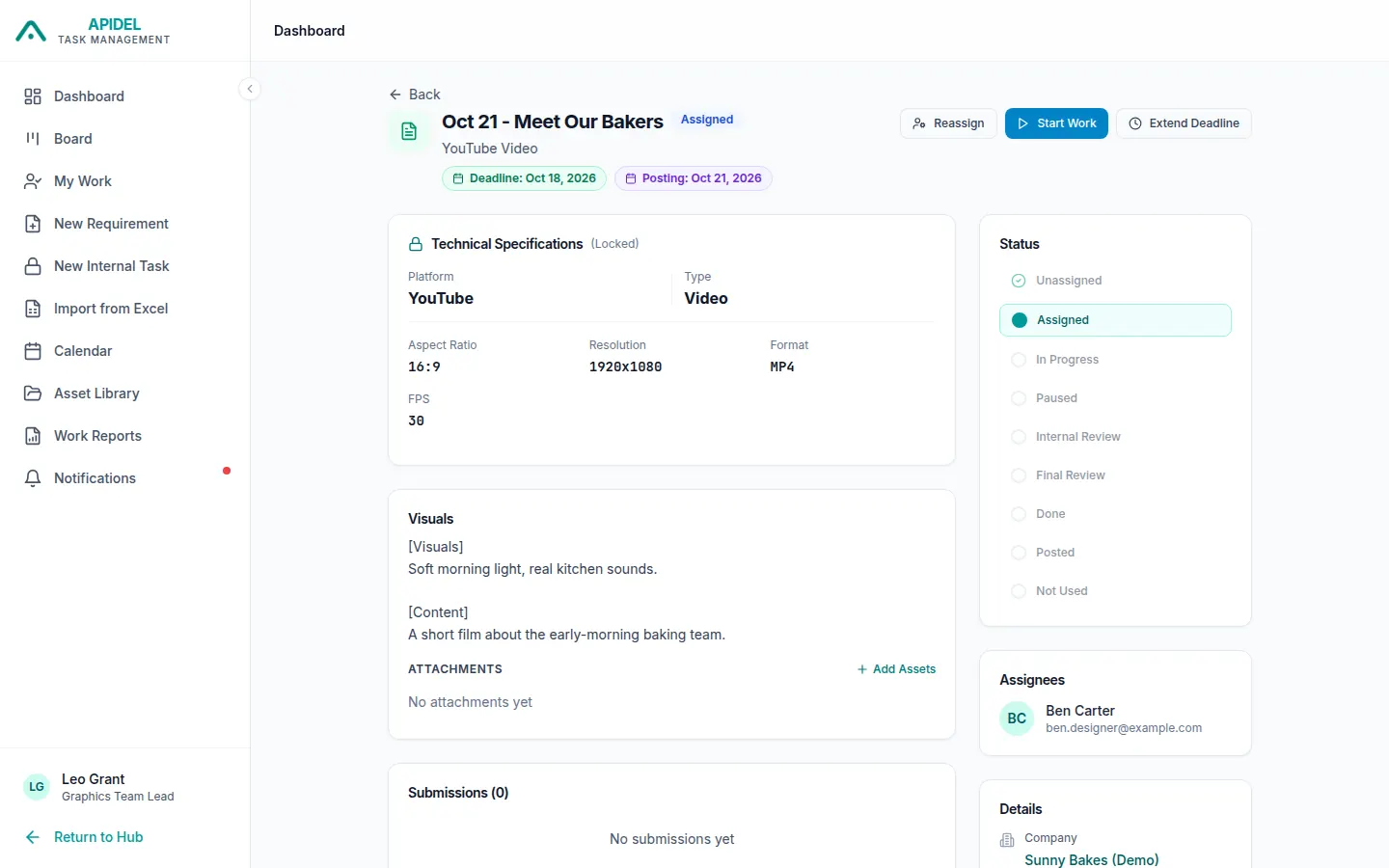
Click a card to open its page. At the top are the buttons you can use now. On the right you see the steps, the designer and a list of everything that happened (Activity Timeline).