New requirement and Excel import
You can add work for a coordinator. The coordinator then owns it and approves it at the end.
Add one requirement
-
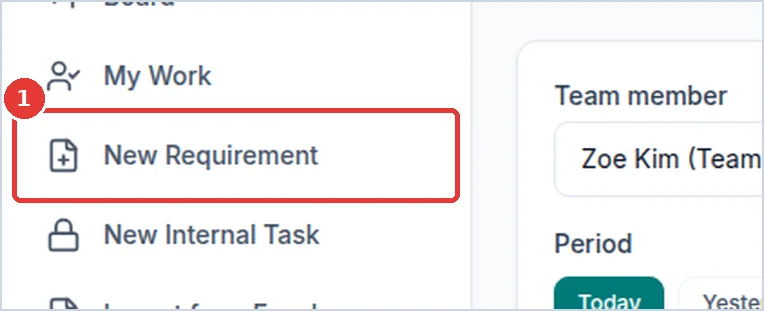
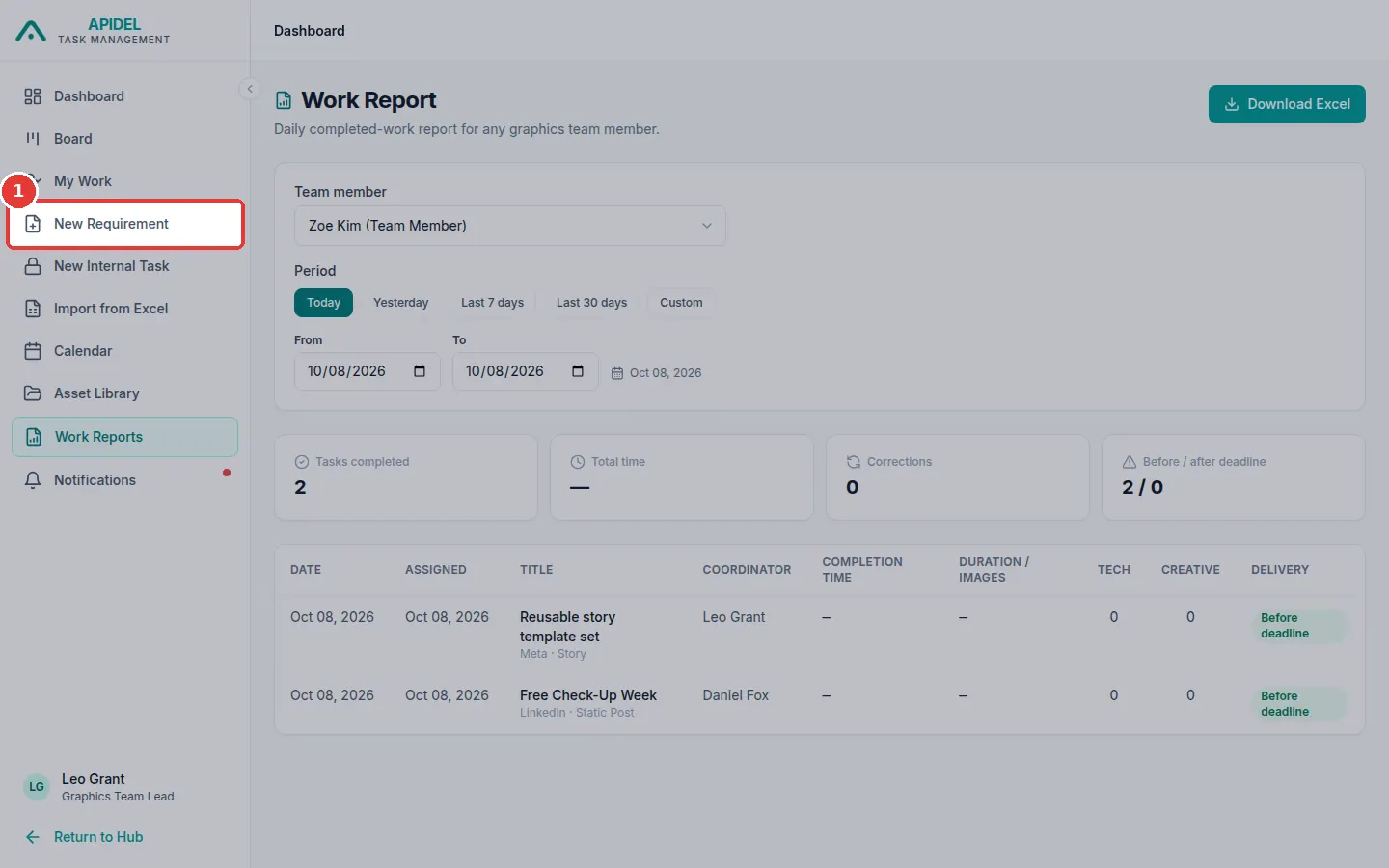
Click New Requirement in the menu on the left.
-
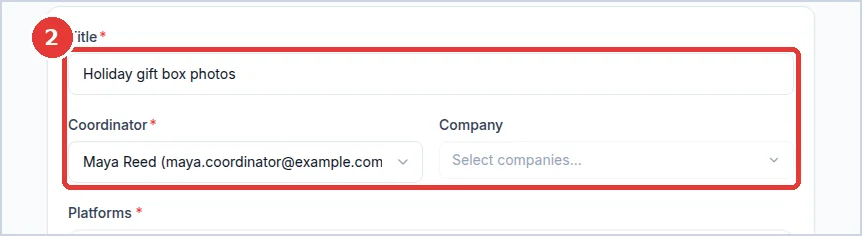
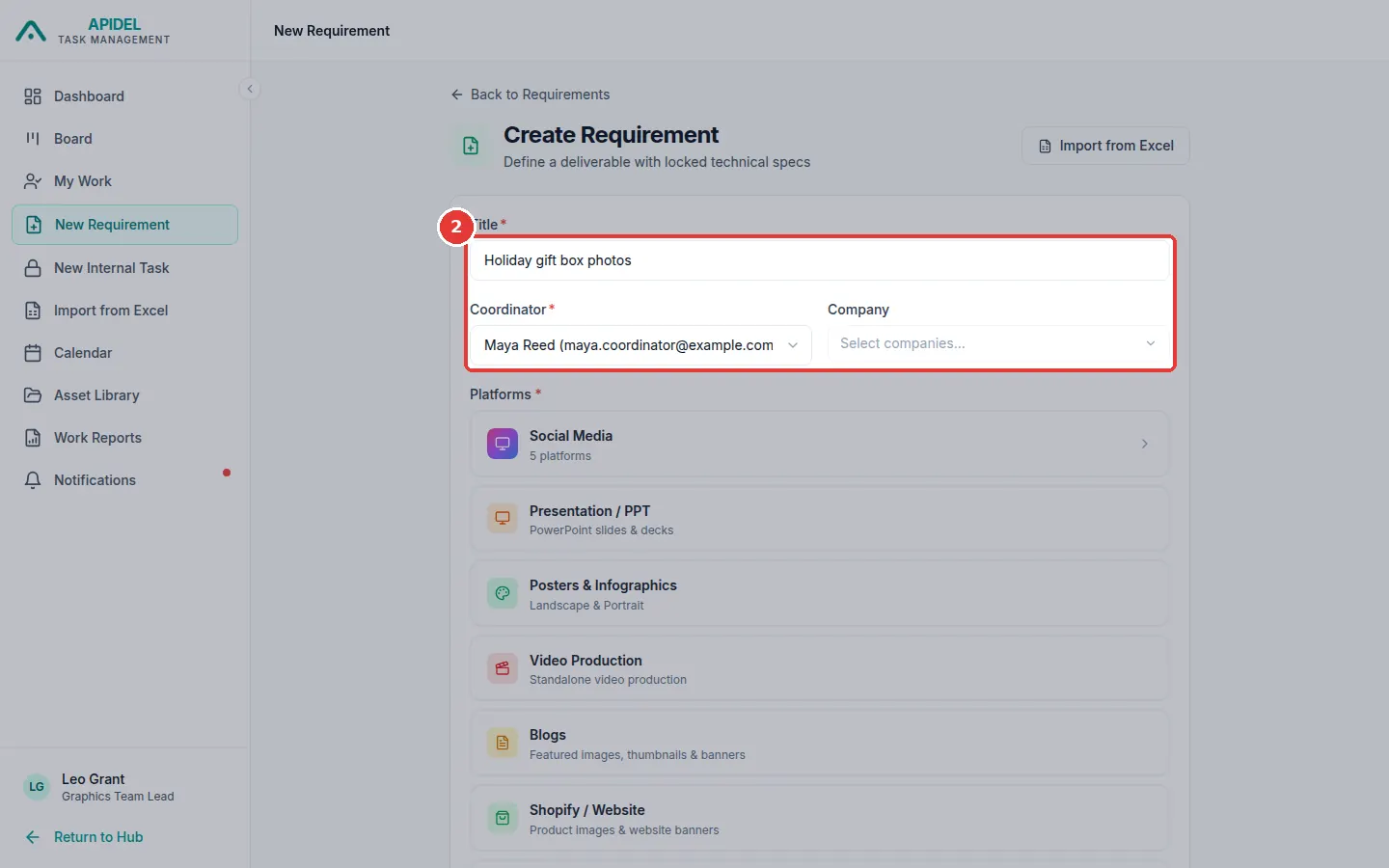
Type a Title. Then click the Coordinator box and choose the coordinator the work is for. This must be filled in.
-
Click the Company box and tick the company. You see only that coordinator's companies.
- Fill in the rest of the form from top to bottom:
- Platforms and Content Types: where the design is used and what kind it is. For Facebook, Instagram, YouTube, LinkedIn, X or Pinterest, click Social Media first.
- Visuals (optional) and Content (must fill in).
- Attachments & Links (optional).
- Deadline (must fill in) and To Be Posted On (optional).
-
At the bottom, you can give the work to a designer straight away. Click Assign To and choose a designer. Or leave Leave unassigned.
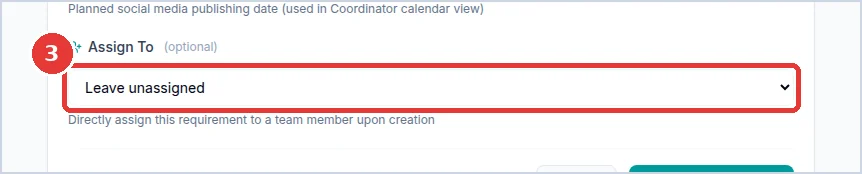
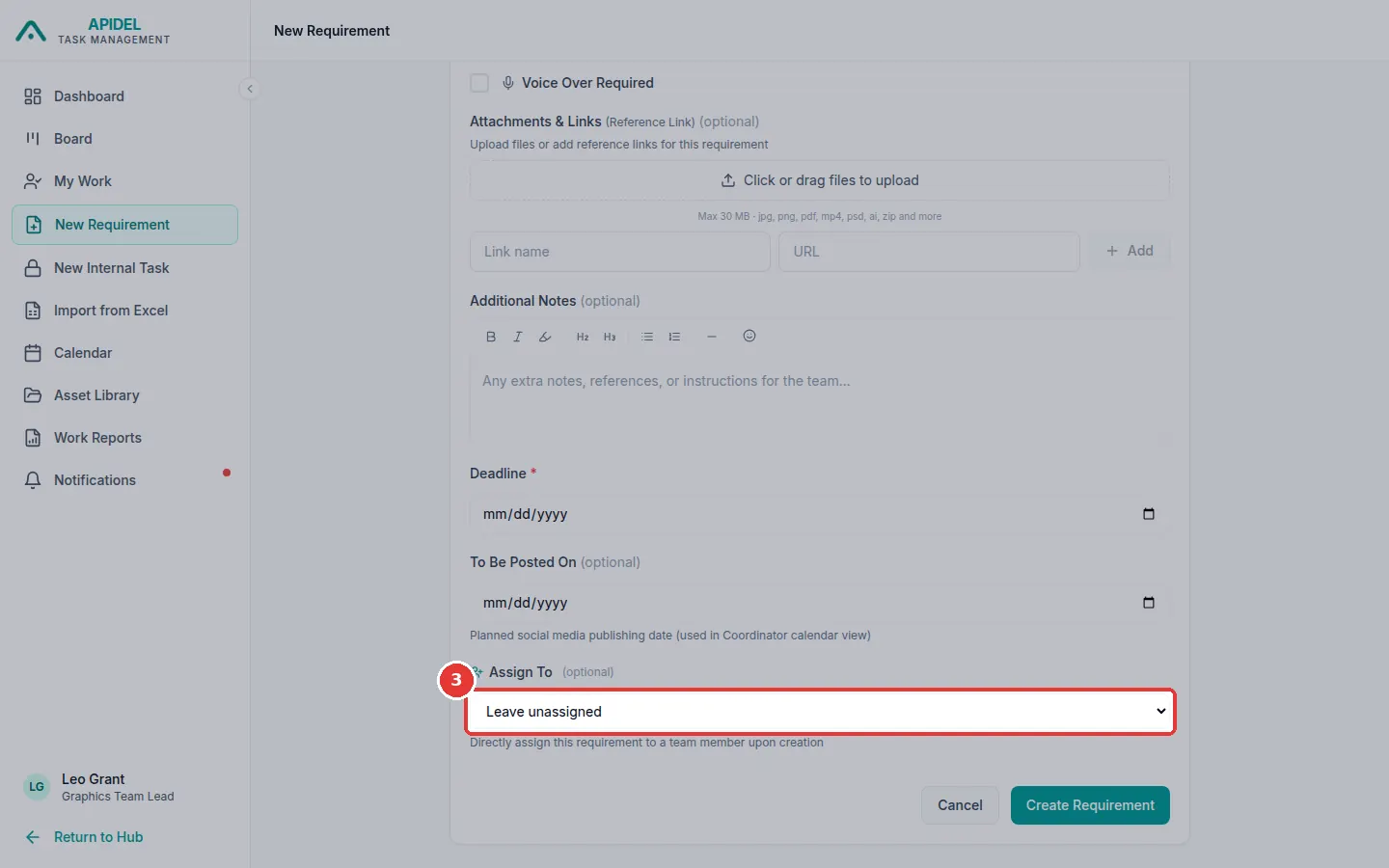
-
Click Create Requirement. Check the window. Click Confirm & Create.
Add many at once (Import from Excel)
-
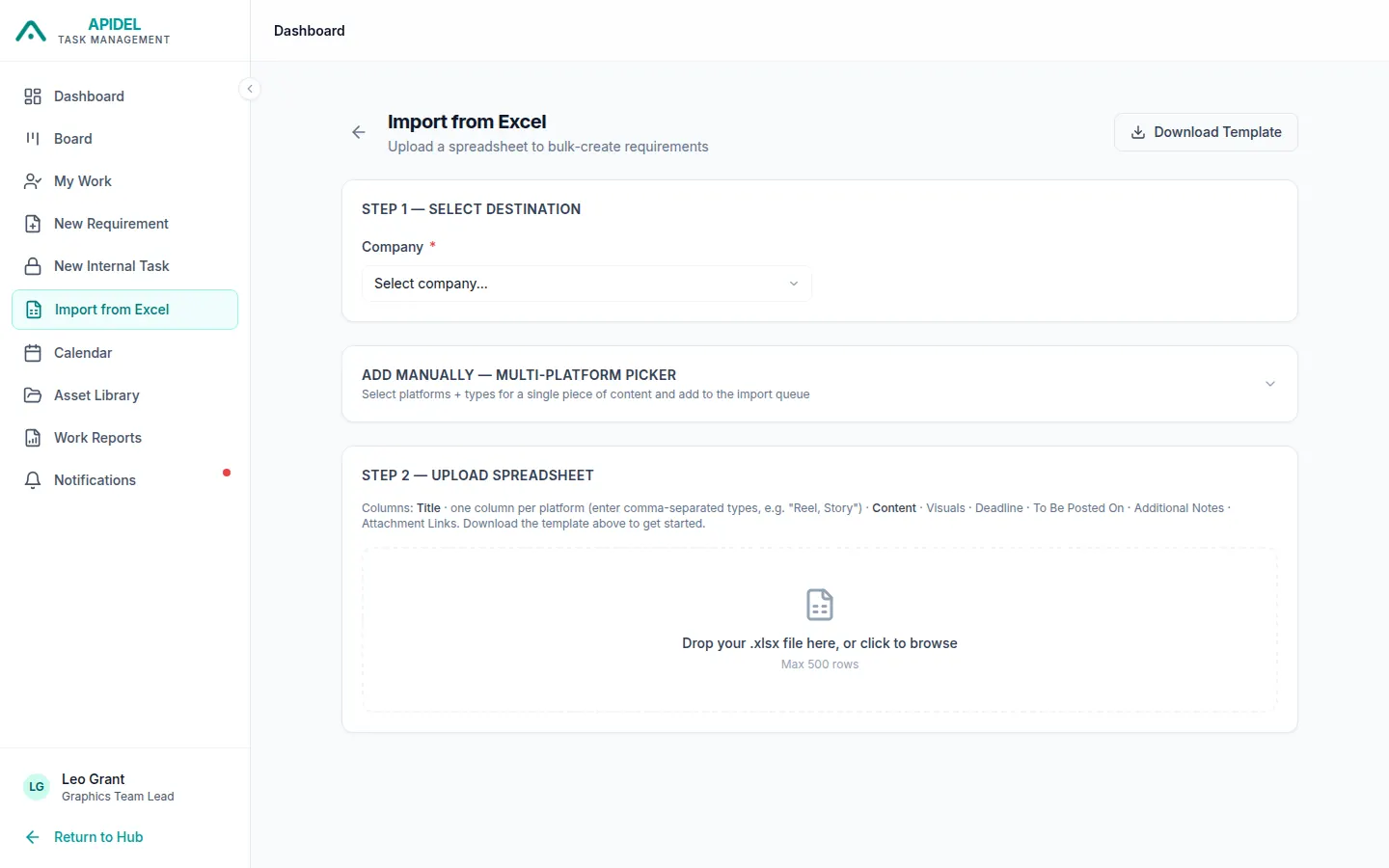
Click Import from Excel in the menu.
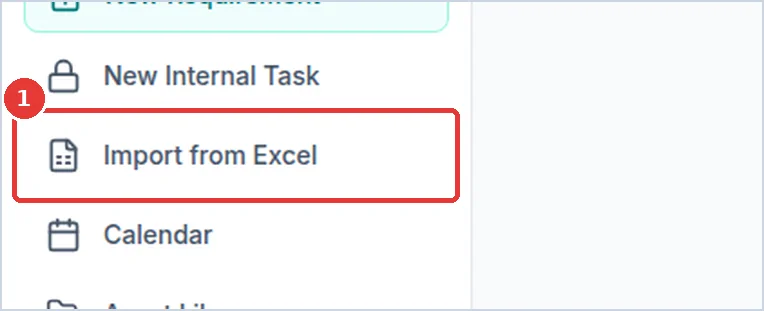
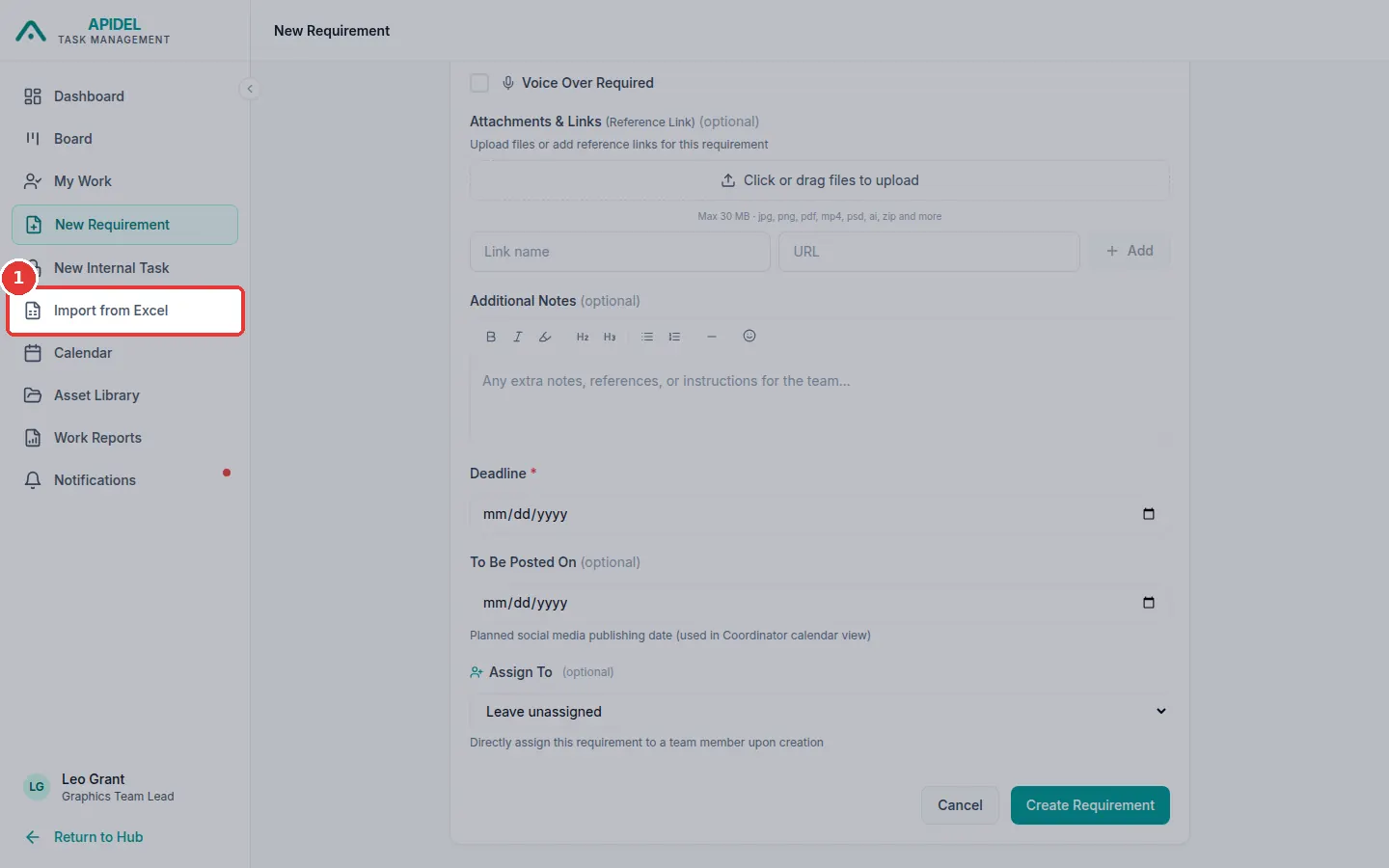
-
Click Download Template to get an empty spreadsheet.
-
Fill one row for each piece of work. Title and Content must be filled in. In the column of the platform (for example Meta), type the kinds of design with commas, for example
Story, Post. Write dates like2026-10-14. - On the page, under Step 1, choose the Company.
- Under Step 2, click the grey box and choose your spreadsheet.
- Under Step 3, check the list. Red Error rows will be skipped.
- Click Import ... Requirements. You will see Import Complete.
All imported work starts as Unassigned.