Asset Library (files and links)
The Asset Library keeps the files and links that were added to requirements. For example, a logo, a photo, or a link to brand colours. You see the files for all companies.
Find a file or link
-
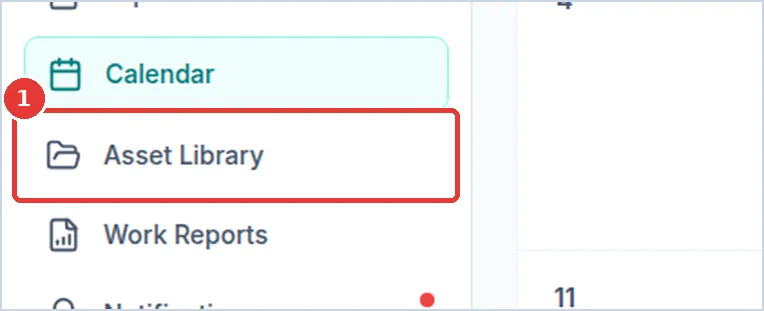
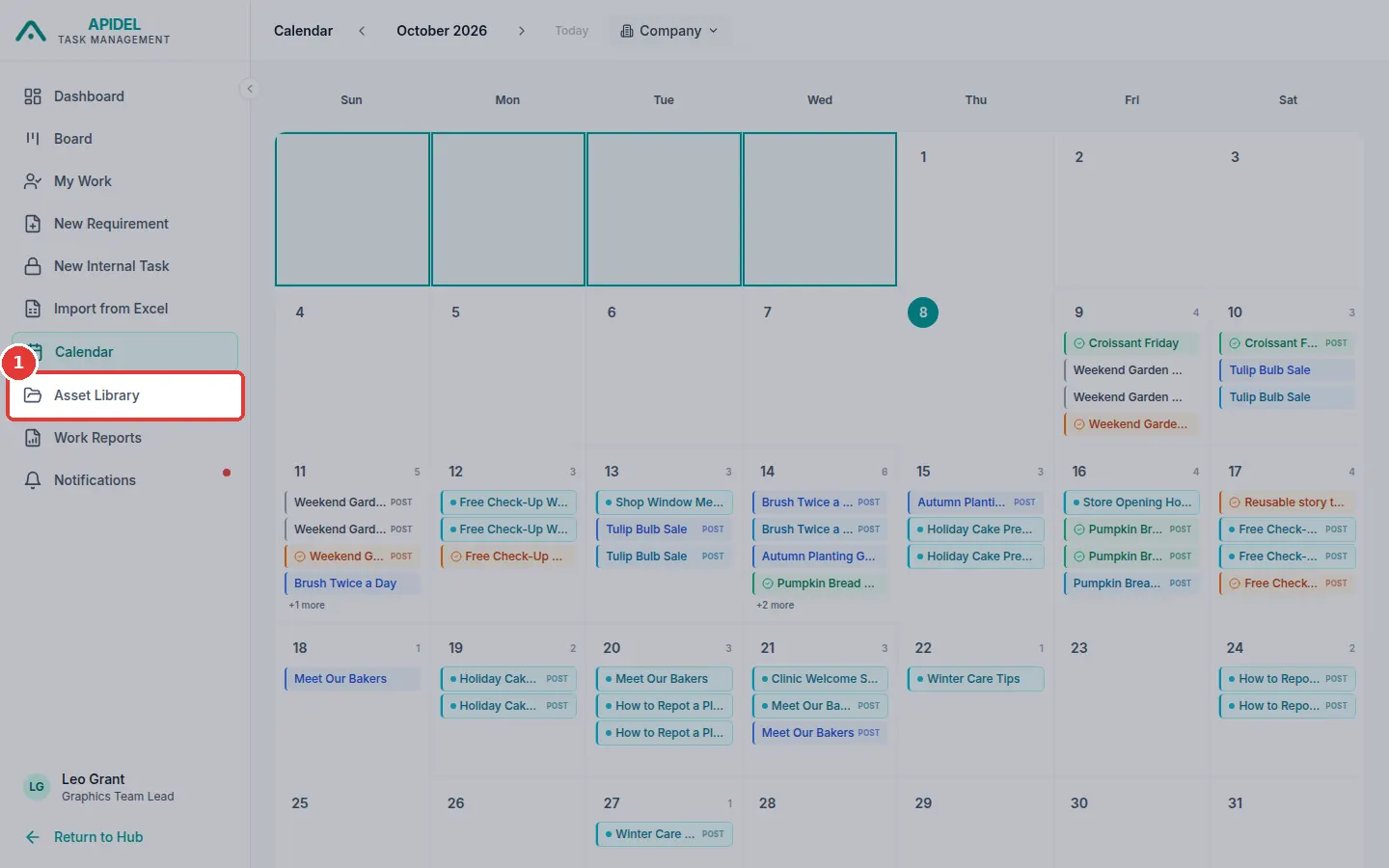
Click Asset Library in the menu on the left.
-
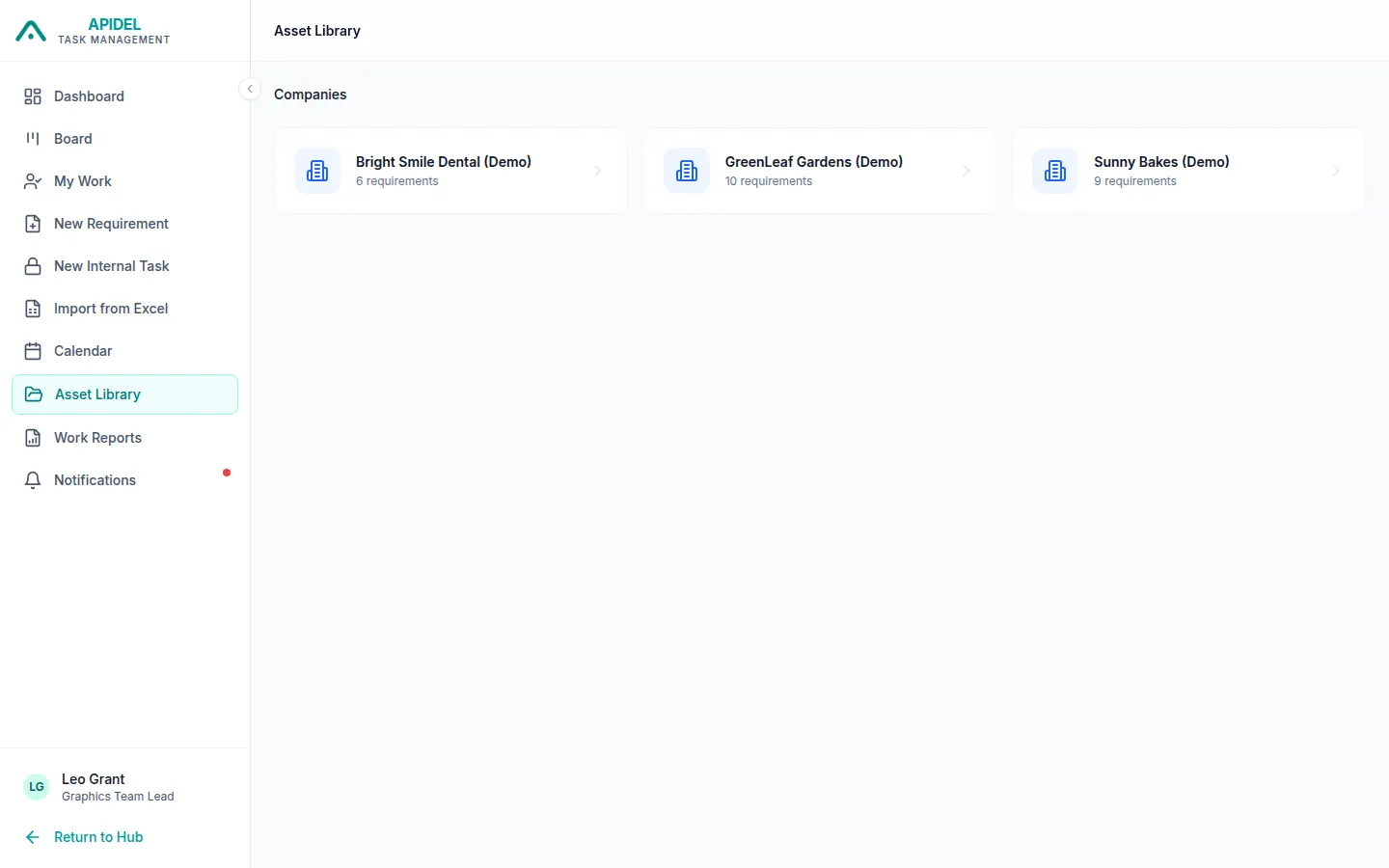
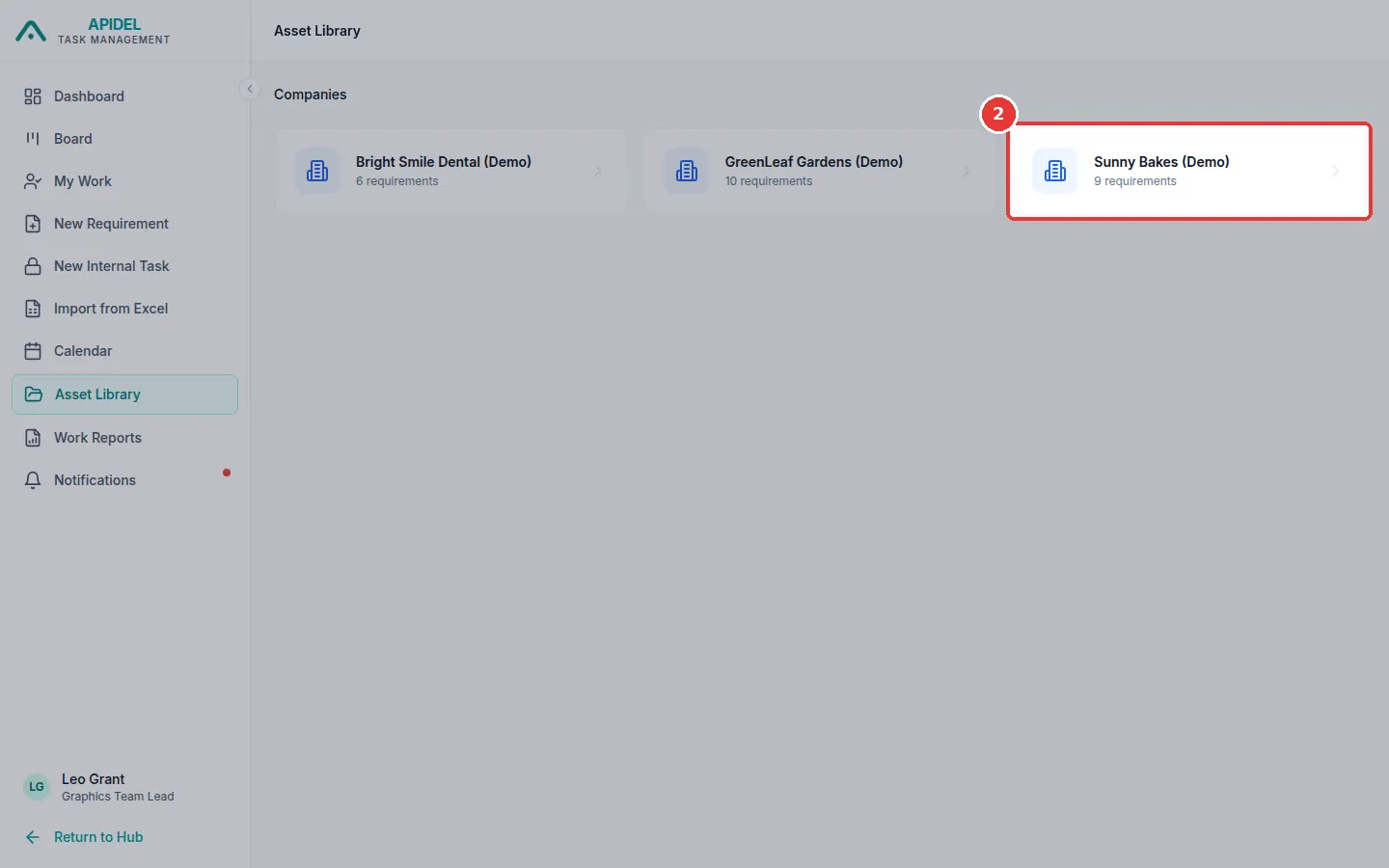
You will see a box for each company.
-
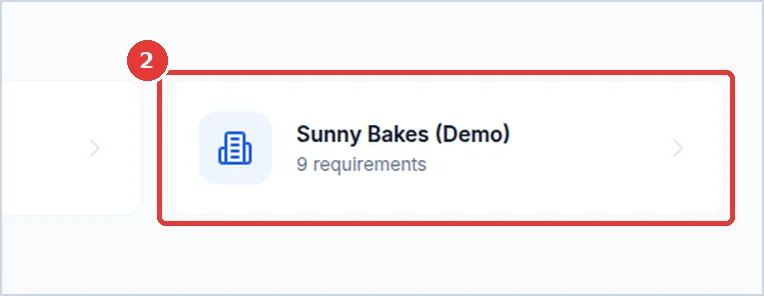
Click the company you want.
-
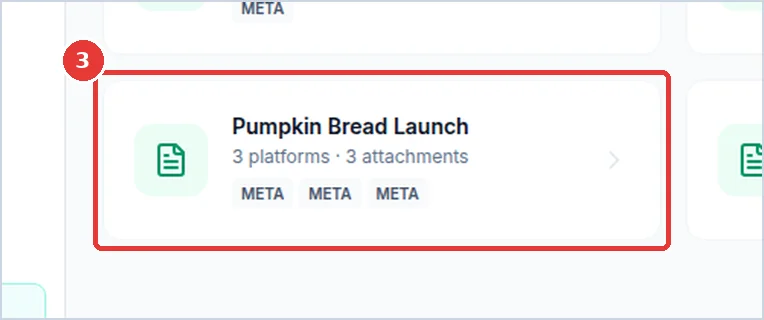
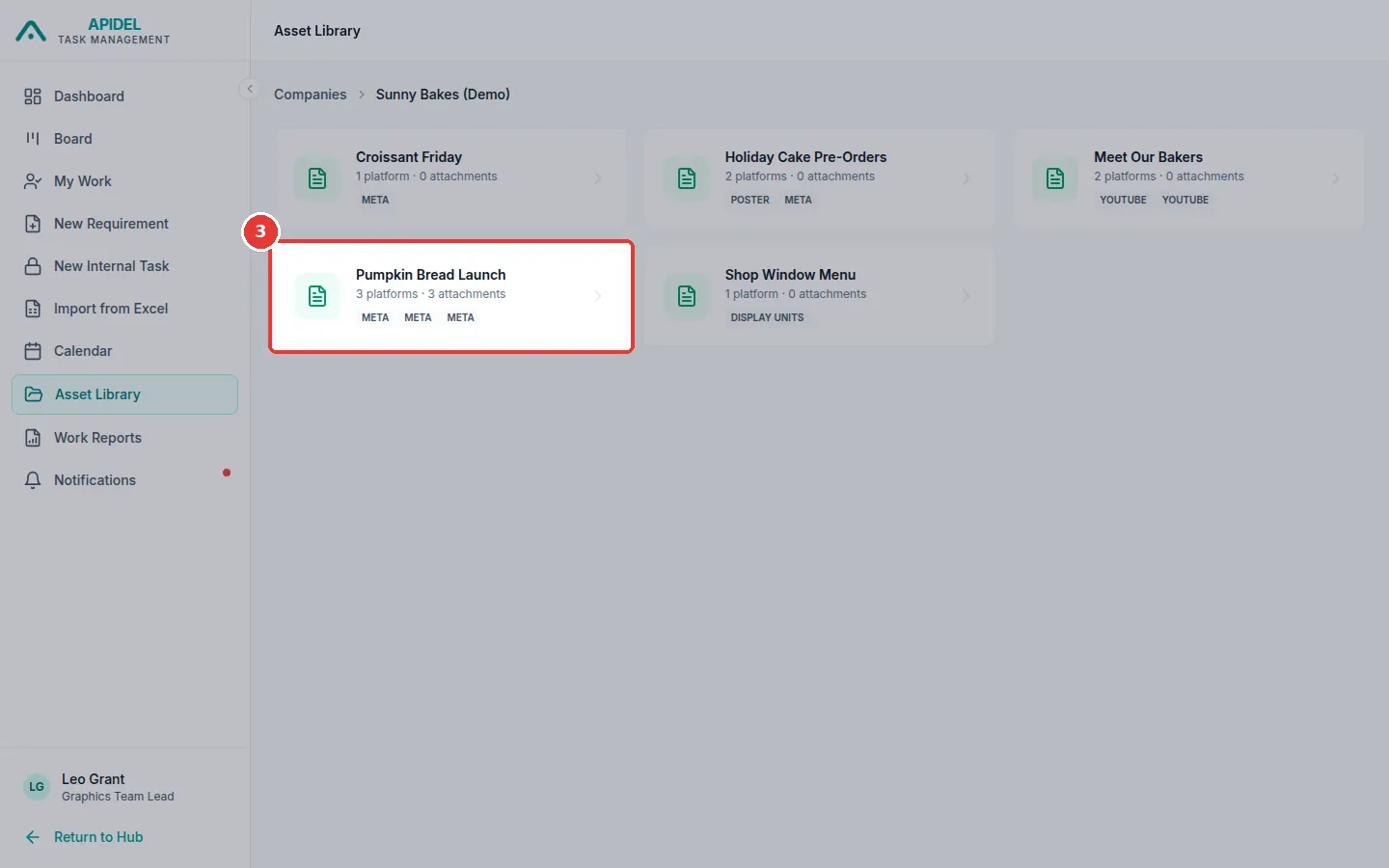
You will see a box for each requirement. Click the requirement you want.
-
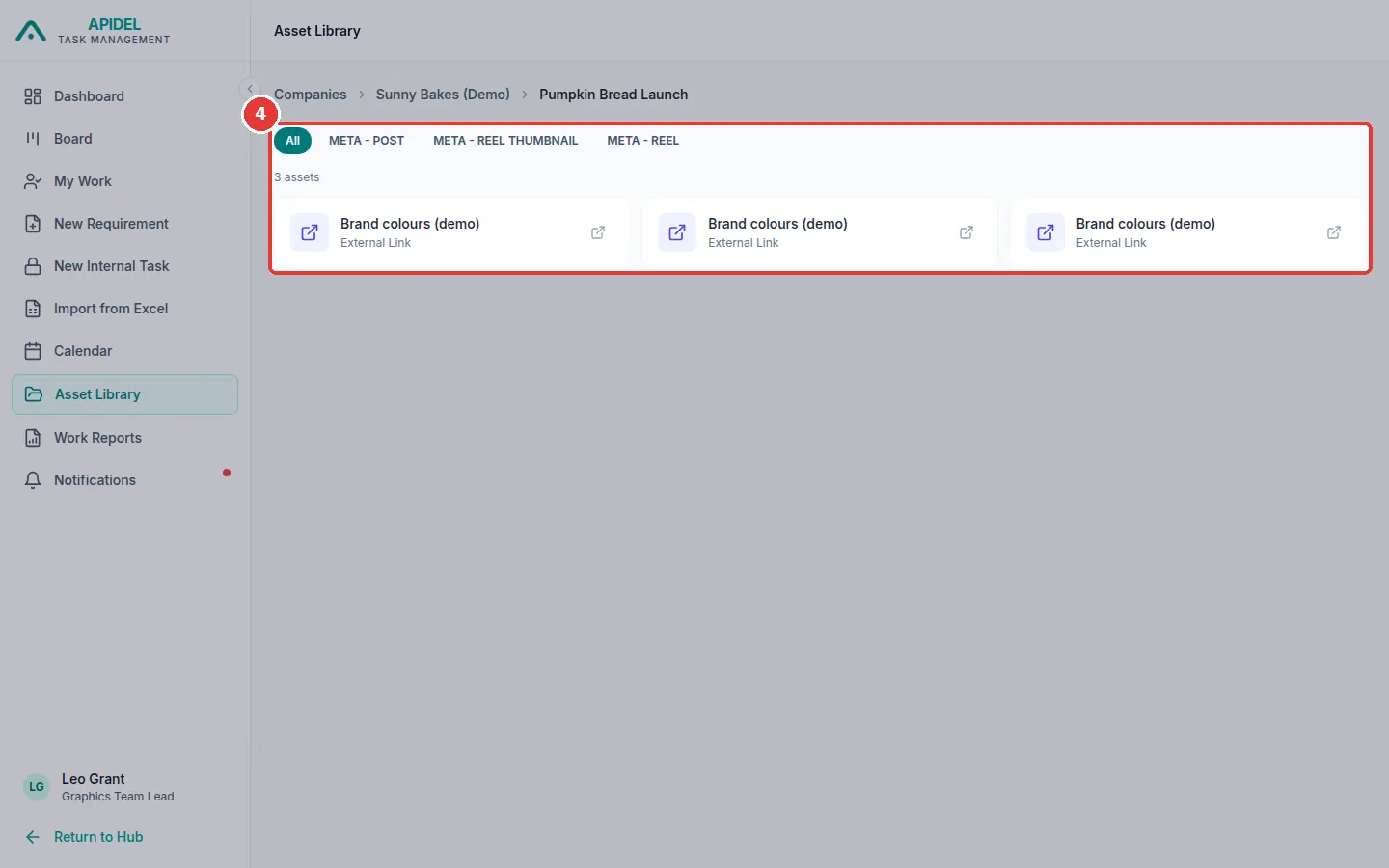
You will see its files and links. Move your mouse over one to see its buttons.
- For a link, click Open link. It opens in a new tab.
- For a file, click Preview to look at it, or Download to save it on your computer.

-
To go back, click Companies or the company name at the top of the page.
Do not press the browser's refresh button here
If you refresh this page, you may see This site can't be reached. If this happens, open the website again and click Asset Library in the menu.