Getting started
This page shows how to open the system, sign in, find your way and sign out.
Open the website
- Open your web browser. For example, Google Chrome or Microsoft Edge.
- Type the website address in the long box at the top of the browser. Your company gives you this address.
- Press the Enter key on your keyboard.
- You will see the Welcome back page.
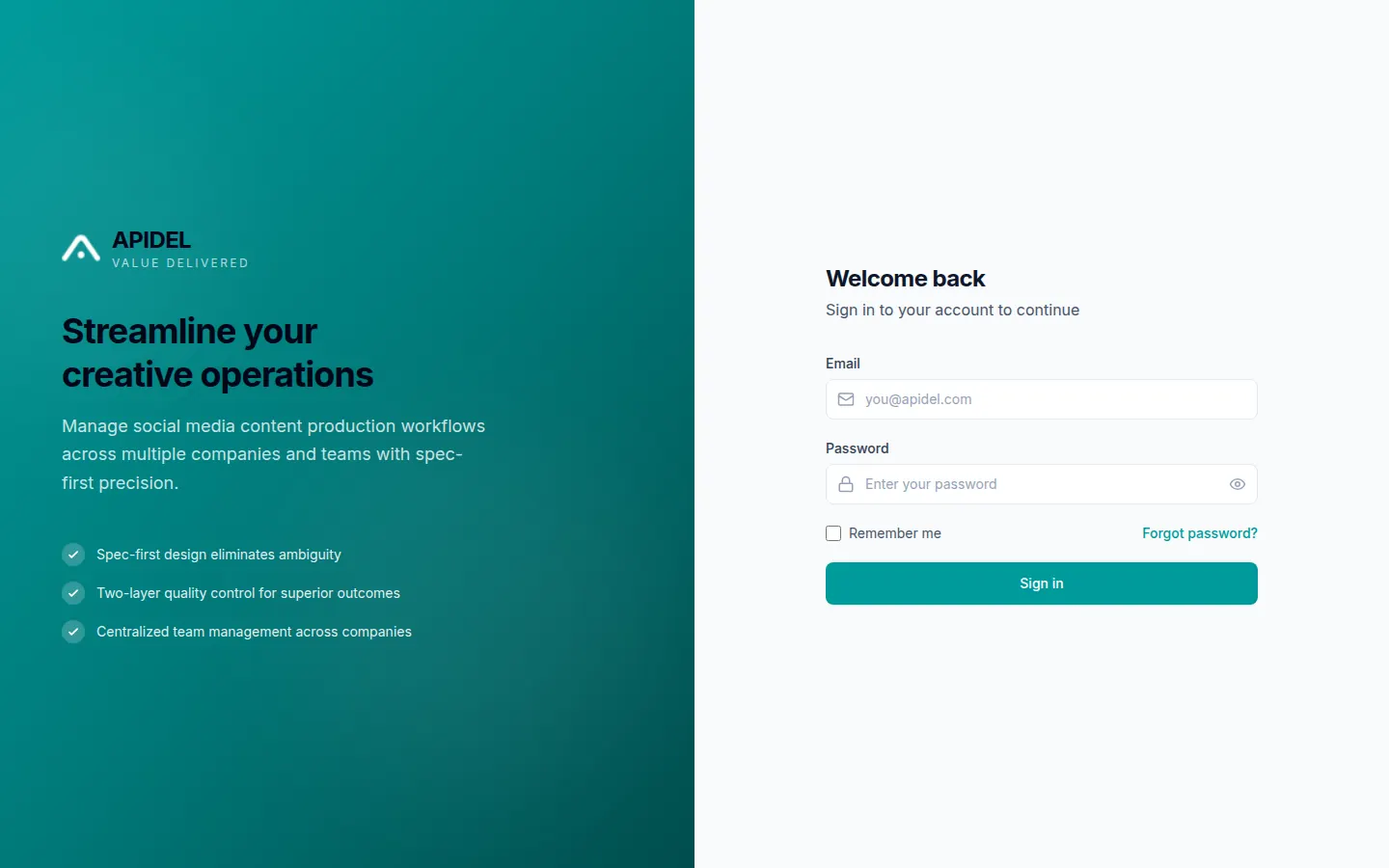
Sign in
Before you start
You need an email address and a password. Your Super Admin or your company gives them to you.
-
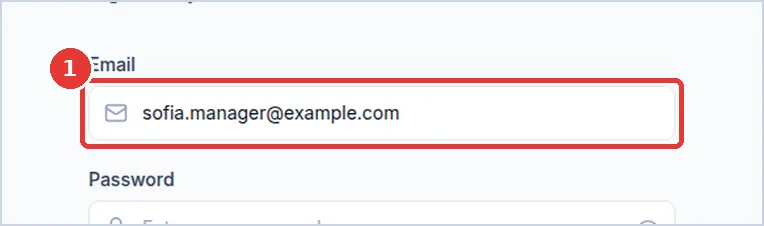
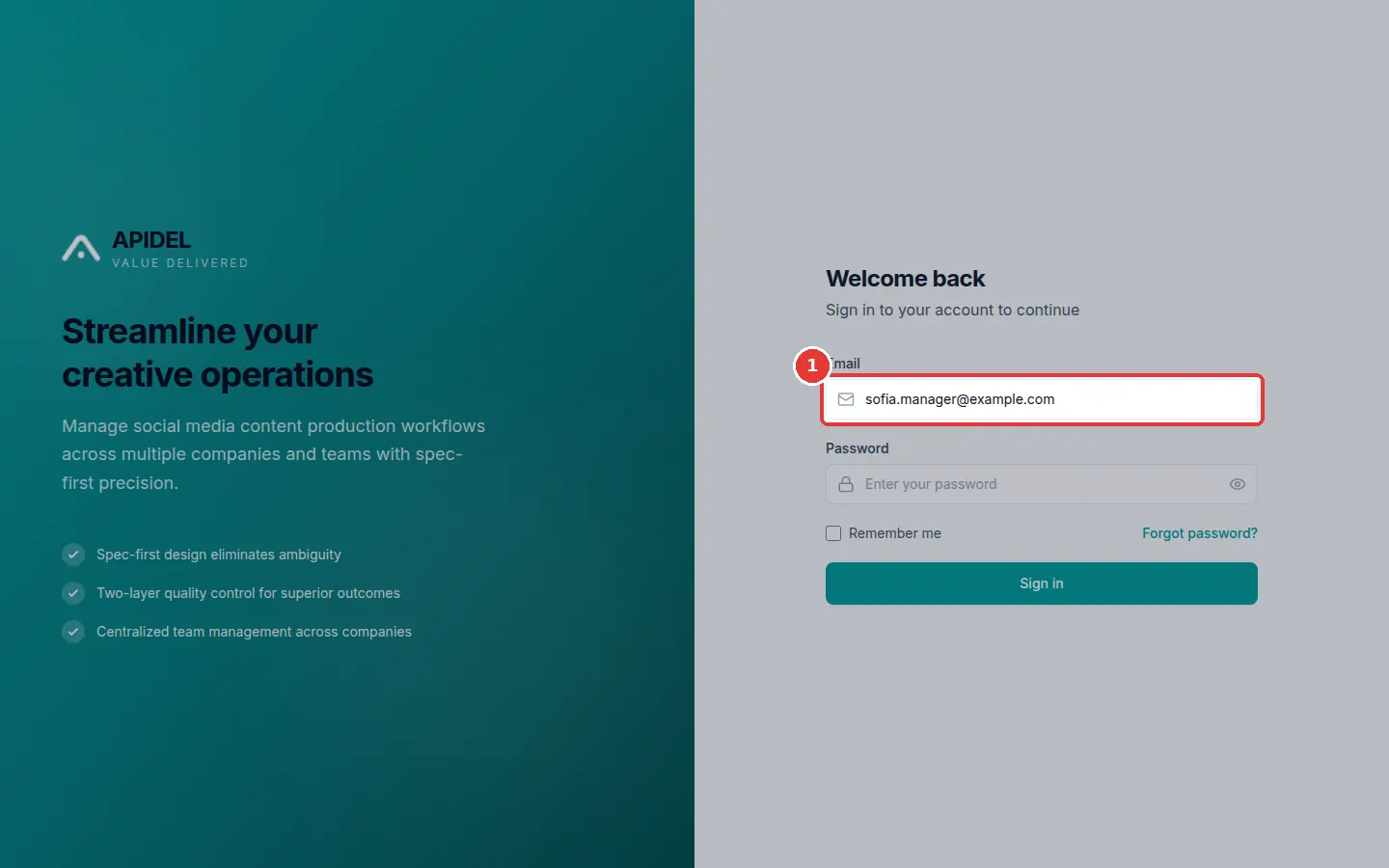
Click the Email box. Type your email address.
-
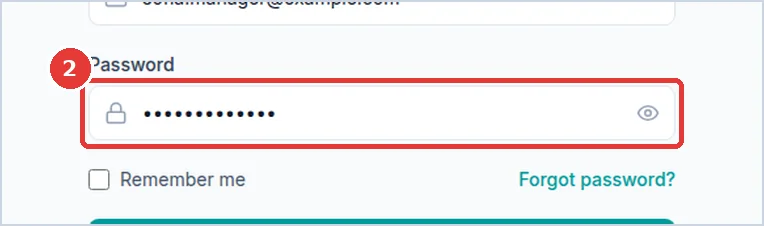
Click the Password box. Type your password. You will see dots, not letters. This is normal.
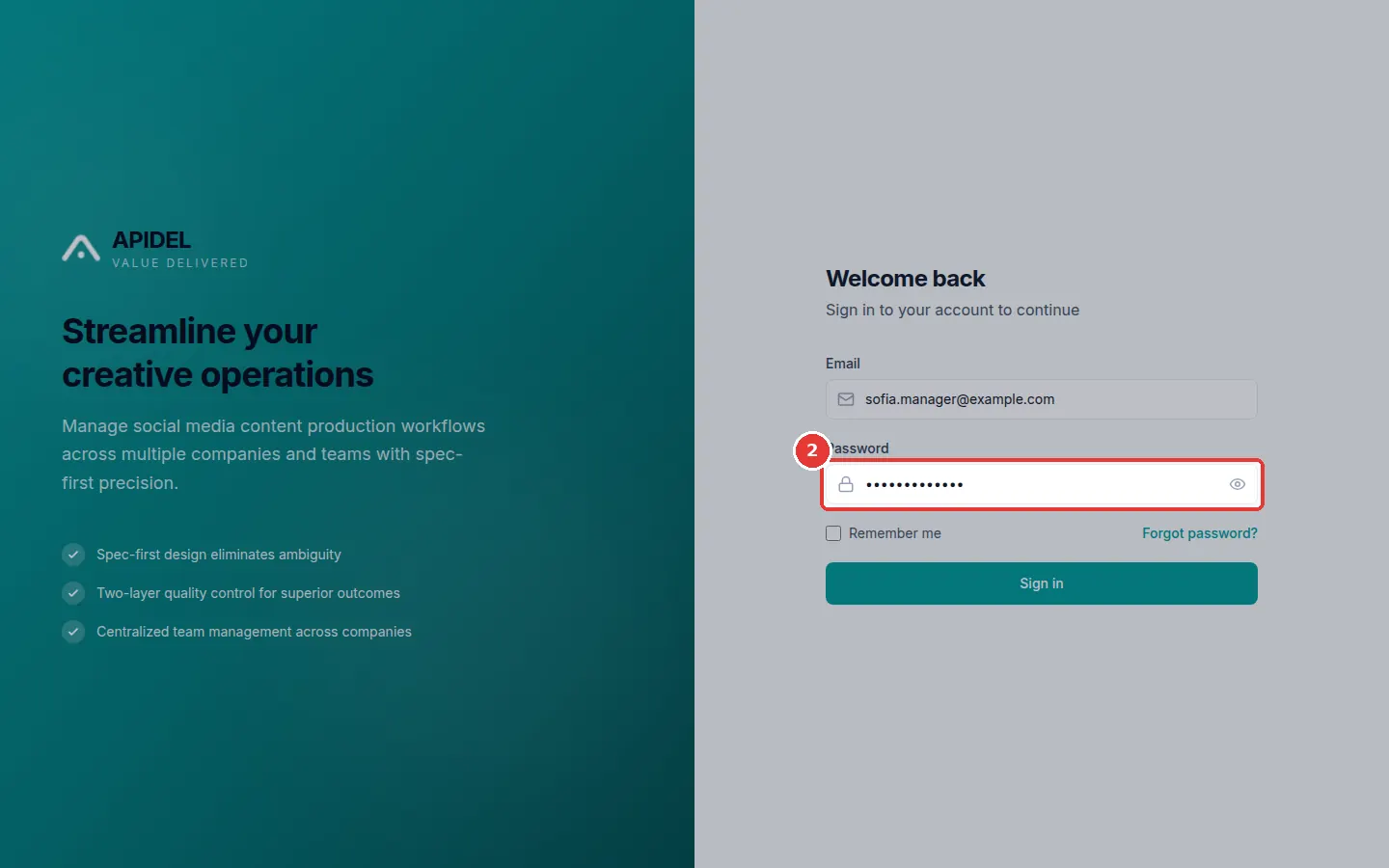
-
Click the green Sign in button.
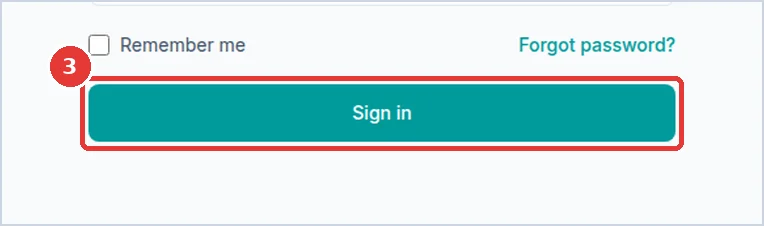
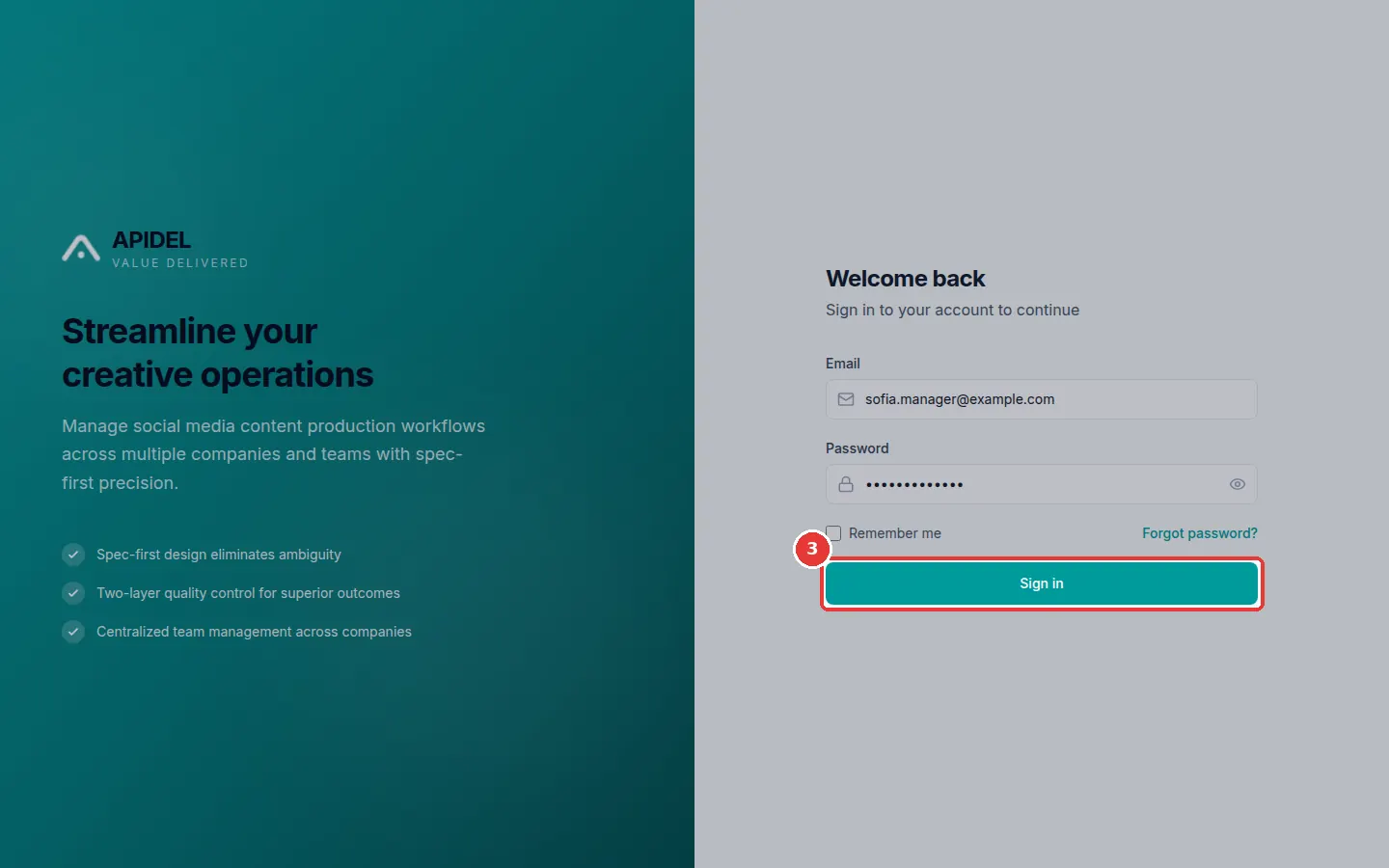
-
You will now see your Dashboard.
The pictures show a demo manager called Sofia Lane. Type your own email.
If you forgot your password
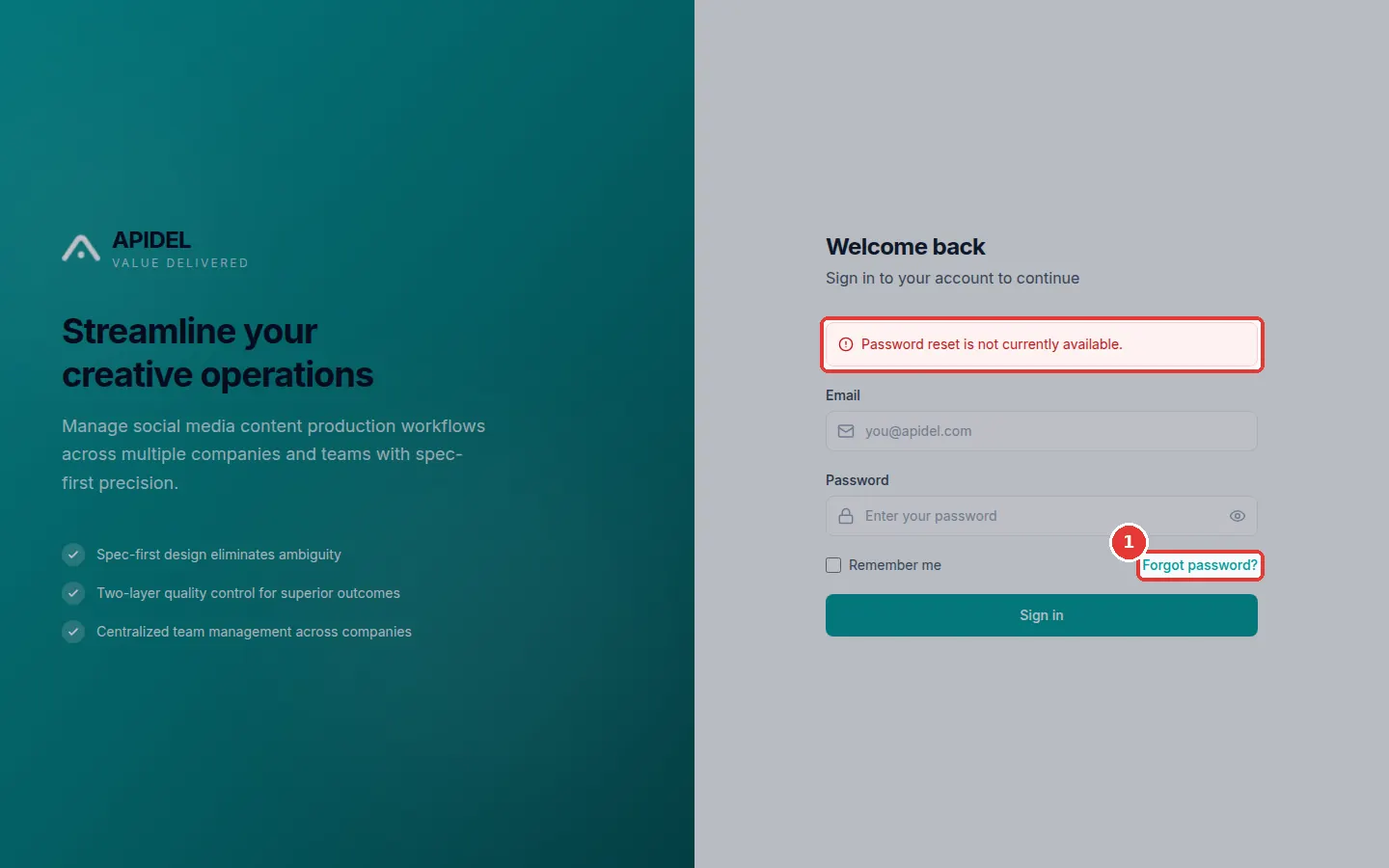
- Click Forgot password? under the Password box.
-
A red message says Password reset is not currently available.
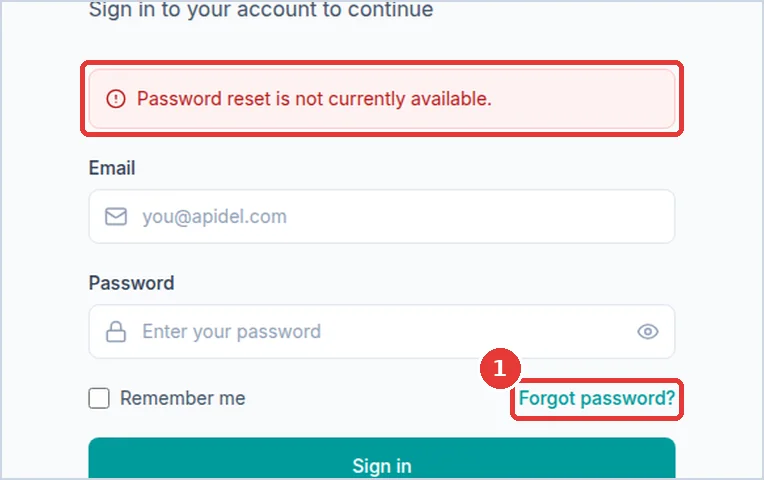
-
You cannot change your password here. Please ask your Super Admin or your company's main office for a new password.
Find your way: the menu
The menu is on the left side of every page. Click a word in the menu to open that page.
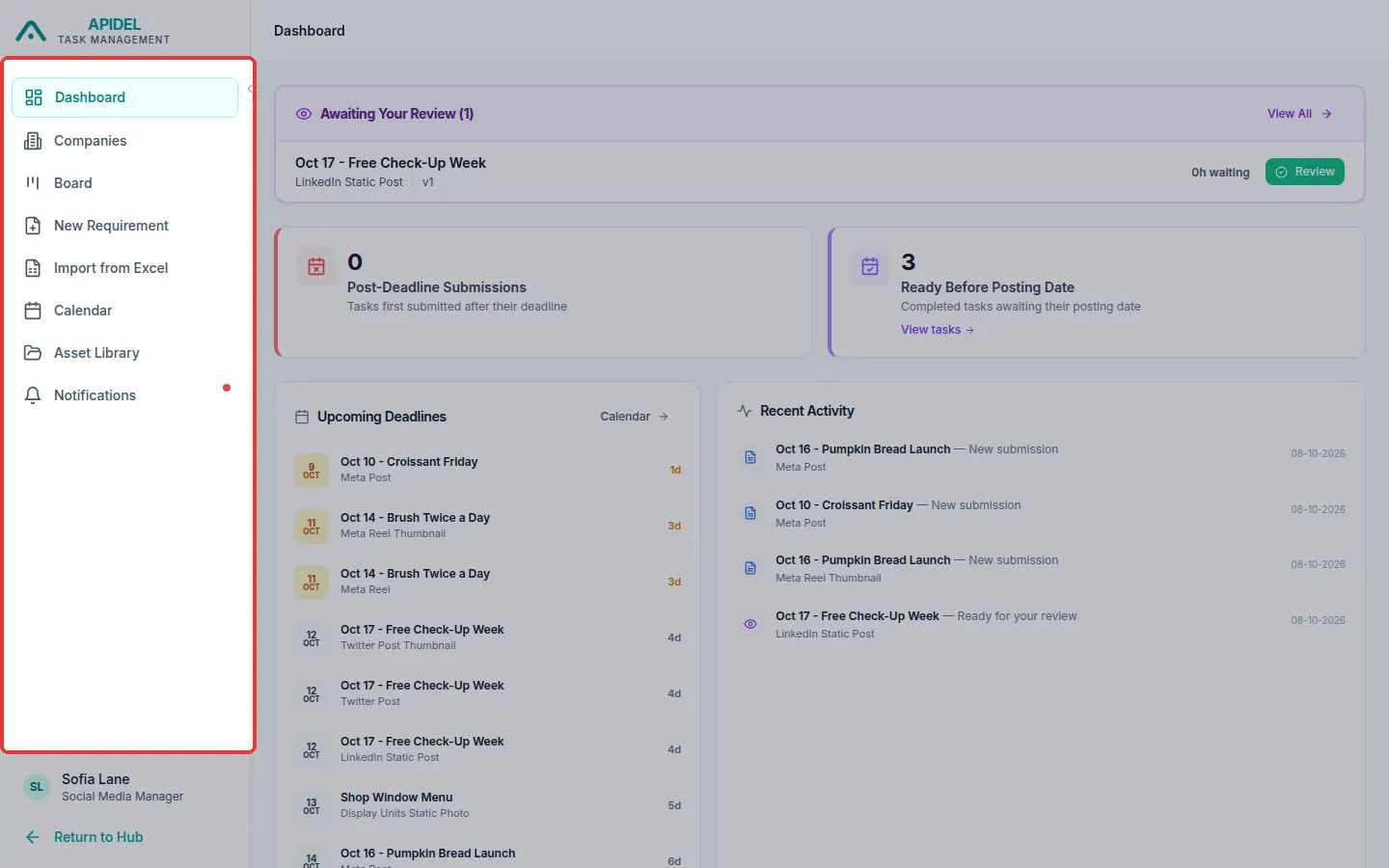
This is what each button in your menu does:
| Button | What it is for |
|---|---|
| Dashboard | work waiting for your approval, questions and deadlines |
| Companies | the companies you look after |
| Board | every requirement in your companies, and where it is now |
| New Requirement | ask the design team for new work |
| Import from Excel | ask for many pieces of work at once from a spreadsheet |
| Calendar | see posting dates by day |
| Asset Library | find files and links added to requirements |
| Notifications | your messages from the system |
At the bottom of the menu you see your name and your role (Social Media Manager).
Make the menu smaller
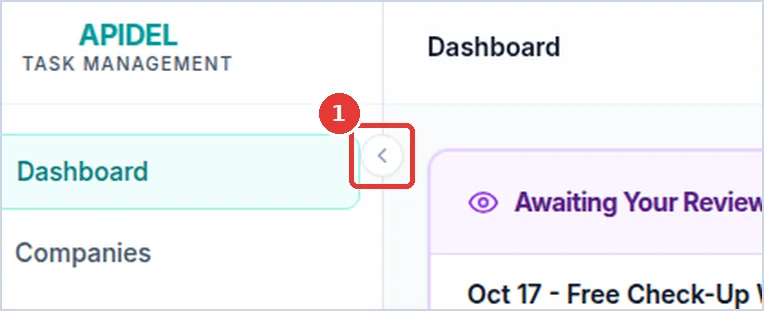
Click the small round arrow on the right edge of the menu. The menu becomes thin and shows only pictures. This gives you more space. Click the arrow again to make it wide.
To go back to your first page at any time, click the APIDEL name at the top left, or click Dashboard in the menu.
Sign out
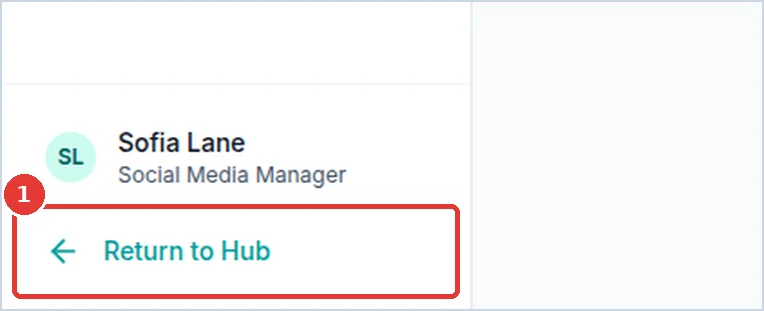
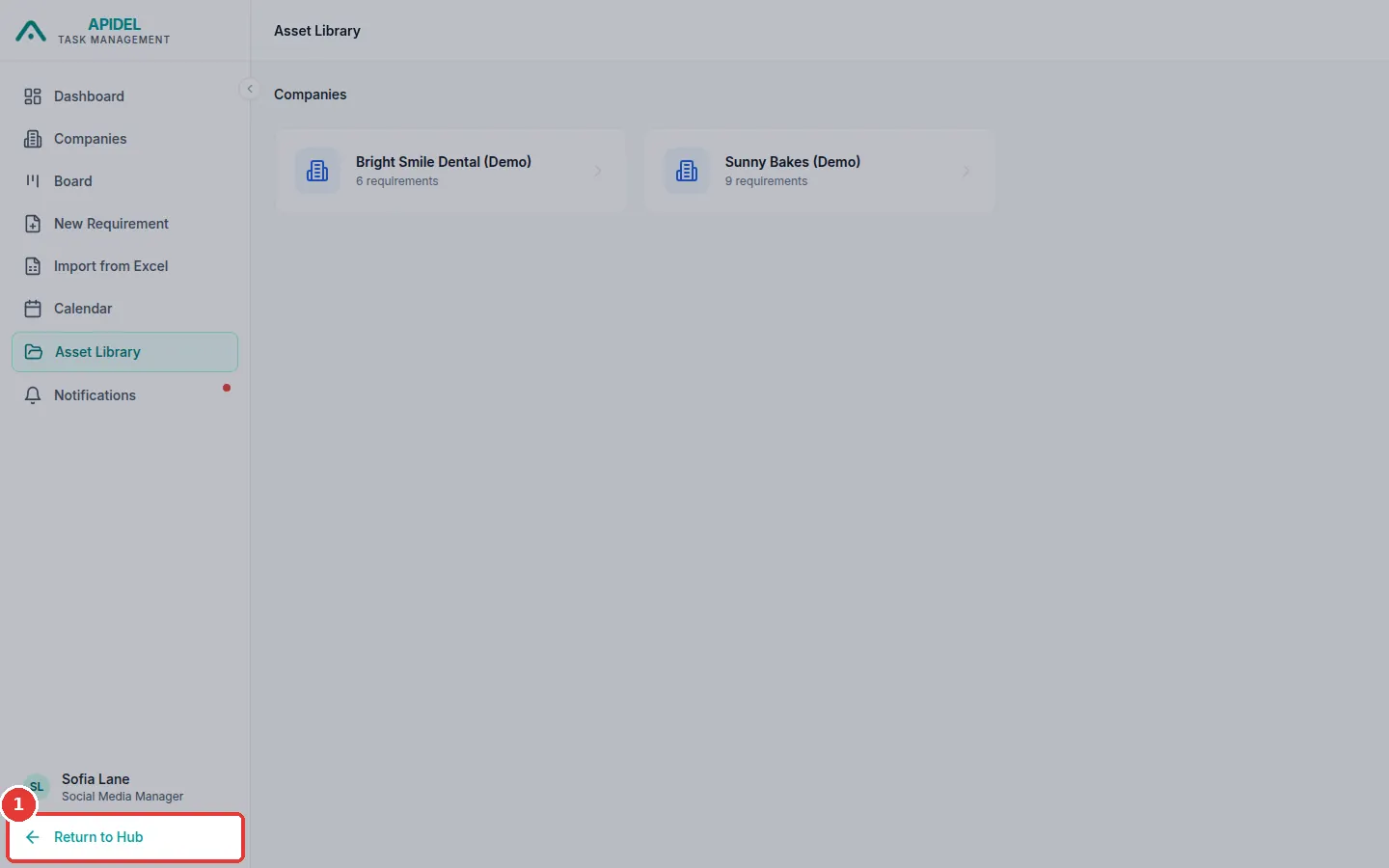
- Look at the bottom of the menu on the left.
-
Click Return to Hub.
-
You are now signed out. The system takes you back to the Apidel Hub page.
Using a shared computer?
Always click Return to Hub when you finish. Then nobody else can use your account.